The Cart List
BerryPress → Live Carts opens the cart list: one row per cart, newest activity first.
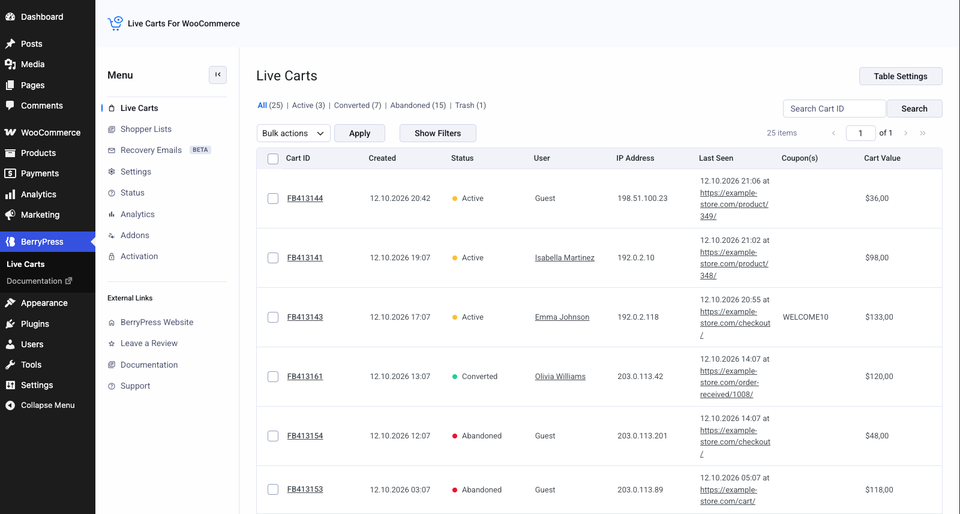
Columns
| Column | Shows |
|---|---|
| Cart ID | The cart's unique ID. Click it to open Cart details. |
| Created | When the cart was first created. |
| Status | Active, Abandoned or Converted. |
| User | The customer's account, or empty for a guest. |
| IP Address | Hidden when IP collection is switched off. |
| Last Seen | The shopper's most recent activity. |
| Coupon(s) | Coupons applied to the cart. |
| Cart Value | The cart total. |
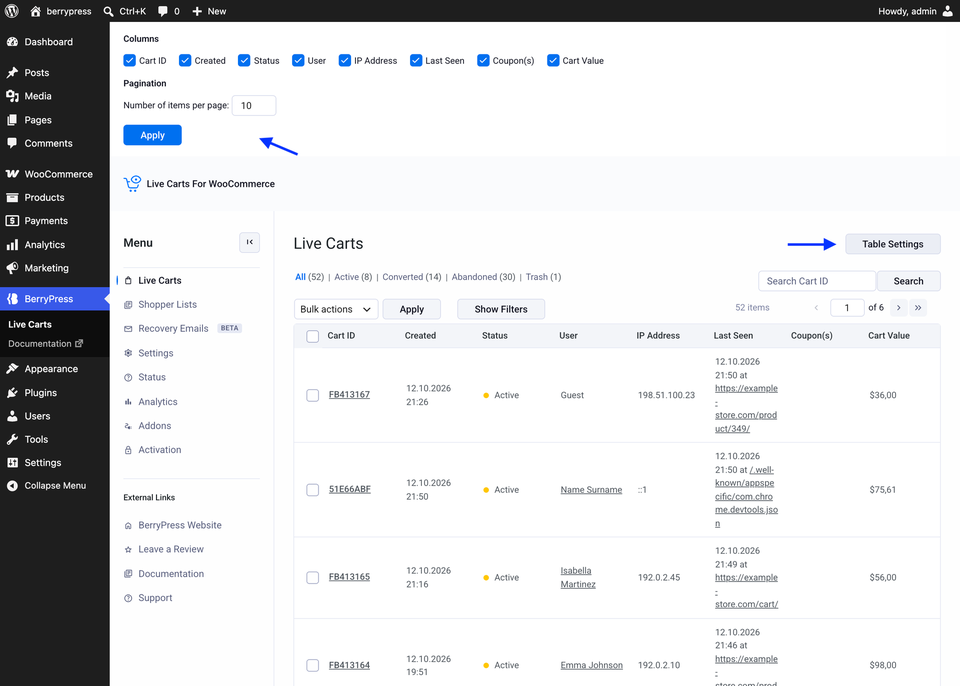
Click Table Settings at the top right to adjust the table, for example how many carts are shown per page.
Dates and times follow the format and time zone set in Settings → General in WordPress.
Narrow the list
- Status views. All, Active, Abandoned, Converted and Trash, each with a count.
- Search. Type a cart ID into Search Cart ID. Search works on cart IDs only. To find carts by product, customer or value, use Pro's filters.
- Filters Pro. Find carts by product, customer, value and more. See Filtering carts.
Clean up
Select carts with the checkboxes, then use the Bulk actions menu:
| Action | What it does |
|---|---|
| Move to Trash | Removes the carts from the main views. They can still be restored. |
| Restore | Available in the Trash view. Puts carts back. |
| Delete permanently | Available in the Trash view. Removes the cart record for good. |
You can do the same for a single cart from its detail page.
Moving between carts
Open a cart and use Previous cart / Next cart to walk through the list without going back.
Older carts
The note under the list tells you after how many days carts are removed from this screen (30 by default). To change that, see Lifecycle settings.