Analytics
Live Carts adds a Carts report to WooCommerce Analytics. Open it from WooCommerce → Analytics → Carts, or from Analytics in the Live Carts navigation.
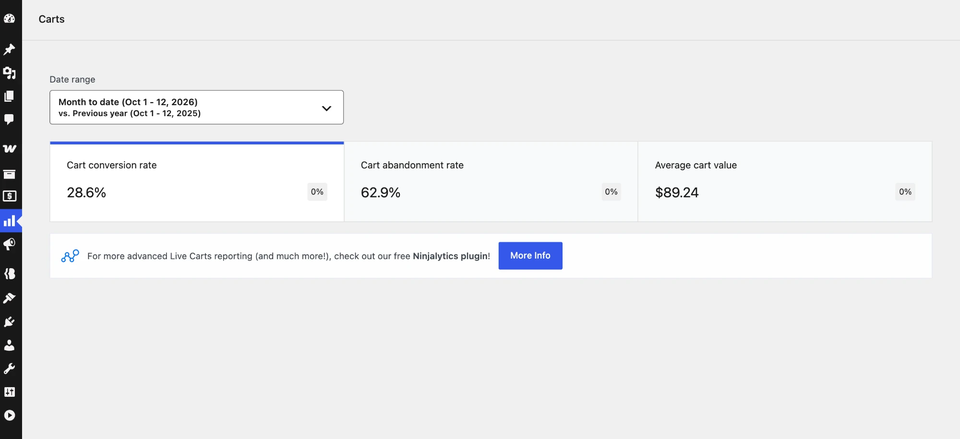
What it shows
| Metric | Meaning |
|---|---|
| Conversion rate | The share of carts that turned into orders. |
| Abandonment rate | The share of carts that were left behind. |
| Average cart value | The average total of the carts in the period. |
Use the standard WooCommerce date range picker to pick a period and compare it with an earlier one. The report is filtered by the date the cart was created.
Reading the numbers
- A sudden drop in conversion after a change to your shipping costs, checkout or theme is a clue that the change hurt.
- A spike in abandonment at a certain time of day can point to a slow site, or to traffic from a campaign that isn't buying.
- A rising average cart value means shoppers are putting more in their carts, so your upsells are working.
Go further with Ninjalytics
The built-in report answers "how are we doing?". When you want to ask "which carts, and why?", use Ninjalytics, BerryPress's reporting plugin. It is free on WordPress.org, and it adds Live Carts reports as soon as both plugins are active. You build reports and exports from your cart data, with a live preview while you set them up.
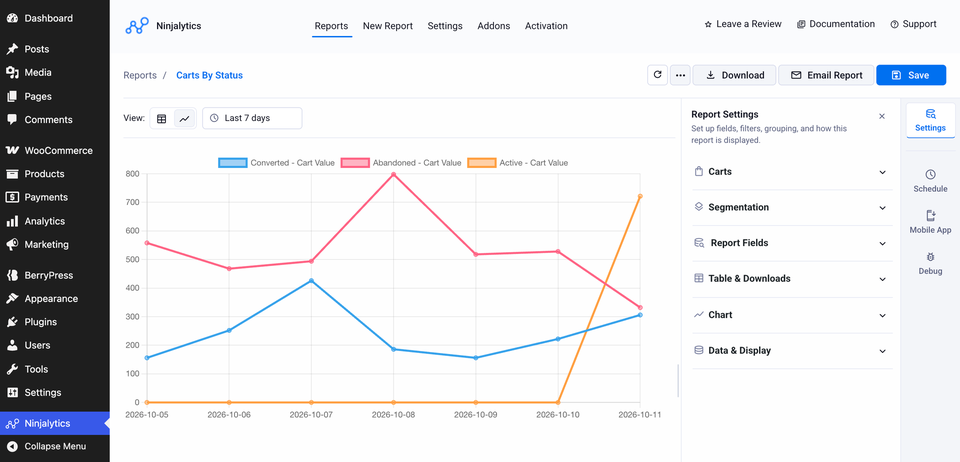
Ready-made templates
In the admin, go to Ninjalytics, click New Report, then Use Template on one of the Live Carts templates.
| Template | Type | What you get |
|---|---|---|
| Live Carts Report | Report | Number of carts and their total value for the period. |
| Carts By Status | Report | Total cart value split by Active, Abandoned and Converted. See how much money is sitting in abandoned carts. |
| Average Cart Value | Report | The average value per cart, together with the cart count, so you can watch it rise or fall. |
| Live Carts Export | Export | One row per cart, with cart ID, email, status, last seen and value. |
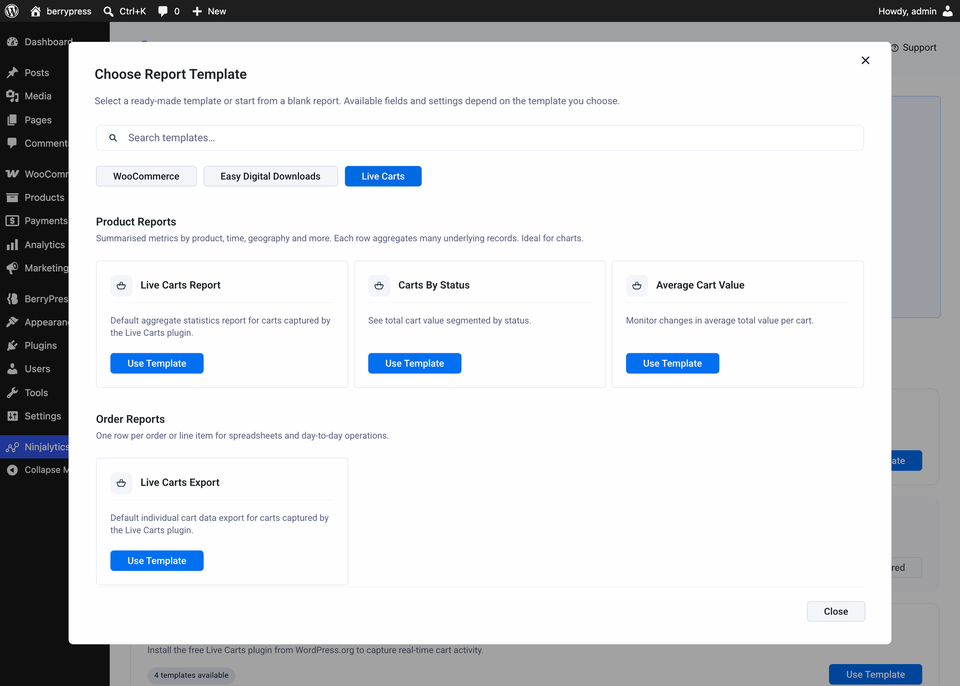
Make it your own
A template is only a starting point. Change it and save it as a preset to run again.
- Date range. Reports are filtered by the date the cart was created.
- Segments. Group the results by creation day, month, quarter or year, by status, by user, by IP address, or by whether the cart is archived.
- Export columns. In an export you can include: Cart ID, User ID, User Email, IP Address, Status, Created At, Last Seen, Last URL, Contents (the products in the cart), Coupon, Converted Order ID and Is Archived.
- Charts. Show the report as a line or bar chart. The preview updates as you change settings.
Show a report on your WordPress dashboard Pro
A report with a chart can also live on the WordPress Dashboard, as a widget that updates by itself, so the numbers are in front of you as soon as you log in. Pin it from Ninjalytics → Settings → Dashboard widgets.
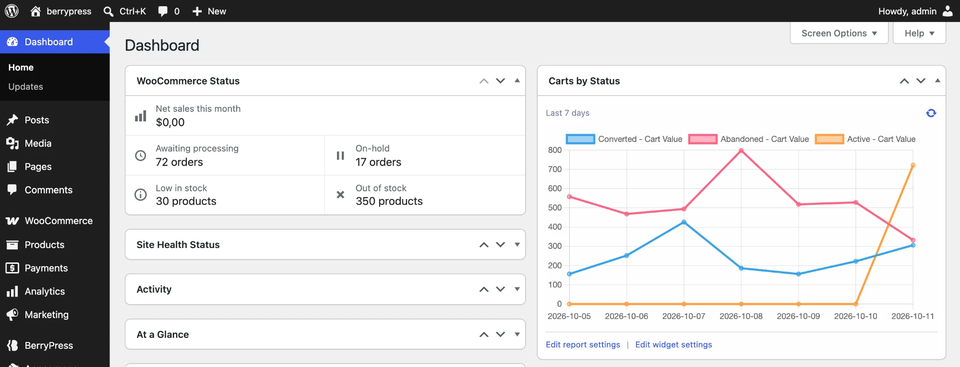
The widget links back to the report and to its own settings, so you can adjust either one without leaving the dashboard.
Reports you could build
- How much revenue is sitting in abandoned carts this month? Use Carts By Status and read the Abandoned row.
- A list of abandoned carts to follow up on. Take Live Carts Export, add the Contents and Coupon columns, filter to Abandoned, and download the file. Emails are included, so you can contact those shoppers yourself.
- Did your free-shipping threshold work? Run Average Cart Value segmented by creation day (or month), and compare the period before and after the change.
- Which carts did convert, and into which order? Export carts with the Converted Order ID column.
- Carts per month. Use Live Carts Report segmented by creation month to see the trend.
Free and Pro
The templates, segments, CSV export and line and bar charts are all in free Ninjalytics. Ninjalytics Pro adds, among other things, more export formats (XLSX and HTML), emailed reports, pie charts, using several segments at once, and the Ninjalytics mobile app.