Status and Debug Log
BerryPress → Live Carts → Status is the first place to look when something seems off. It's also what support will ask you for.
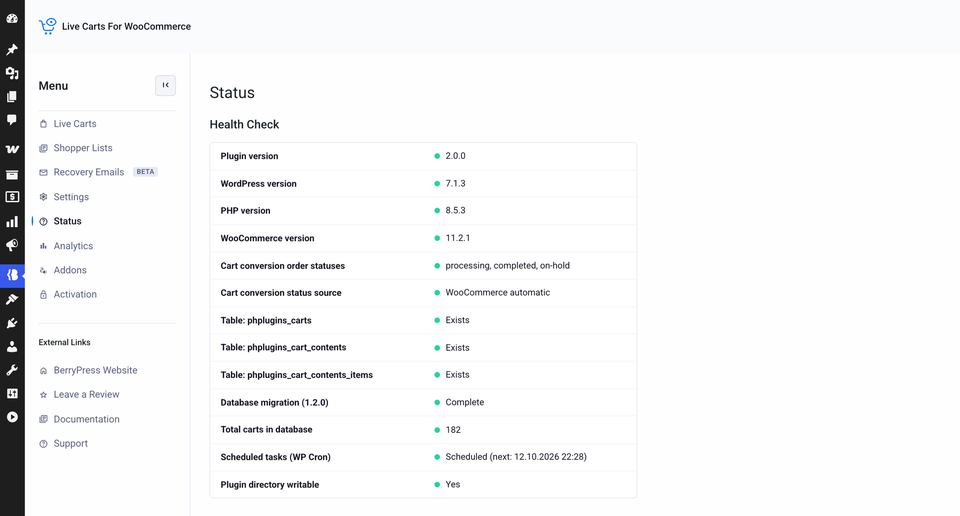
Health checks
Each line is a check you can read at a glance:
- Plugin, WordPress, PHP and WooCommerce versions
- The conversion statuses in use, and where they come from
- That the plugin's database tables exist
- That the database migration (from the 1.2.0 upgrade) completed. If it didn't, a Re-run migration link appears.
- The total number of carts in the database
- That the hourly scheduled task (WP-Cron),
phplugins_livecarts_hourly, is set up - That the plugin folder is writable, which the debug log needs
Debug log
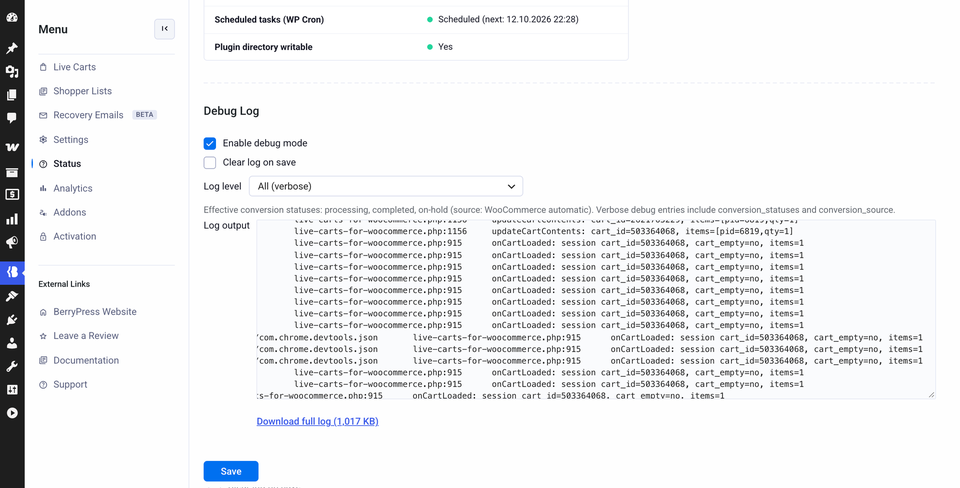
Turn it on when you are chasing a problem.
| Setting | What it does |
|---|---|
| Enable debug mode | Starts writing the log. |
| Log level | Errors only (default) or All (verbose), which also records the life of each cart. |
| Clear log on save | Empties the log when you save, for a clean start. |
The log is a text file in the plugin folder, named debug-<random token>.txt. The token is generated the first time you enable debug mode.
Under Log output you can read the last 200 lines right in the admin, or click Download full log to get the whole thing. The log is rotated automatically at 1 MB.
Switch it off when you're done
Verbose logs can include URLs and cart details. Turn debug mode off once you've found the problem, and share a log with support only through a private channel.