Display Settings
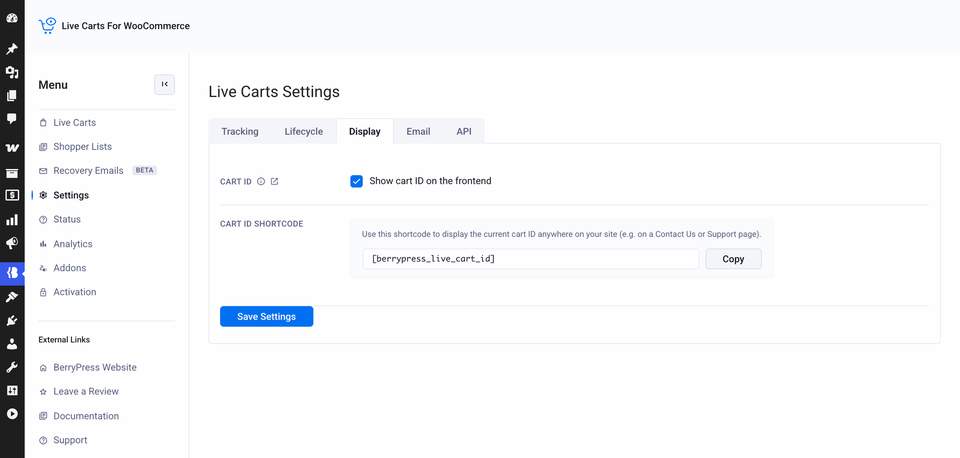
Settings → Display is about what your customers see. It lets them tell your support team exactly which cart they mean.
Why show a cart ID
Imagine a customer writes: "My cart is broken, it shows the wrong total." If they can give you their cart ID, you paste it into BerryPress → Live Carts → Search Cart ID and you see exactly what they see, with every product and coupon.
Show the cart ID automatically
Tick Show cart ID on the frontend. Live Carts then adds the ID to the WooCommerce cart page and mini-cart.
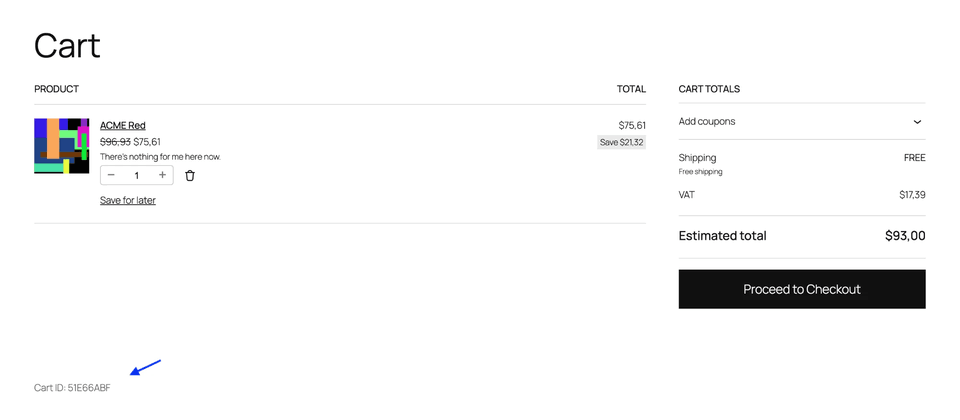
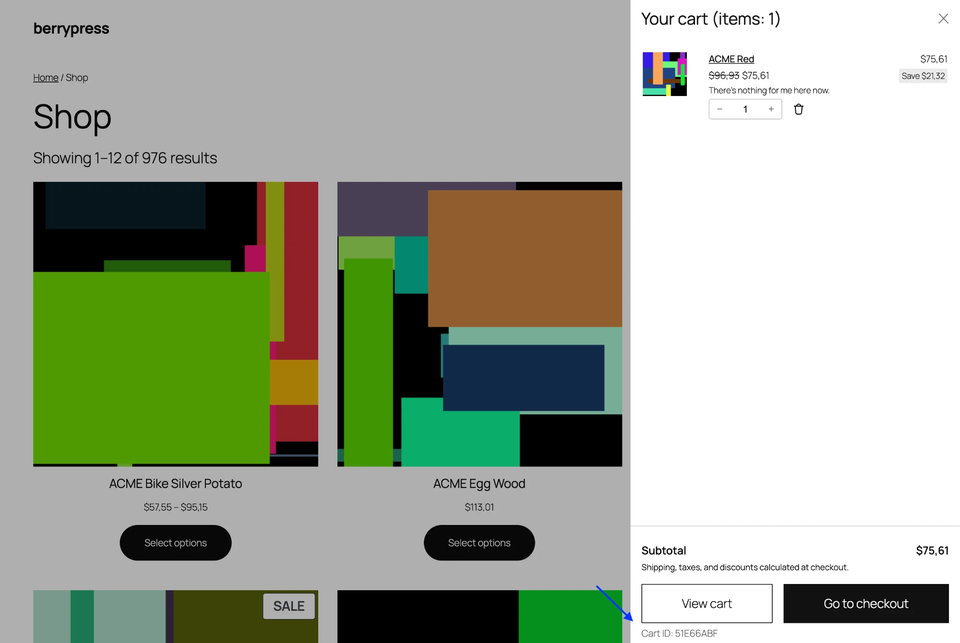
After a visitor adds their first item, they may need to refresh the page before the ID appears.
Show the cart ID anywhere: the shortcode
Use the [berrypress_live_cart_id] shortcode to place the ID wherever you like: a Contact Us page, a support page or a footer. There is a Copy button for it on this screen.
Having trouble with your order? Please include your Cart ID:
[berrypress_live_cart_id]when you contact us.
- If the visitor has a cart, it prints the ID.
- If they don't, it prints nothing.
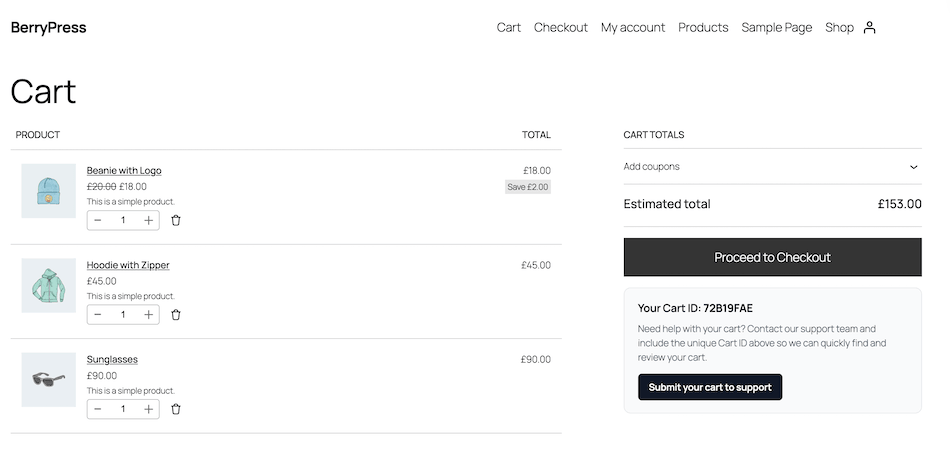
The setting and the shortcode are separate. The setting puts the ID on the cart page and mini-cart. The shortcode puts it anywhere else.
Developers can change the markup: see the phplugins_live_carts_frontend_cart_id_html filter.