Lifecycle Settings
Settings → Lifecycle decides how a cart moves through its statuses.
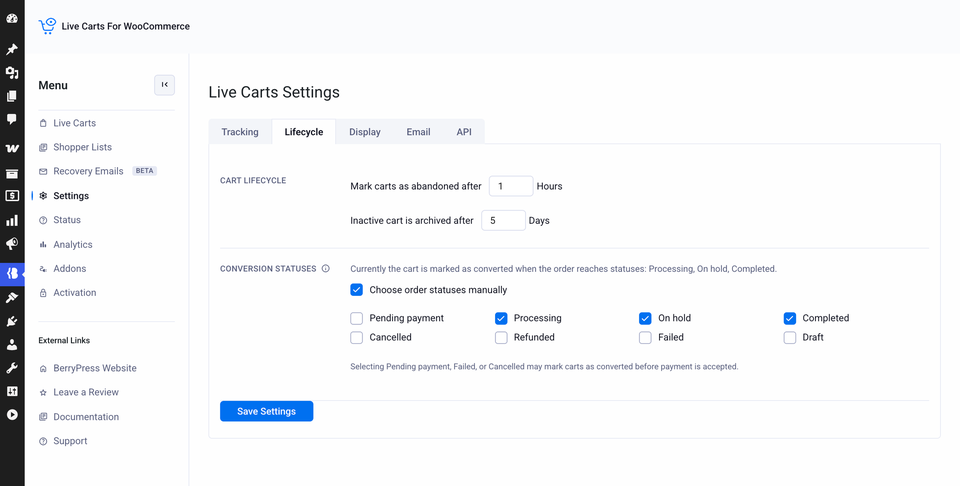
Cart lifecycle Pro
In the free plugin these values are fixed. With Pro you can change them.
| Setting | What it does | Default |
|---|---|---|
| Mark carts as abandoned after | Hours without activity before a cart becomes Abandoned. You can use half hours, for example 1.5. Minimum 1. | 2 hours |
| Inactive cart is archived after | Days without activity before a cart is archived and hidden from the list. Minimum 1. | 30 days |
Pick a time longer than a typical checkout in your store. Most stores use 1 to 4 hours. Remember that recovery emails are timed from the last time the shopper was seen, not from the moment the cart becomes Abandoned. See Recovery emails.
Conversion statuses
"Converted" means the shopper bought. Live Carts links every new order to the cart it came from. The cart is marked Converted when that order is placed in a conversion status or later moves into one. Converted carts are no longer treated as abandoned, and they don't receive recovery emails.
You decide which order statuses count. That matters because "bought" means different things in different stores: some count an order once it is paid, others as soon as it is placed.
The default
Out of the box, a cart converts when its order reaches one of:
- Processing
- Completed
- On hold, so that bank transfers and similar orders waiting for payment still count
- any custom status that your setup registers as a paid status in WooCommerce
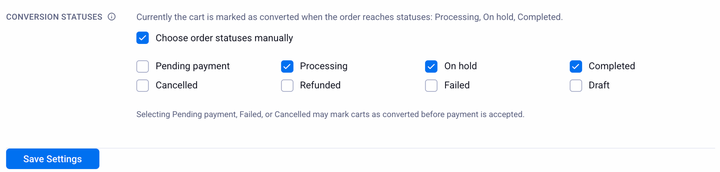
The screen always shows what is currently in use: "Currently the cart is marked as converted when the order reaches statuses: …". While you stay on the default, it follows WooCommerce, so statuses added by other plugins as paid statuses are picked up automatically.
Choosing your own
- Tick Choose order statuses manually.
- Tick every order status that should count as a conversion, including your custom ones.
- Save.
From then on, only the statuses you tick are used, and the default list is ignored. Untick the box to go back to the default.
Typical reasons to change it:
| Your flow | What to do |
|---|---|
| Carts of paid orders aren't marked Converted, for example because you use a custom status such as Awaiting shipment | Choose manually and tick that status. |
| You only want to count a sale once the money is in | Choose manually and tick only Processing and Completed. Leave On hold off. |
| You sell by bank transfer or invoice and the order stays On hold | Keep On hold ticked, as in the default. |
| You want a cart to convert as soon as the order is placed | Also tick Pending payment, but read the warning below. |
Selecting Pending payment, Failed or Cancelled can mark carts as converted before payment is accepted, or even when no sale happens. Use them only if you really want that.
Good to know
- Two moments count: the order is created already in a conversion status (a paid checkout, including the block-based checkout), or it changes into one later (for example On hold → Processing when a bank transfer arrives). Orders that were already in that status before Live Carts tracked them aren't converted retroactively.
- If you choose manually but tick no status, Live Carts falls back to the default.
- Changing the setting affects future status changes. Carts that are already Converted stay that way.
- Not sure what's going on? Status shows the statuses in use and whether they come from the default or your own selection. With debug mode on, each order status change is logged. See Status and debug log.