Quick Start
Five steps from a fresh install to recovering your first abandoned cart.
1. Check that tracking works
Open BerryPress → Live Carts. In another browser (or a private window), add any product to the cart. Refresh the list and the new cart appears with status Active.
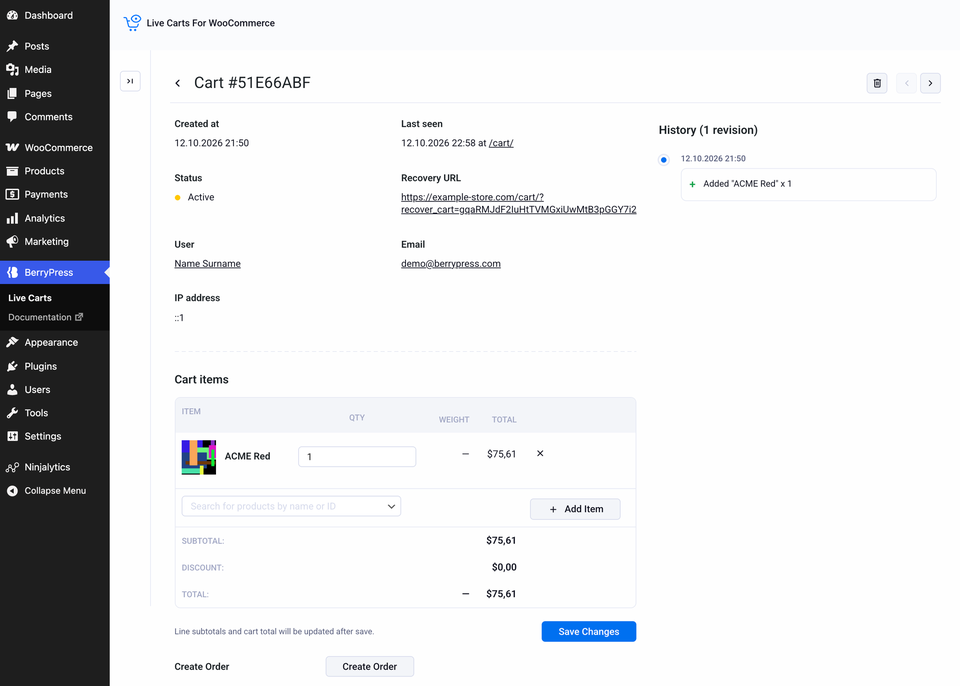
Click the cart ID to see its products, quantities and value. More in Cart details.
2. Know the three statuses
| Status | What it means |
|---|---|
| Active | The shopper was seen recently. |
| Abandoned | No activity for a while: 2 hours by default. |
| Converted | The cart's order reached a conversion status. By default that means Processing, Completed or On hold. You can change it. |
Converted is the one most worth a second look. Every store has its own flow (bank transfers, manual payments, custom order statuses), so Live Carts lets you decide which order statuses count as a sale. The defaults suit most stores. See Conversion statuses.
Details: How carts are tracked.
3. Decide what to collect
Live Carts collects visitor IP addresses and the last page visited by default. If that does not suit your privacy policy, switch them off in Settings → Tracking. See Tracking settings.
4. Turn on a recovery email
- Go to BerryPress → Live Carts → Recovery Emails.
- Click Create First Recovery Email.
- Write a subject and a message, set Send after to, say, 1 hour, and set the status to Active.
Walkthrough: Creating a recovery email.
5. Check the numbers later
Open WooCommerce → Analytics → Carts after a few days to see your conversion and abandonment rates. See Analytics.
Open any cart and you will see the Pro tools: editing the cart and creating an order. See Get and activate Pro.