Get and Activate Live Carts Pro
Live Carts Pro is an add-on to the free plugin. It does not replace it, so you need both active:
- Live Carts for WooCommerce (free, from WordPress.org), recent version.
- Live Carts for WooCommerce Pro (the add-on you buy).
You can buy Pro in two places, and what you do after buying depends on where. The steps below are split accordingly.
Step 1: Install the free plugin
If you haven't already, install the free plugin first. If you activate Pro without it, WordPress shows a notice with a link to install it.
Step 2: Install and activate Pro
Pick the place you bought Pro:
- Bought on BerryPress
- Bought on the WooCommerce Marketplace
Pro bought on BerryPress is installed first and then activated with your order details. Activation unlocks the Pro features and lets the plugin receive updates.
Install
- Buy Live Carts Pro on berrypress.com.
- Log in to My Account and download the Pro ZIP.
- In WordPress, go to Plugins → Add New Plugin → Upload Plugin, choose the ZIP and click Install Now.
- Click Activate Plugin.
Activate
Right after you activate the plugin, WordPress shows a notice that Live Carts Pro is installed but not yet activated, with an Activate Now link. Until you activate, the Pro features stay off.
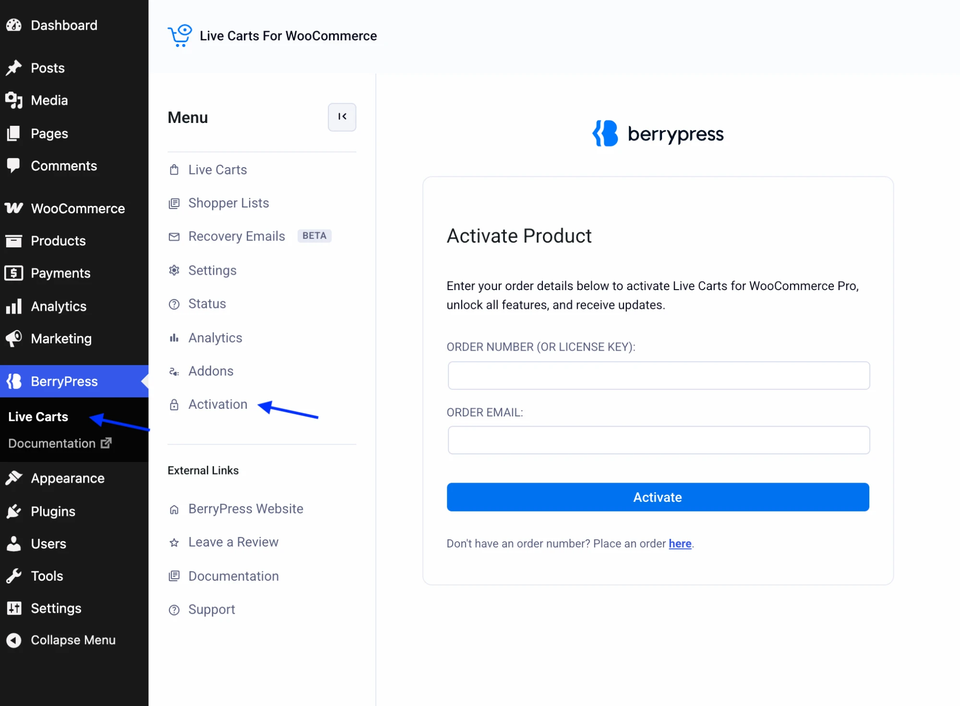
- Go to BerryPress → Live Carts → Activation. (Or click Activate Now in the notice.)
- Enter your Order Number. This field also accepts a license key.
- Enter your Order Email.
- Click Activate.
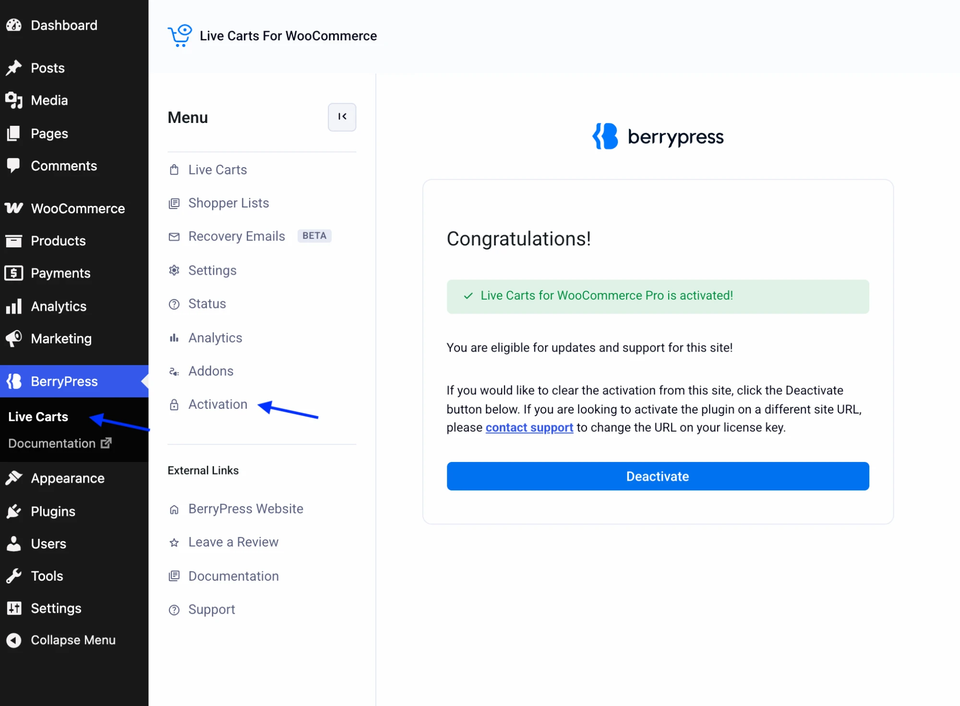
When it works, the page says Congratulations! Live Carts for WooCommerce Pro is activated! and tells you that this site is eligible for updates and support.
Where do I find my order number?
- In your purchase confirmation email.
- In My Account → Orders on berrypress.com. The number looks like
BPXXXXXXYXXXXXXXX. You can type it with or without the#. - It doesn't matter which of your orders you use, renewals included.
The email must be the one you used at checkout.
Something went wrong? See Pro activation problems.
Pro bought on the WooCommerce Marketplace is managed through your WooCommerce.com account. There is no separate activation inside the plugin: once it is installed and active, the Pro features are on.
- Buy Live Carts for WooCommerce Pro on the WooCommerce Marketplace.
- Install it as WooCommerce.com describes in Installing extensions. You can install it automatically from the order confirmation page, your My Subscriptions dashboard or the WordPress admin (this uses the WooCommerce.com Update Manager plugin), or manually by downloading the ZIP and uploading it under Plugins → Add New Plugin → Upload Plugin.
- Click Activate Plugin.
You will notice that the Activation entry used by BerryPress purchases isn't there. That is expected.
Your licence, renewals and updates are handled by WooCommerce.com. To receive updates and support, connect your site to your WooCommerce.com account (the Update Manager shows a Connect button if needed). See WooCommerce's guide to managing your subscriptions.
Questions about the purchase, billing or the licence go to WooCommerce.com. Questions about how Live Carts works go to BerryPress support.
Check that Pro is working
Open any cart in BerryPress → Live Carts. With Pro active you will see a Create Order button and you can edit the cart contents. The cart list also gets a working Filters button (the free plugin only shows it with a Pro badge).
Moving Pro to another site
- BerryPress
- WooCommerce Marketplace
Each BerryPress license covers a set number of sites; localhost doesn't count.
- In your BerryPress account, open My Account → Orders, open your order and click Deactivate next to the old site's URL. Currently, deactivating from the plugin's Activation screen alone does not free the slot. We plan to improve this.
- Activate on the new site with the same order number.
Need more sites? See License upgrades. If your subscription expires, Pro keeps working but you stop receiving updates until you renew.
Sites on a Marketplace licence are managed in your WooCommerce.com account, under your subscriptions. See managing your subscriptions.