Creating a Recovery Email
- Go to BerryPress → Live Carts → Recovery Emails.
- Click Create First Recovery Email (or Add New Email if you already have some).
- Fill in the fields below.
- Click Save.
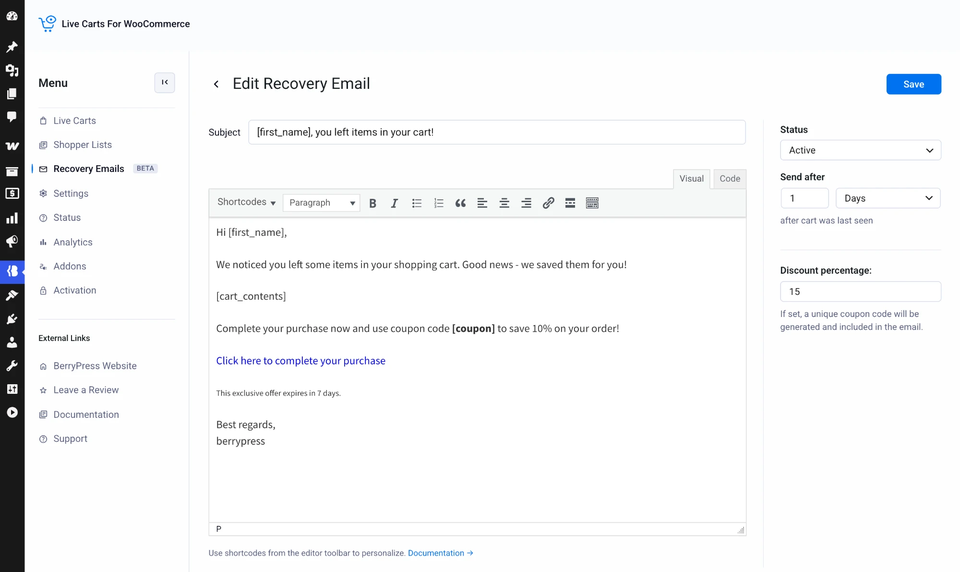
The fields
Subject
The email's subject line. You can use shortcodes, for example [first_name], you forgot something!. Keep it short.
Message The email body, in a standard WordPress editor. Use the shortcode buttons in the editor toolbar to insert personalisation.
Status
- Draft: saved, but never sent.
- Active: live. Matching carts will receive it.
Send after A number and a unit (minutes, hours or days), counted from the moment the cart was last seen. For example 1 hour.
Discount percentage Pro Adds a unique coupon to the email. See Discount coupons.
The default message
A new email starts with this message already filled in. Edit it, or replace it with your own:
Hi [first_name],

We noticed you left some items in your shopping cart. Good news - we saved them for you!

[cart_contents]

Complete your purchase now and use coupon code [coupon] to save 10% on your order!

Click here to complete your purchase

This exclusive offer expires in 7 days.

Best regards,
berrypress
[coupon] generates a unique discount code, and that is a Pro feature. If you use the free plugin, either delete the "use coupon code [coupon]" sentence, or create a coupon yourself in WooCommerce and type its code into the message.
With Pro, make the percentage in the text ("10%") match the Discount percentage you set for the email.
Create the email as a Draft, review it, then switch it to Active. To see one arrive quickly, set Send after to a few minutes, leave a cart behind in a private window using your own email address, and wait for the next hourly run. See Recovery emails not sending if nothing arrives.
Managing your emails
The Recovery Emails screen lists every email with its subject, send after time and status. Use Edit and Delete to manage them.
Editing an email that has already been sent doesn't resend it to the same carts.