Quick Start
Four steps from a fresh install to a protected form.
1. Add your keys
Go to BerrySecure → Invisible reCaptcha → Settings and enter your Site Key and Secret Key. Don't have them yet? See Get your Google keys.
2. Switch on one form
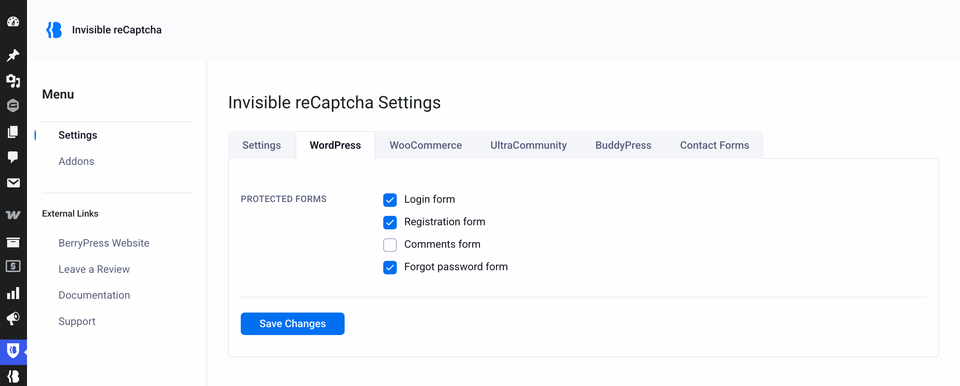
Open the tab for the form you want, for example Contact Forms, tick the checkbox in the Protected forms row and save.
| Tab | Forms |
|---|---|
| WordPress | Login, registration, comments, forgot password |
| WooCommerce | Login, registration, lost password, reset password, product reviews |
| Contact Forms | Contact Form 7, Gravity Forms |
| BuddyPress | Registration |
| UltraCommunity | Login, registration |
Start with a form that is not your login. Once everything works, protect the login too.
3. Test it
- Open a page with the form in a private window.
- Check that the reCAPTCHA badge appears.
- Submit the form. It should go through as before, with no extra step.
4. Check the other forms
Repeat for the other forms you switched on. If something doesn't work, see Troubleshooting.