Keys and Appearance
BerrySecure → Invisible reCaptcha → Settings holds the keys and how the reCAPTCHA badge looks. These settings apply to every protected form. Click save after changing anything.
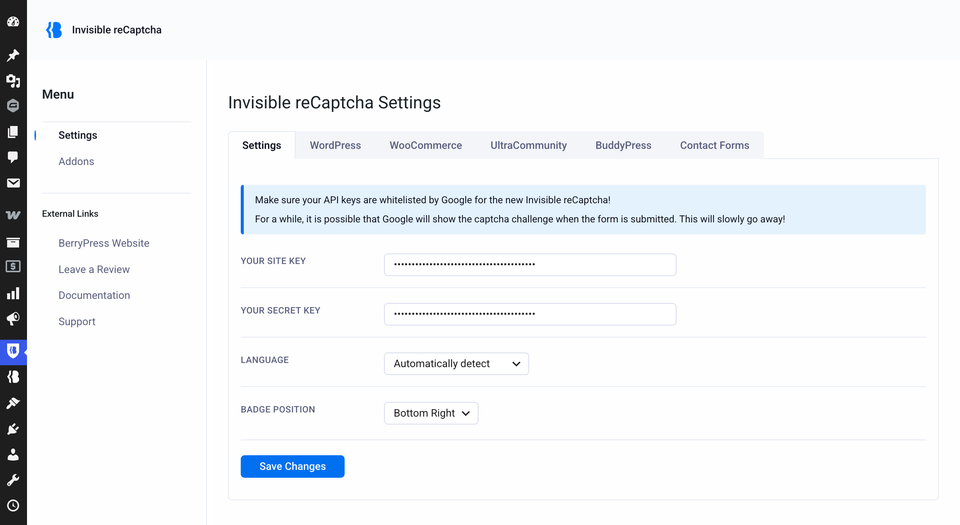
| Setting | What it does | Default |
|---|---|---|
| Your Site Key | The public key from Google. | Empty |
| Your Secret Key | The private key from Google. Used by your server to check each form. | Empty |
| Language | The language of the badge and, if Google shows one, the challenge. | Automatically detect |
| Badge Position | Where the badge sits on the page. | Bottom Right |
Each field has an info icon with a short hint. Where to get the keys: Get your Google keys.
Language
Leave it on Automatically detect and Google picks the visitor's language. To force one language, choose it from the list. Developers can change it in code: Filters.
Badge position
| Option | Result |
|---|---|
| Bottom Right | A floating badge in the bottom-right corner. |
| Bottom Left | A floating badge in the bottom-left corner. |
| Inline | The badge appears inside the form, where the plugin places it. |
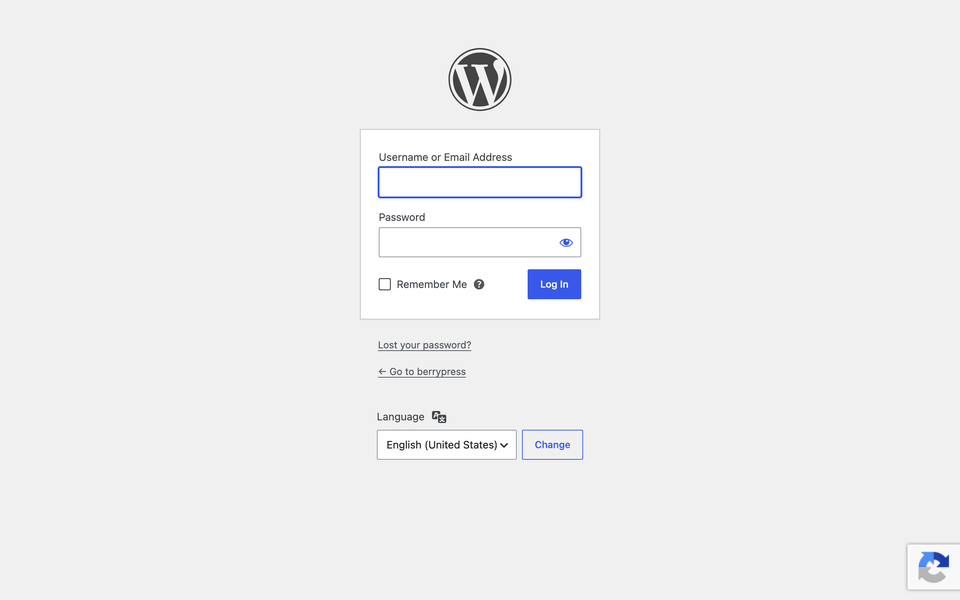
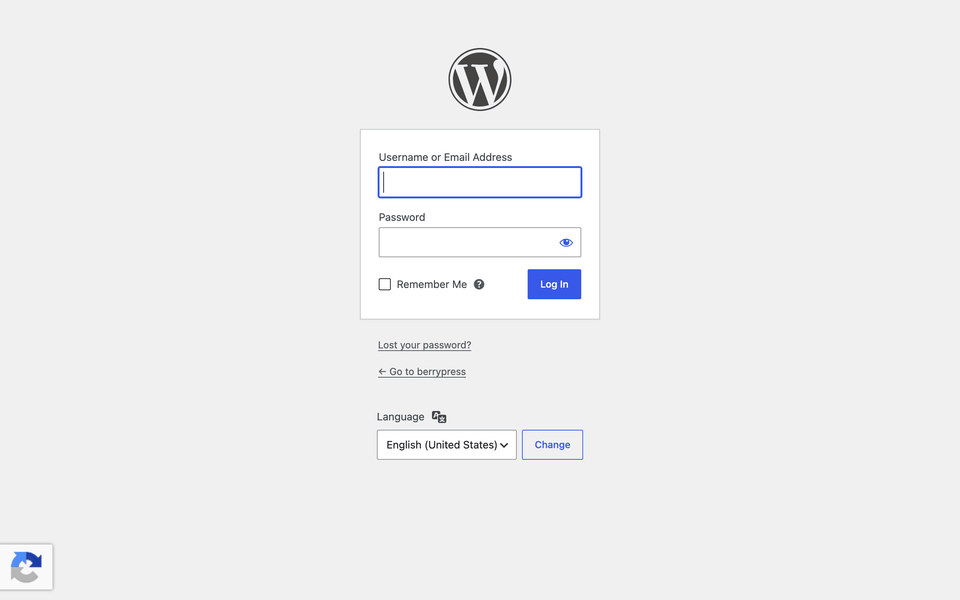
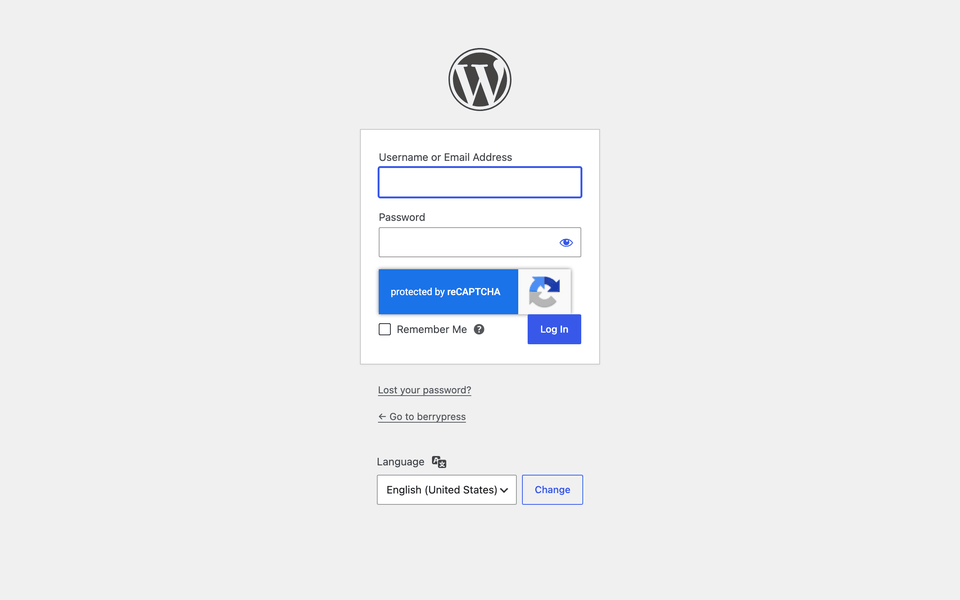
If the badge covers something on your page, such as a chat button, switch to Bottom Left or Inline.
Styling the badge
Older versions had a Badge Custom CSS field. We removed it to follow current best practices for WordPress plugins. The field printed the CSS that an administrator typed in settings straight into the <style> tag of every page, and it applied only to the Inline position.
To restyle the badge, add CSS in Appearance → Customize → Additional CSS, or in your theme. If you used the old field, move your CSS there.