Two-Factor Authentication (2FA)
LoginBerry adds email-based 2FA after a successful username and password. Users receive a 6-digit code by email before the session is created.
Settings: LoginBerry → Two Factor Auth
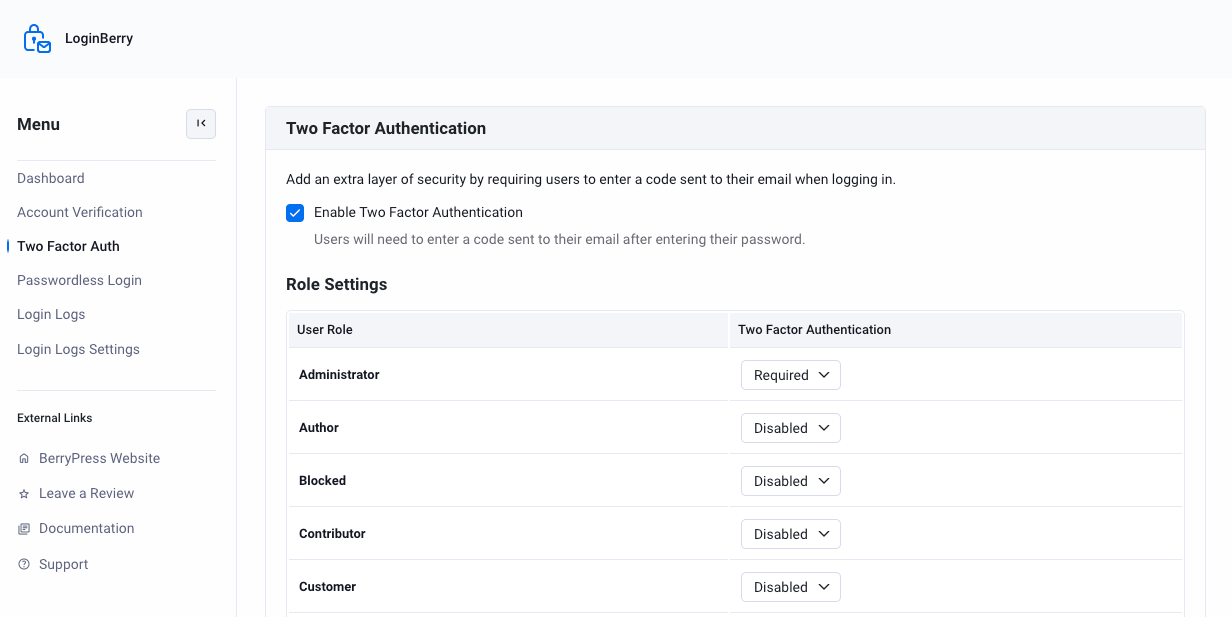
Enable 2FA
- Check Enable Two Factor Authentication.
- Set each user role to Required or Disabled.
- Save settings.
| Mode | Behavior |
|---|---|
| Required | Every login requires the email code |
| Disabled | No 2FA for that role |
tip
By default, Administrator is set to Required and all other roles are Disabled — adjust the table to match your site's security needs.
Where 2FA applies
wp-login.php— standard WordPress login- WooCommerce My Account login form (when WooCommerce is active)
2FA does not apply to arbitrary custom login forms.
Interaction with passwordless login
If passwordless login is also enabled for a role, the passwordless flow does not ask for a separate 2FA code — see Passwordless Login.
Email template
Codes use templates/2fa-email.php in the plugin directory. It can be overridden the same way as the activation email template.
Troubleshooting
- Confirm outbound email works (Installation — email setup).
- Ensure the feature is enabled on the Two Factor Auth settings screen (disabled by default on new installs).
- If a user reports being locked out by 2FA, set their role to Disabled temporarily or contact support.
See Troubleshooting.
Next Steps
- Passwordless Login - Let users skip passwords entirely
- Login Logs - Track login attempts and last login time
- Troubleshooting - Common issues and solutions