Configuration
Account verification works out of the box after installation, but you can adjust it — along with the email template, activation page styling, and security settings — from LoginBerry → Account Verification.
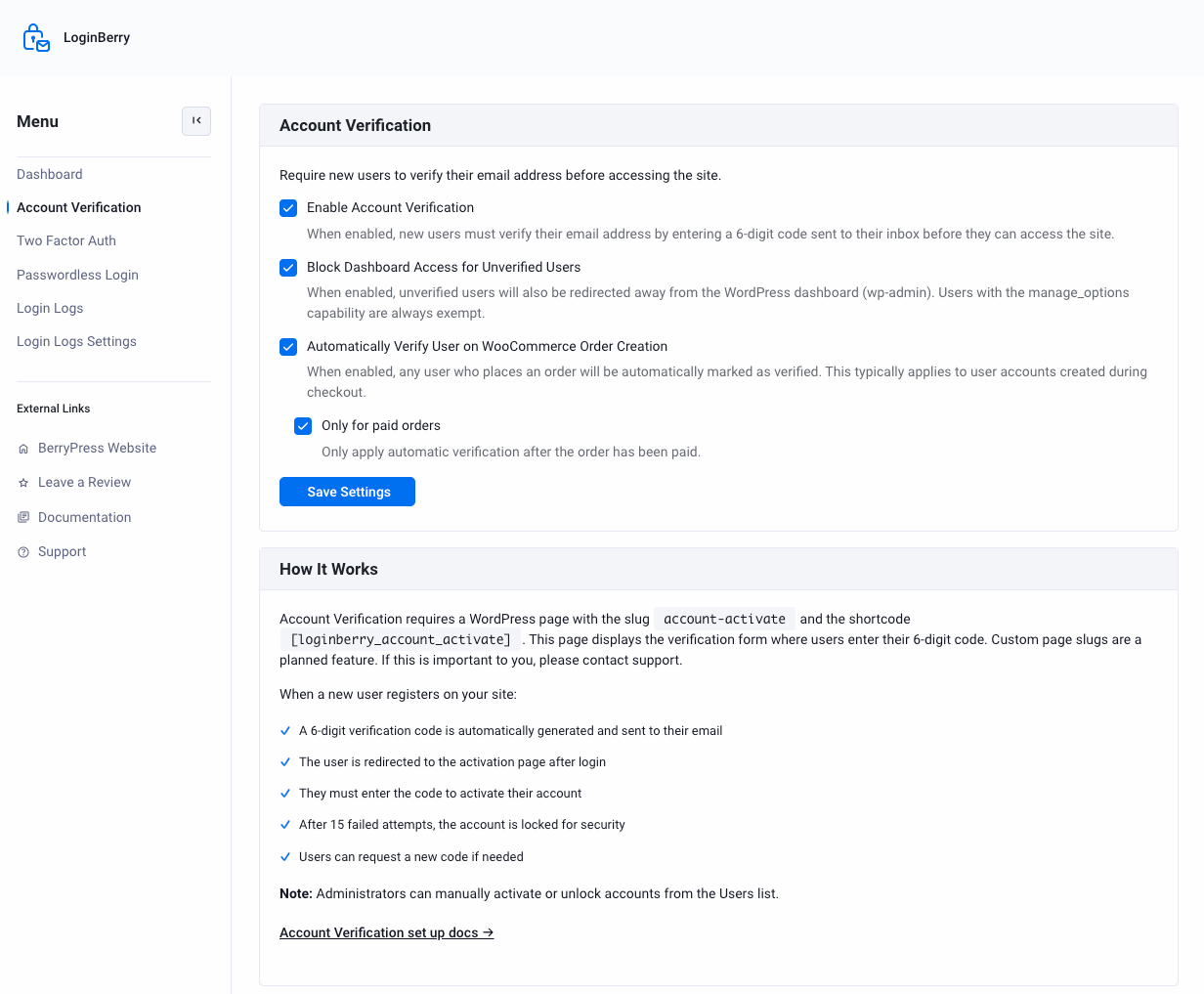
- Enable Account Verification - turn the whole feature on or off
- Block Dashboard Access for Unverified Users - also redirects unverified users away from
wp-admin(users withmanage_optionsare always exempt) - Automatically Verify User on WooCommerce Order Creation - see WooCommerce Integration below
Email Template Customization
Default Email Template
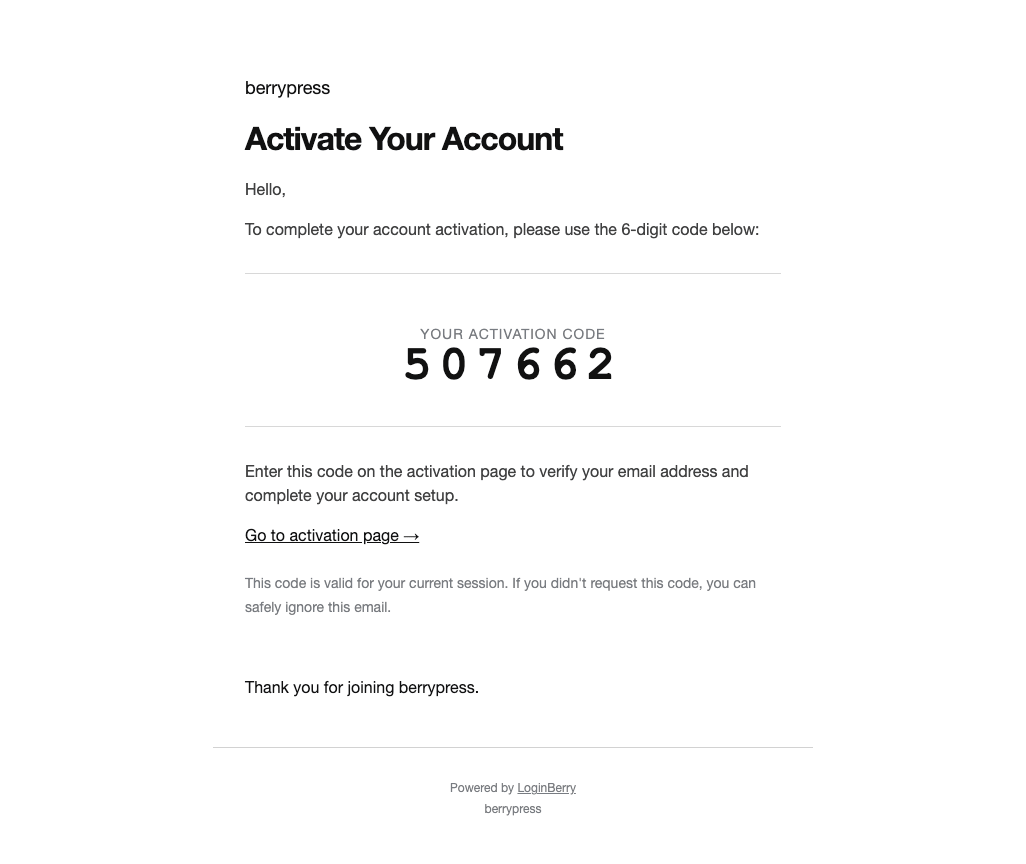
LoginBerry uses a responsive HTML email template with:
- Large, easy-to-read 6-digit code
- Direct activation link
- Mobile-friendly formatting
- Clean, professional design
Template Location:
wp-content/plugins/loginberry/templates/activation-email.php
Override Email Template
Create custom template in your theme:
-
Create Directory:
wp-content/themes/your-theme/loginberry/ -
Copy Template:
- Copy
activation-email.phpfrom plugin to theme folder
- Copy
-
Edit Template:
- Customize HTML, styling, text
- Keep activation code variable:
<?php echo $activation_code; ?> - Keep activation link variable:
<?php echo $activation_link; ?>
Activation Page Customization
Page Content
The activation page uses shortcode: [loginberry_account_activate]
Customize surrounding content:
<!-- wp:heading {"level":1} -->
<h1>Verify Your Email</h1>
<!-- /wp:heading -->

<!-- wp:paragraph -->
<p>We sent a 6-digit code to your email address. Please enter it below to activate your account.</p>
<!-- /wp:paragraph -->

<!-- wp:shortcode -->
[loginberry_account_activate]
<!-- /wp:shortcode -->

<!-- wp:paragraph -->
<p>Didn't receive the code? Check your spam folder or contact <a href="mailto:support@yoursite.com">support@yoursite.com</a></p>
<!-- /wp:paragraph -->
Custom Styling
Add CSS via Appearance → Customize → Additional CSS:
/* Activation Form Container */
.loginberry-activation-form {
    max-width: 500px;
    margin: 40px auto;
    padding: 30px;
    background: #f9f9f9;
    border-radius: 8px;
    box-shadow: 0 2px 10px rgba(0,0,0,0.1);
}

/* Input Field */
.loginberry-activation-form input[type="text"] {
    width: 100%;
    font-size: 28px;
    text-align: center;
    padding: 20px;
    border: 2px solid #0073aa;
    border-radius: 5px;
    letter-spacing: 8px;
    font-weight: bold;
}

/* Submit Button */
.loginberry-activation-form button[type="submit"] {
    width: 100%;
    background: #0073aa;
    color: white;
    font-size: 18px;
    padding: 15px;
    border: none;
    border-radius: 5px;
    cursor: pointer;
    margin-top: 15px;
}

.loginberry-activation-form button[type="submit"]:hover {
    background: #005a87;
}

/* Error Messages */
.loginberry-error {
    color: #dc3232;
    background: #fff0f0;
    padding: 10px;
    border-left: 4px solid #dc3232;
    margin: 15px 0;
}

/* Success Messages */
.loginberry-success {
    color: #46b450;
    background: #f0fff4;
    padding: 10px;
    border-left: 4px solid #46b450;
    margin: 15px 0;
}

/* Attempt Counter */
.loginberry-attempts {
    font-size: 14px;
    color: #666;
    margin-top: 10px;
}
Security Settings
Failed Attempt Limit
Current: Fixed at 15 attempts Status: Customization planned for future release
What happens at 15 attempts:
- Account automatically locked
- User cannot enter code
- Admin must unlock account manually
Future versions will allow custom attempt limits (e.g., 3, 5, 10, 20).
Advanced Customization
Custom Activation Page URL
Current: Fixed to /account-activate/
Status: Customization planned
Future versions will support custom activation page URLs.
Custom Redirect After Activation
Current: No redirect (stays on activation page) Status: Customization planned
Configure custom redirect URL after successful activation (e.g., dashboard, profile page).
Skip Verification for Existing Users
Current: All users must verify Status: Feature planned
Option to automatically verify existing users, requiring verification only for new registrations.
WooCommerce Integration
Auto-Verify Paid Customers
Enable Automatically Verify User on WooCommerce Order Creation in LoginBerry → Account Verification to skip email verification for customers who check out:
- Customer creates an account during checkout
- Customer places an order
- Account is automatically marked as verified, skipping the activation email
- Check Only for paid orders to require payment (not just order creation) before auto-verifying
Free/standard registrations (not created via checkout) still require the normal 6-digit email verification.
Email Delivery Optimization
SMTP Configuration
For reliable email delivery, configure SMTP:
Recommended plugins:
Providers:
- Gmail (free, 500 emails/day)
- SendGrid (free, 100 emails/day)
- Mailgun (free, 5,000 emails/month)
- Amazon SES (very low cost)
Email Sending Best Practices
- Use SMTP - More reliable than PHP mail()
- Verify SPF/DKIM - Prevent emails being marked as spam
- Test Regularly - Send test emails to different providers
- Monitor Bounce Rate - Check email delivery logs
- Add Support Link - Help users who don't receive email
Performance Optimization
Caching Considerations
Exclude activation page from caching:
Most caching plugins should automatically exclude form pages, but if needed:
WP Rocket:
Cache → Never Cache URLs → Add: /account-activate/
W3 Total Cache:
Page Cache → Never cache the following pages: /account-activate/
LiteSpeed Cache:
Cache → Do Not Cache URIs: /account-activate/
Database Optimization
LoginBerry uses minimal database resources:
- 4 user meta fields per user
- No custom database tables
- Lightweight queries
User meta fields:
_berrypress_user_activated_berrypress_activation_code_berrypress_activation_attempts_berrypress_account_locked
Configuration Checklist
After installation, verify:
- ✅ Activation page created at
/account-activate/ - ✅ Shortcode added to activation page
- ✅ SMTP plugin configured (recommended)
- ✅ Test email sent successfully
- ✅ Test user registration completed
- ✅ Admin column visible in Users list
- ✅ Custom CSS added (if needed)
- ✅ Activation page excluded from cache
Next Steps
- Admin Management - Manage user activations
- Two-Factor Authentication - Add an extra verification step
- Passwordless Login - Let users skip passwords entirely
- Login Logs - Track login attempts and last login time
- Troubleshooting - Common issues and solutions
- Support Forum - Get help