Installation & Setup
Installation
Method 1: WordPress Plugin Directory
- Navigate to Plugins → Add New in WordPress admin
- Search for "LoginBerry"
- Click "Install Now"
- Click "Activate"
Method 2: Manual Upload
- Download LoginBerry from WordPress.org
- Navigate to Plugins → Add New → Upload Plugin
- Select the downloaded ZIP file
- Click "Install Now"
- Click "Activate"
Initial Setup
Step 1: Verify Email Configuration
LoginBerry requires your site to send emails. Test your email delivery before setup.
Recommended: Install SMTP Plugin
For reliable email delivery, use an SMTP plugin:
Test Email Delivery:
- Create test user account
- Check if WordPress sends registration email
- If no email arrives, configure SMTP plugin
Step 2: Create Activation Page
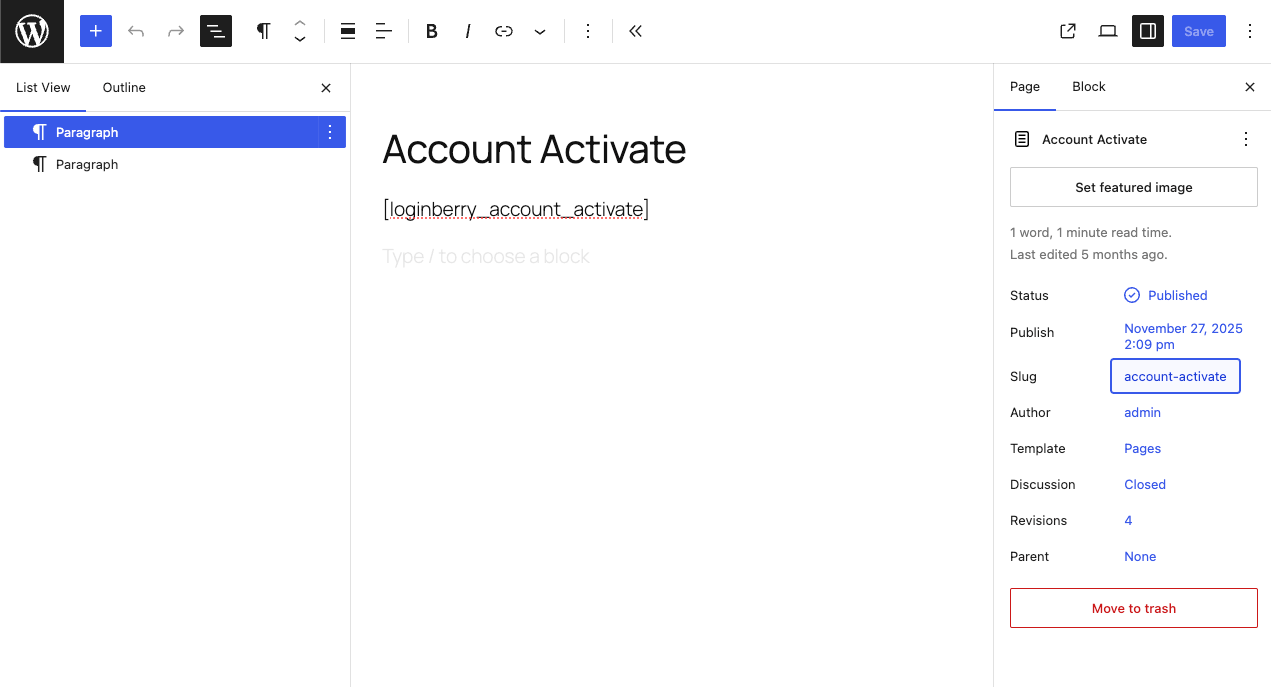
Required: Create a page with the exact slug /account-activate/
- Navigate to Pages → Add New
- Enter page title (e.g., "Account Activation")
- Add the shortcode:
[loginberry_account_activate] - Important: Set page slug to
account-activate(Settings → Permalink) - Publish the page
Page Content Example:
<!-- wp:heading -->
<h2>Activate Your Account</h2>
<!-- /wp:heading -->

<!-- wp:paragraph -->
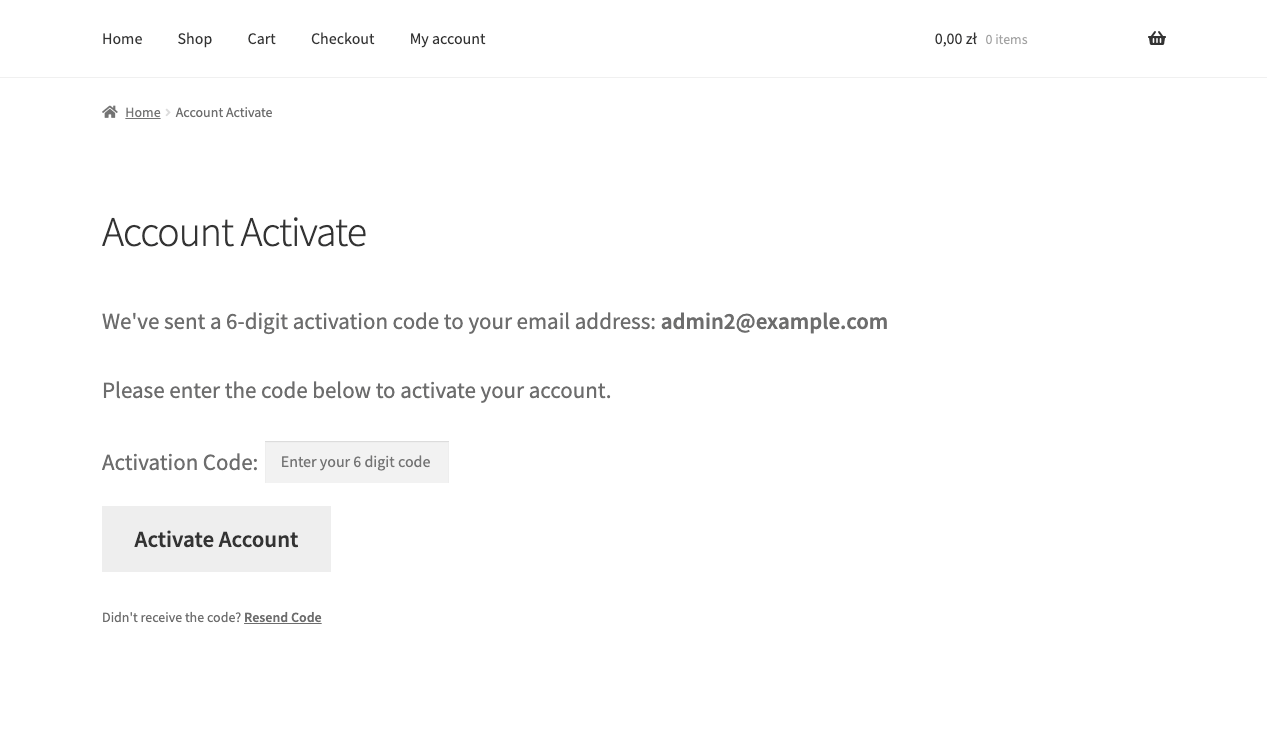
<p>Please enter the 6-digit activation code sent to your email address.</p>
<!-- /wp:paragraph -->

<!-- wp:shortcode -->
[loginberry_account_activate]
<!-- /wp:shortcode -->
You can add additional content above or below the shortcode (instructions, branding, support links).
Once published, the activation page renders the code entry form for your visitors:
Step 3: Verify Setup
Test User Registration:
- Log out of WordPress
- Create a new test user account
- Check if user is redirected to
/account-activate/ - Check email for 6-digit activation code
- Enter code on activation page
- Verify successful activation
Check Admin Column:
- Navigate to Users → All Users
- Verify "Account Activated" column appears
- Check test user status shows ✓ Activated
Configuration Options
LoginBerry works with zero configuration. All settings are automatic:
- Activation Page:
/account-activate/(page must exist) - Failed Attempts Limit: 15 (account locked after)
- Activation Code: 6 digits (auto-generated)
- Code Expiration: None (code valid until used)
Custom configuration options (attempt limits, page URLs, redirects) are planned for future releases.
Troubleshooting Setup
Users Not Redirected to Activation Page
Possible causes:
- Page slug is not exactly
account-activate - Page is not published
- Permalink structure not updated
Solution:
- Verify page slug in Pages → All Pages
- Navigate to Settings → Permalinks
- Click "Save Changes" (flushes rewrite rules)
Activation Emails Not Arriving
Possible causes:
- Email delivery not configured
- Email sent to spam folder
- Server email restrictions
Solution:
- Install SMTP plugin (recommended)
- Check spam folder
- Test with different email provider (Gmail, Outlook)
- Check server email logs
Shortcode Not Rendering
Possible causes:
- Plugin not activated
- Page builder conflict
- Theme shortcode compatibility
Solution:
- Verify LoginBerry is activated (Plugins → Installed Plugins)
- Try WordPress default editor (disable page builder)
- Contact support with theme details
Next Steps
After installation:
- Configuration Guide - Customize email templates
- Admin Management - Manage user activations
- Two-Factor Authentication - Add an extra verification step
- Passwordless Login - Let users skip passwords entirely
- Login Logs - Track login attempts and last login time
- Troubleshooting - Common issues and solutions