Login Logs
LoginBerry can record successful and failed login attempts and optionally show last login time in the Users list.
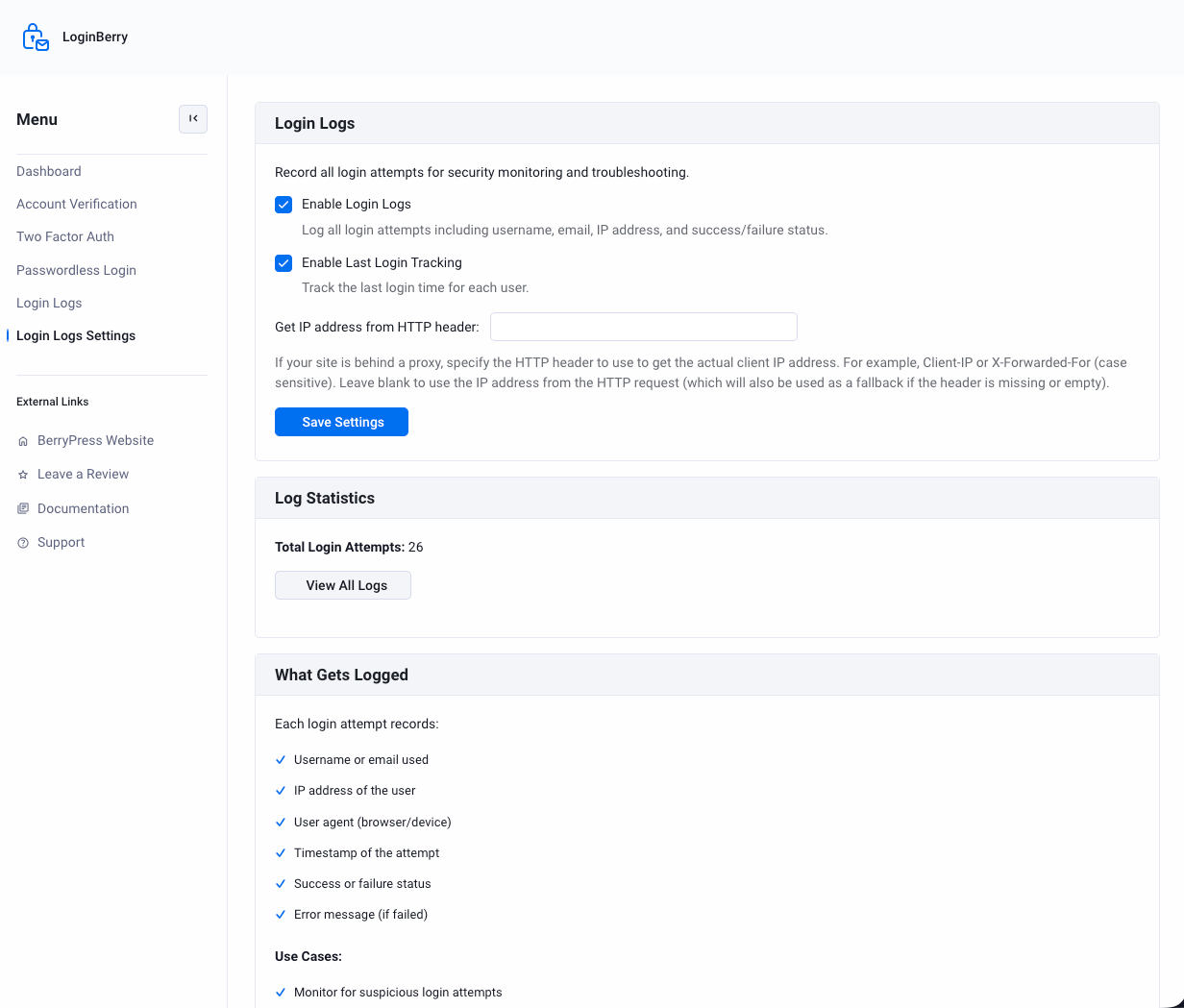
Settings: LoginBerry → Login Logs Settings Log viewer: LoginBerry → Login Logs
Enable logging
- Open LoginBerry → Login Logs Settings.
- Enable Enable Login Logs to record success and failure events.
- Optionally enable Enable Last Login Tracking to track each user's last login time.
- Optionally set Get IP address from HTTP header if your site is behind a proxy (e.g.
X-Forwarded-For). Leave blank to use the IP from the HTTP request. - Save settings.
What is recorded
When login logs are enabled, each event stores:
- Username or email used
- IP address of the user
- User agent (browser/device)
- Timestamp of the attempt
- Success or failure status
- Error message (if failed)
Use cases: monitoring for suspicious login attempts, auditing account access, and troubleshooting login issues reported by users.
Viewing logs
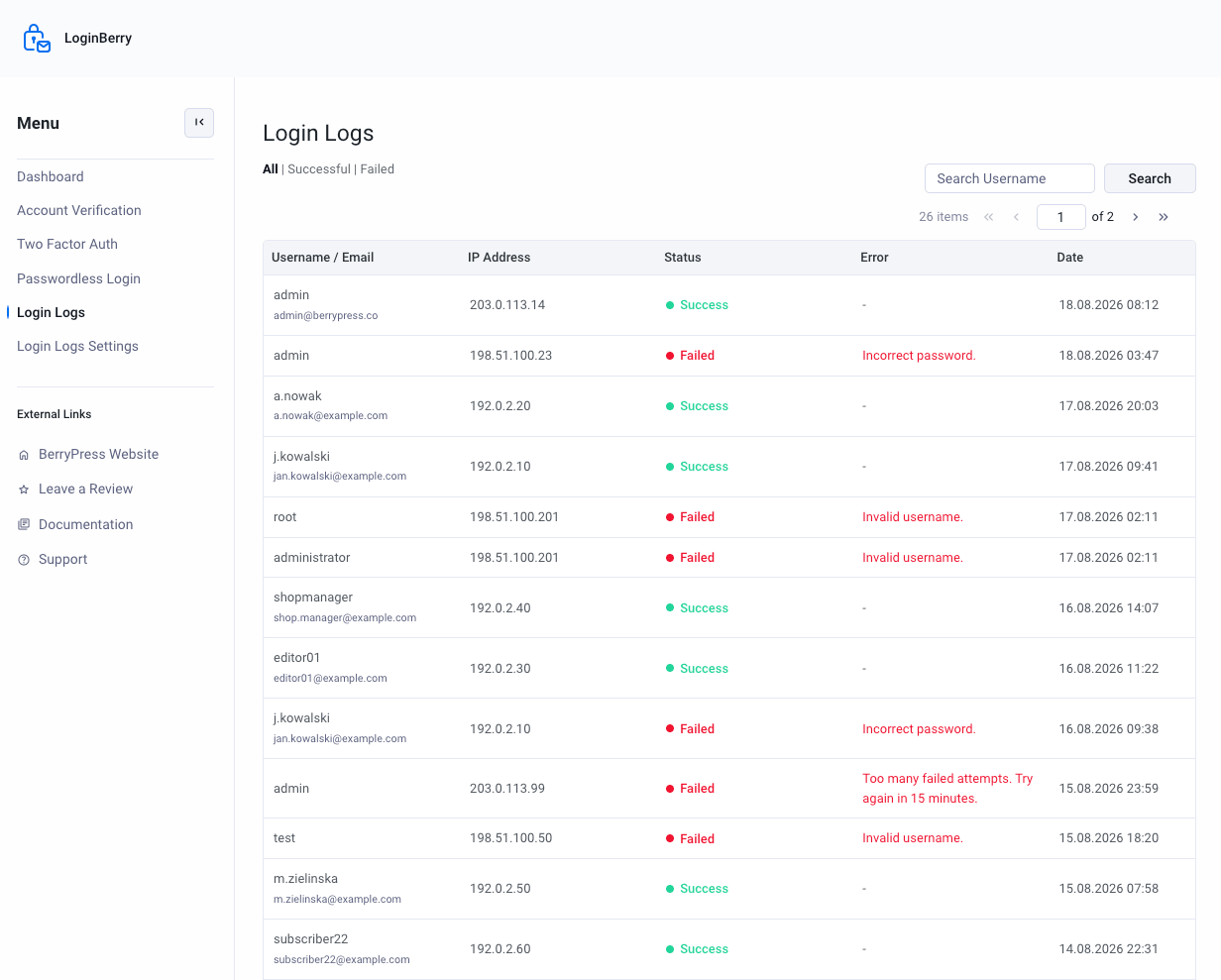
Navigate to LoginBerry → Login Logs to browse recorded attempts. Filter by All, Successful, or Failed, and search by username.
Dashboard stats
When login logs are enabled, the LoginBerry dashboard shows a Login Activity summary (total attempts, successful, and failed) for the last 30 days.
Last login column
Enable Last Login Tracking works independently of full login logging — enable only this option under Users → All Users if you just need to see each user's last login time without keeping a full log.
Troubleshooting
- No logs appear until Enable Login Logs is turned on and a login attempt occurs afterward.
- Behind a CDN or load balancer, set the IP header field on the Login Logs Settings page if IPs show as the proxy's address instead of the visitor's.
See Troubleshooting.
Next Steps
- Two-Factor Authentication - Add an extra verification step
- Passwordless Login - Let users skip passwords entirely
- Troubleshooting - Common issues and solutions