Enabling Social Networks
The Social Networks panel lets you enable or disable the various social networks included with Highlight and Share.
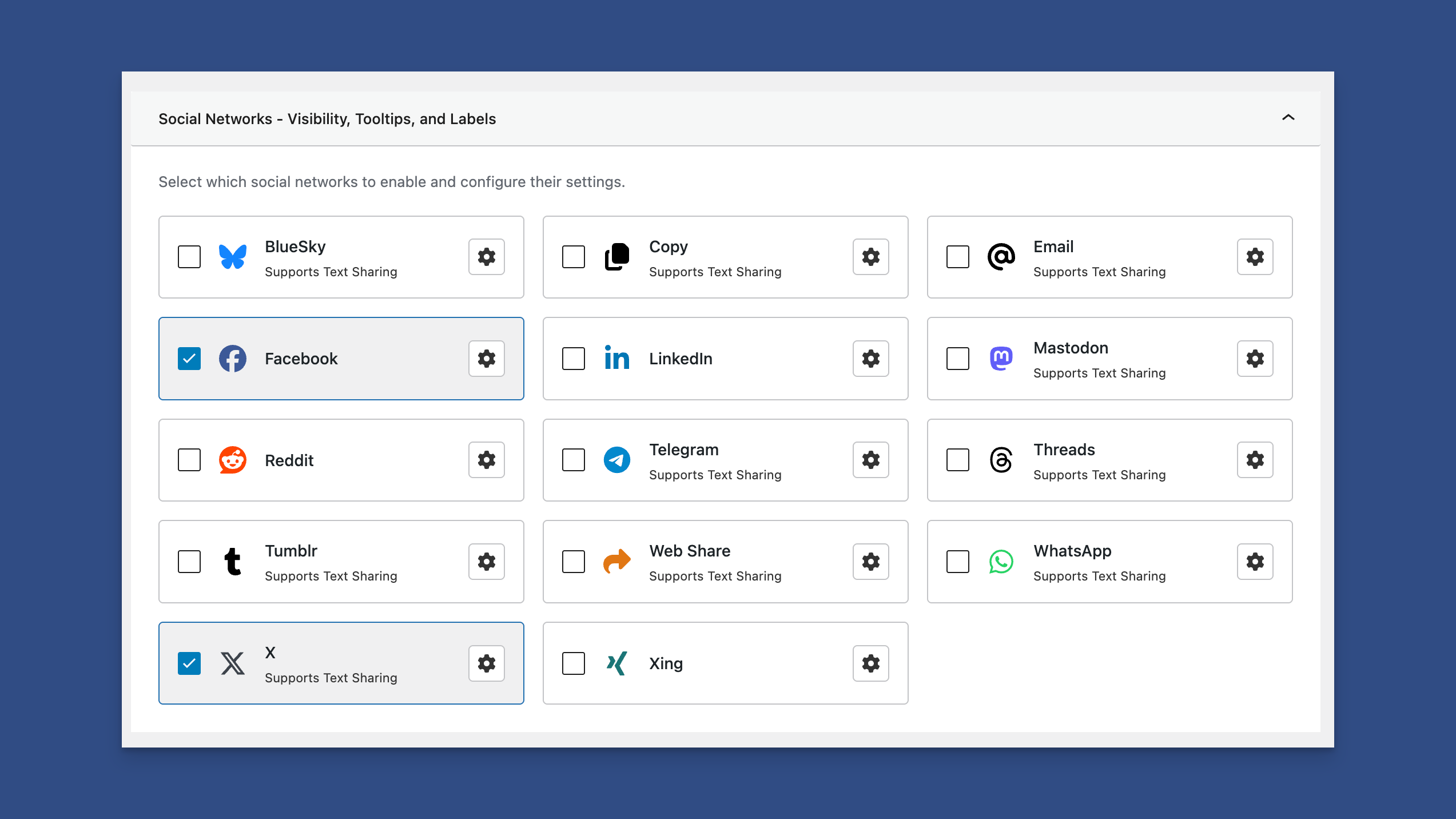
Social Networks Panel Where You Can Enable or Disable Networks
Enabling or Disabling a Network
Each can be selected by clicking the checkbox next to each available network.
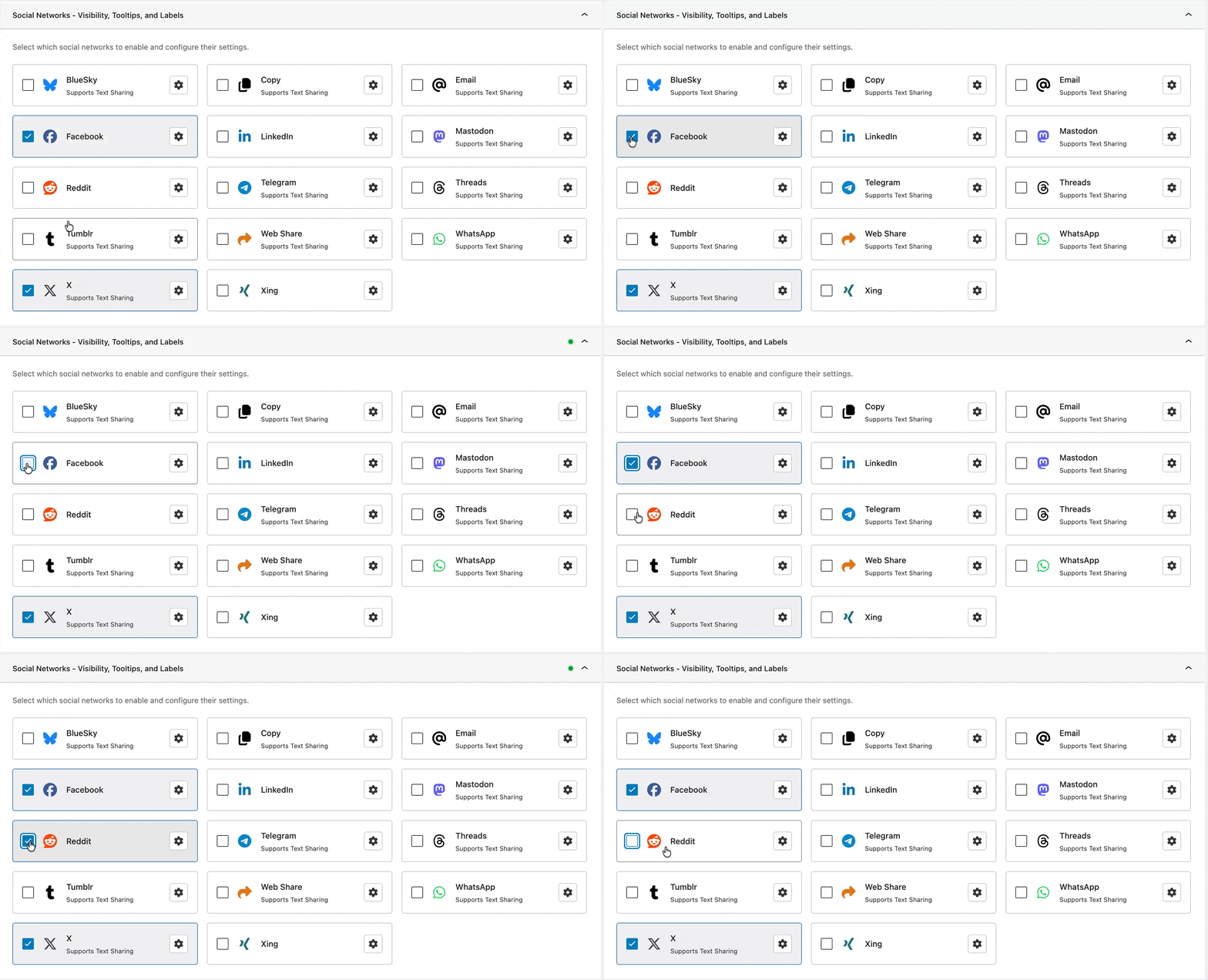
Enabling or Disabling a Network
For convenience, each network that shares text is clearly labeled.
Configuring a Network's Label, Tooltip, and Settings
Click on the Cog icon to view additional settings for a social network.
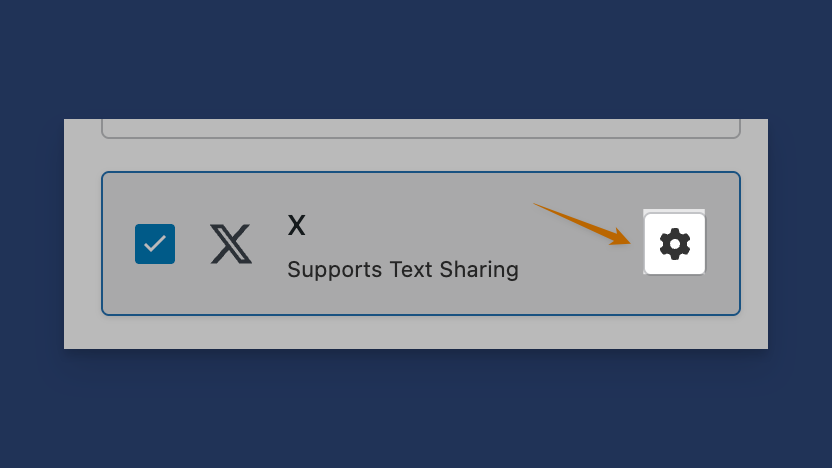
Cog Icon Reveals Additional Settings
All networks allow you to edit the label and tooltip for each network.
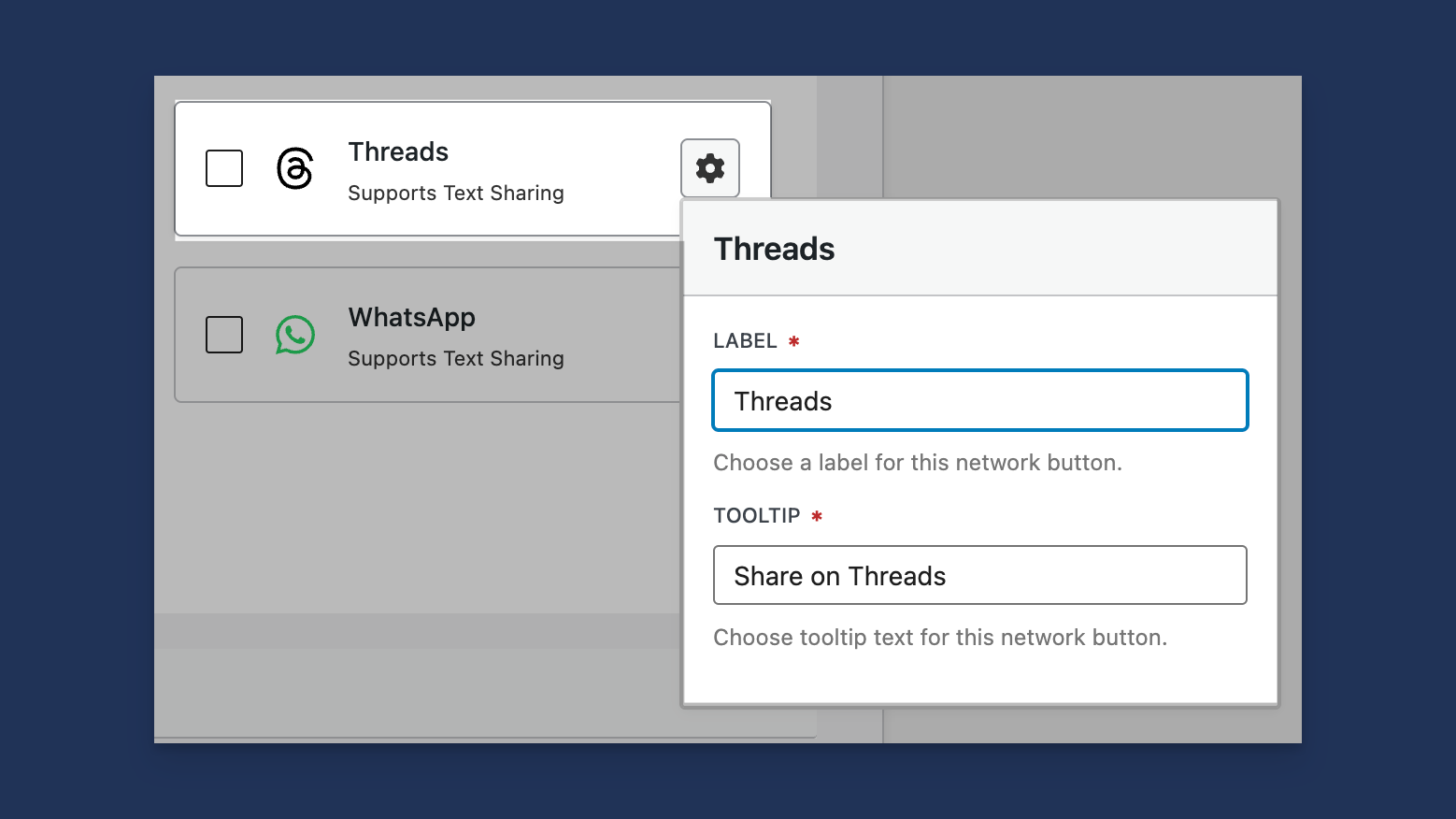
Edit the Social Network Label and Tooltip for Each Network
Setting "X" Additional Settings, Including Default Username and Hashtags
Networks like "X" allow you to set a default username and enable hashtags.
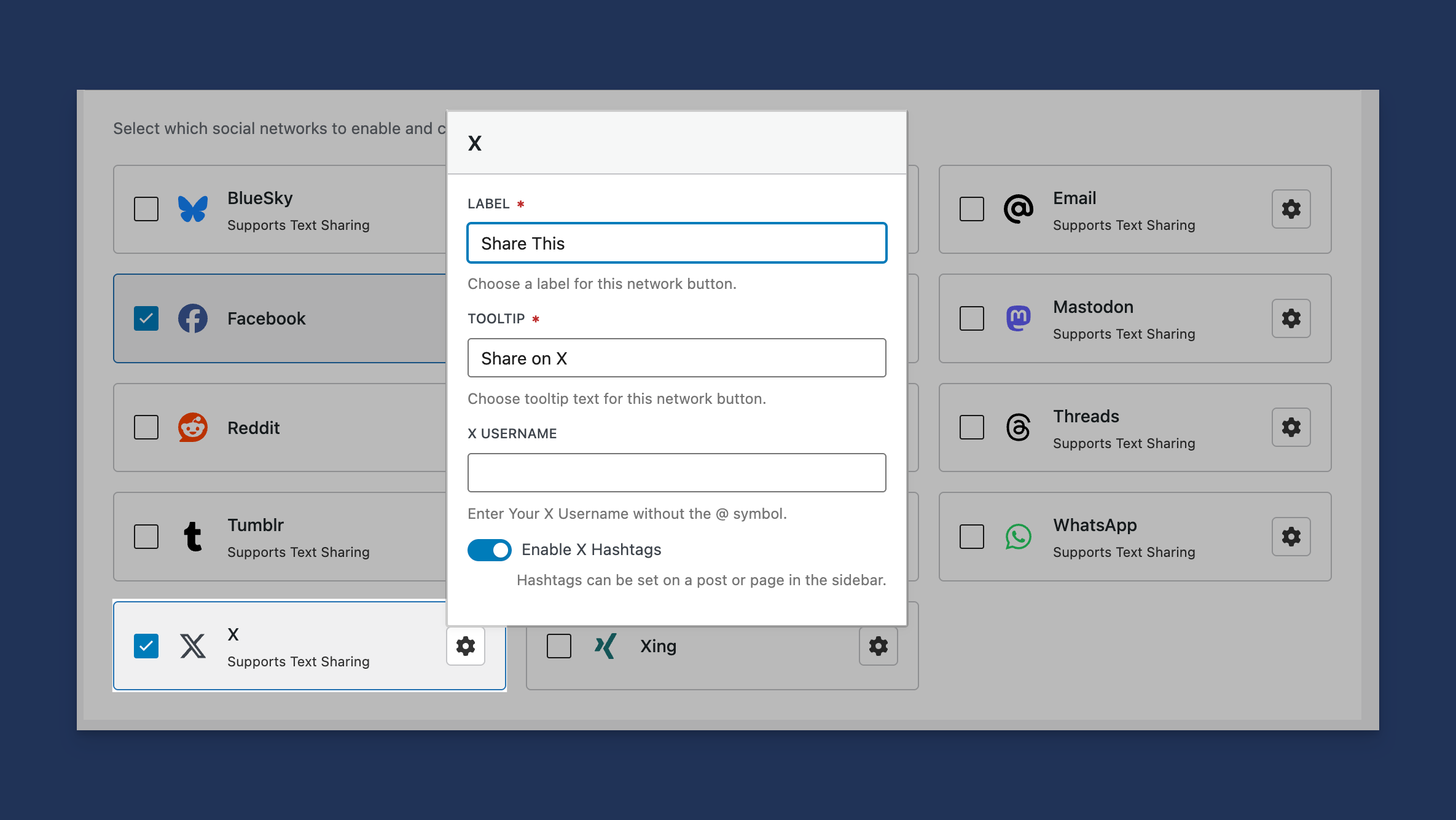
X Settings Allow For a Default Username and Hashtags
If Hashtags are enabled, they will appear as tags in the post's sidebar settings.
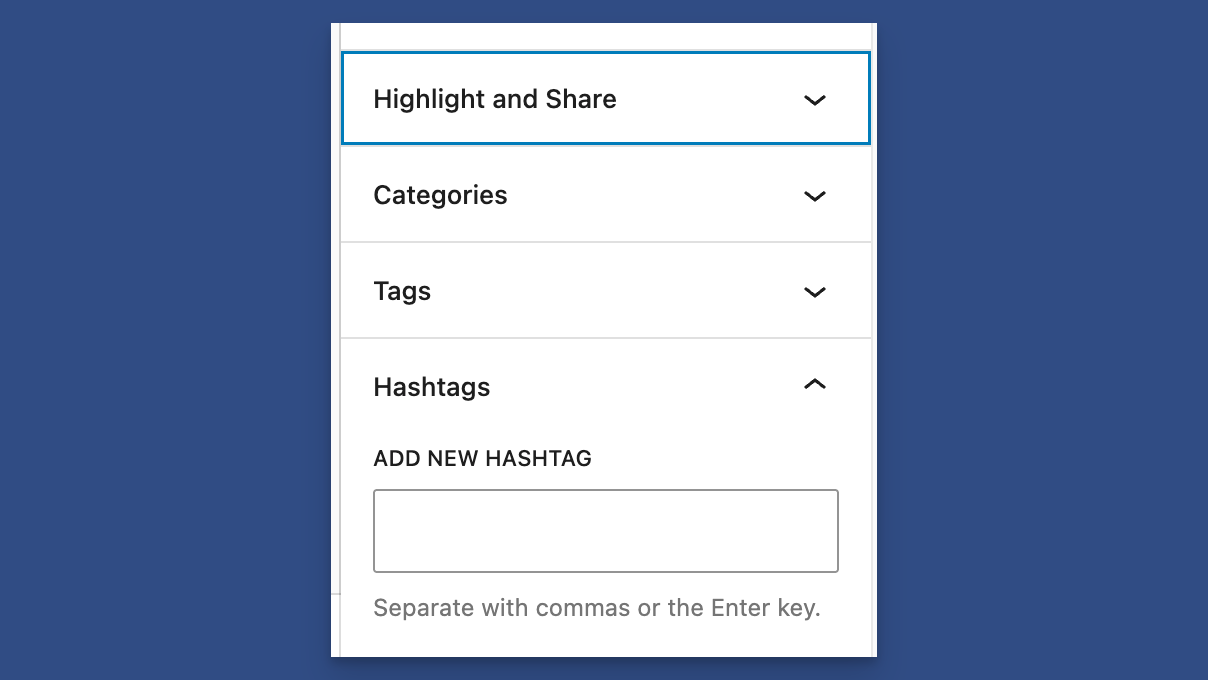
Hashtags in the Post's Sidebar Settings
Setting the Default WhatsApp Endpoint
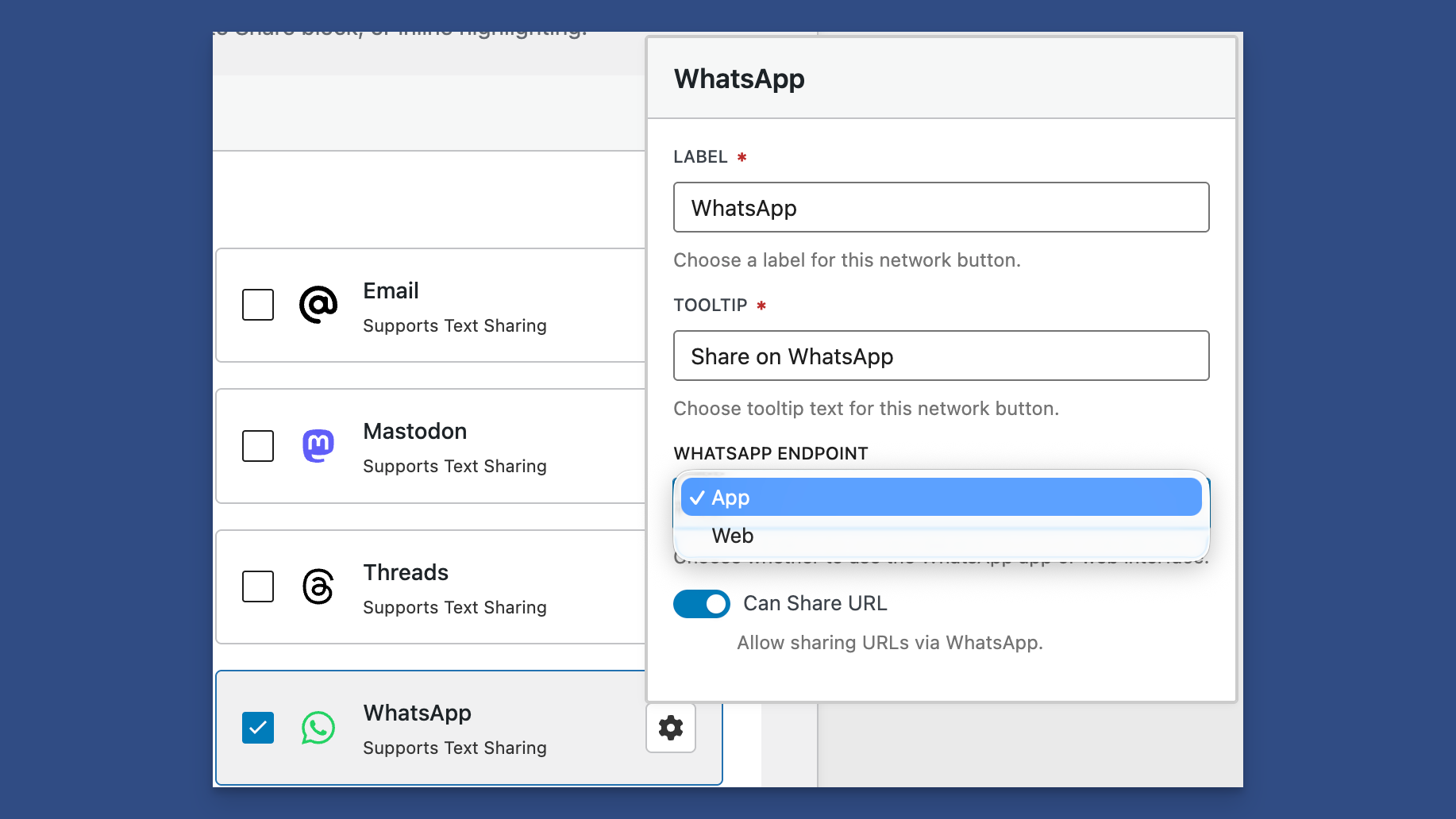
Another special network is WhatsApp. You can set the endpoint to point to the native desktop application or the web application. You can also choose whether to share the post's URL along with the text.