
A visitor opens your chat window and types: “What size is the t-shirt in my cart?” There’s just one not-so-small problem: your store sells dozens of different t-shirts, each with a handful of size options. So after a few seconds, chat comes back with a question of its own, asking for the product title, or worse yet, the SKU. Now before their question can be answered, the prospective customer has to research and copy this info while keeping the chat open – a multi-step task if they are shopping from their phone. All of this adds friction to the shopping experience – and friction is bad.
Just like bread and butter, pineapple and pizza, and the BerryPress founders, some things (and people!) just seem destined to make magic together. One such case came to mind after we started using the AI-powered chat platform created by our friends over at DocsBot. One of the purposes behind our Live Carts for WooCommerce plugin was to empower live customer support by enabling sales teams to look up an individual customer cart when the customer cites a cart ID displayed on the store frontend. But what if that same idea could be applied to DocsBot’s AI-powered chat for faster, around-the-clock answers to burning pre-sales questions?
Without further ado, let’s dive in!
Prefer to watch? In this video, our co-founder Jonathan Hall, with Josh Dailey, walk through the whole setup and shows the skill answering real questions about a cart.
What You Need Before You Start
- Live Carts for WooCommerce. Our free plugin, available on wordpress.org.
- The DocsBot WordPress plugin. Also free, from the same place!
- A DocsBot subscription. You’ll need the Standard plan or higher for Skills.
- A DocsBot bot. The bot type needs to be set to private in order to work with Live Carts. You’ll want to have Sources set up with information about your products.
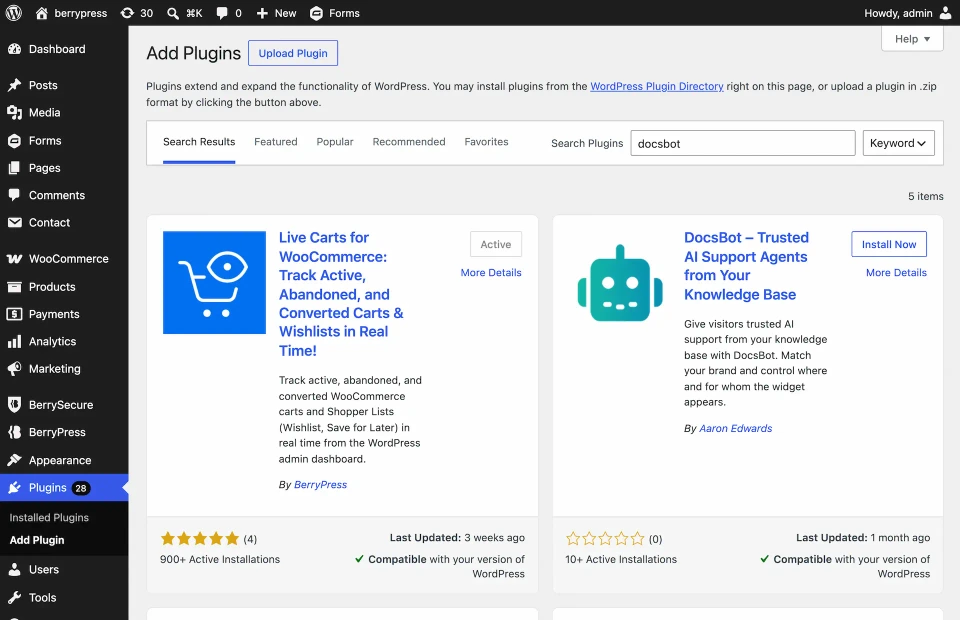
How to Connect Live Carts for WooCommerce to DocsBot
Step 1: Turn on the Live Carts REST API
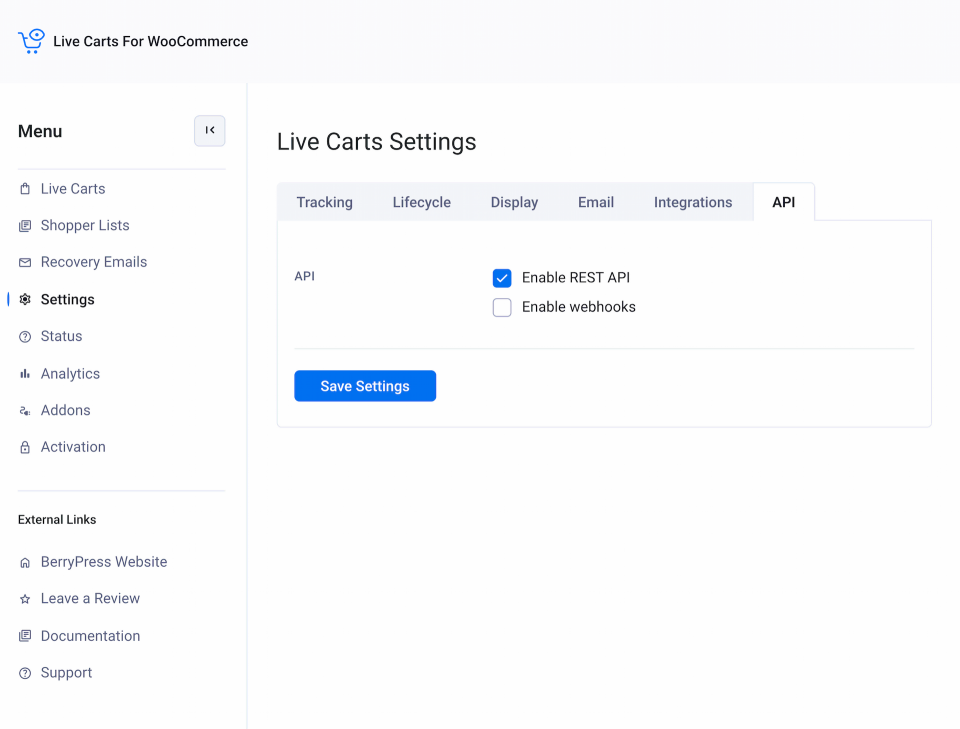
The DocsBot skill reads cart data from the Live Carts REST API. Go to Live Carts > Settings, open the API tab, and tick Enable REST API.
Step 2: Turn on the DocsBot integration in Live Carts for WooCommerce
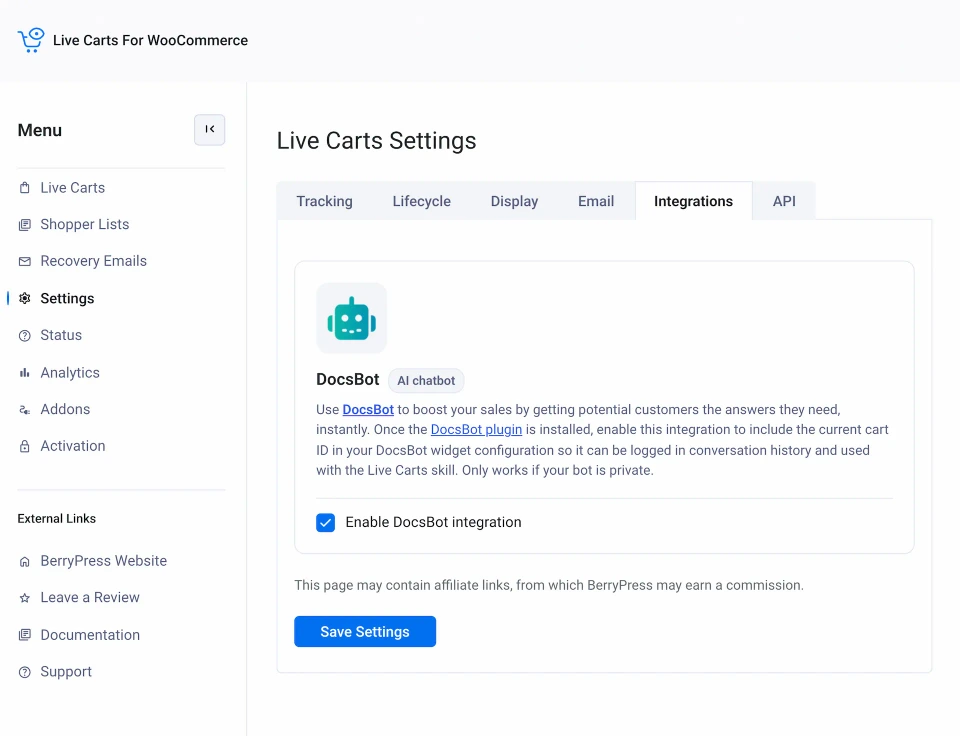
In the Live Carts settings, open the Integrations tab and tick Enable DocsBot integration. Save your changes.
From now on, Live Carts for WooCommerce adds the current cart ID to your private bot’s widget configuration so that it gets sent to DocsBot. The skill can then use it to find the right cart.
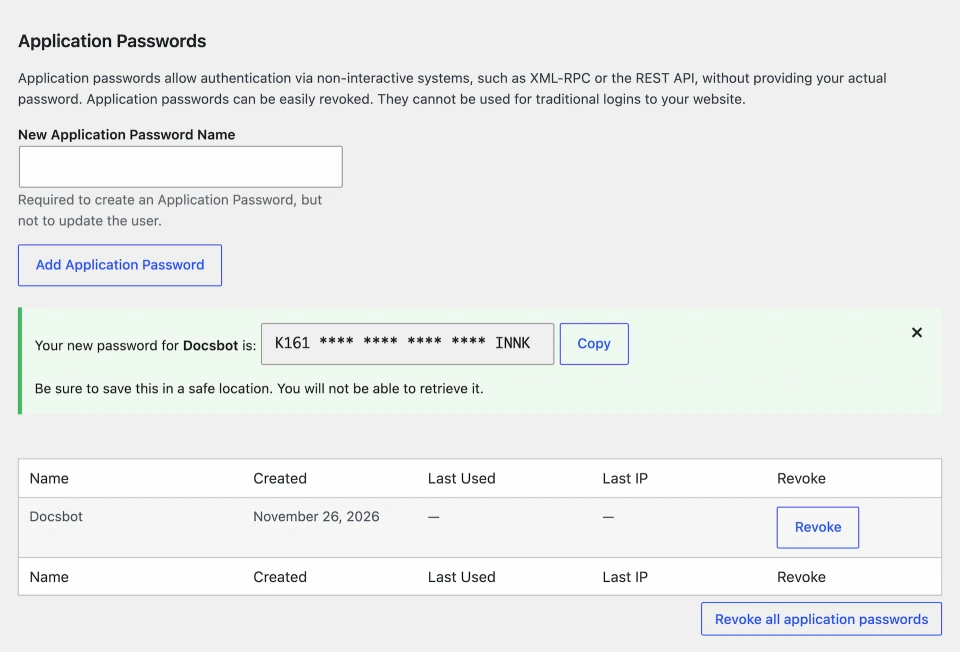
Step 3: Generate an Application Password
The API only answers requests from a user who has the permission required to access Live Carts (manage_woocommerce). We suggest creating a dedicated user for this, instead of using your own admin login.
In that user’s profile, scroll to the Application Passwords section and create a password for the DocsBot skill.
Step 4: Add the Live Carts for WooCommerce skill in DocsBot
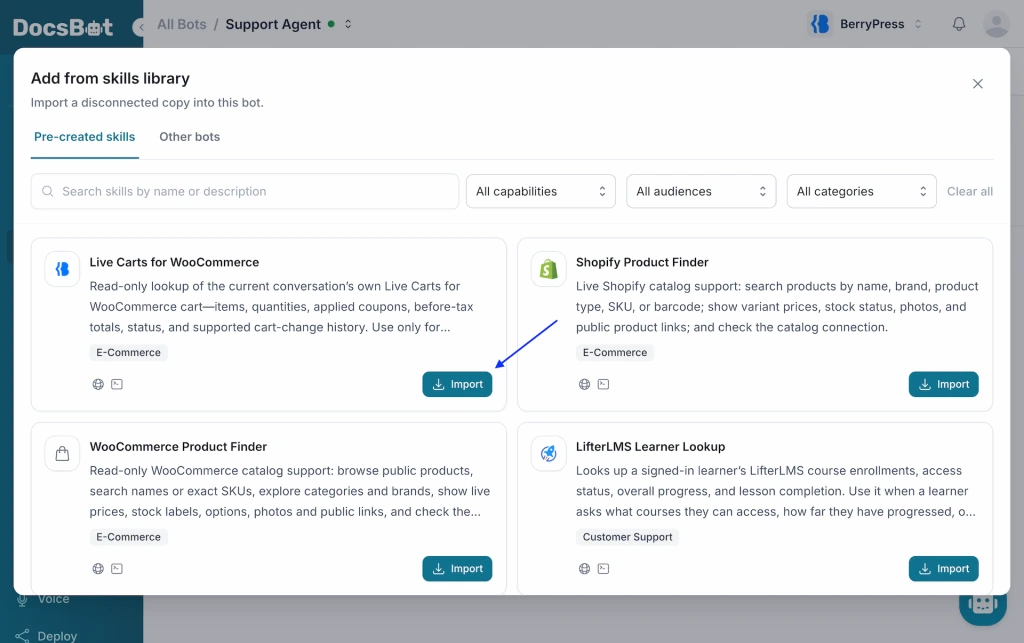
- Open your private bot in the DocsBot dashboard.
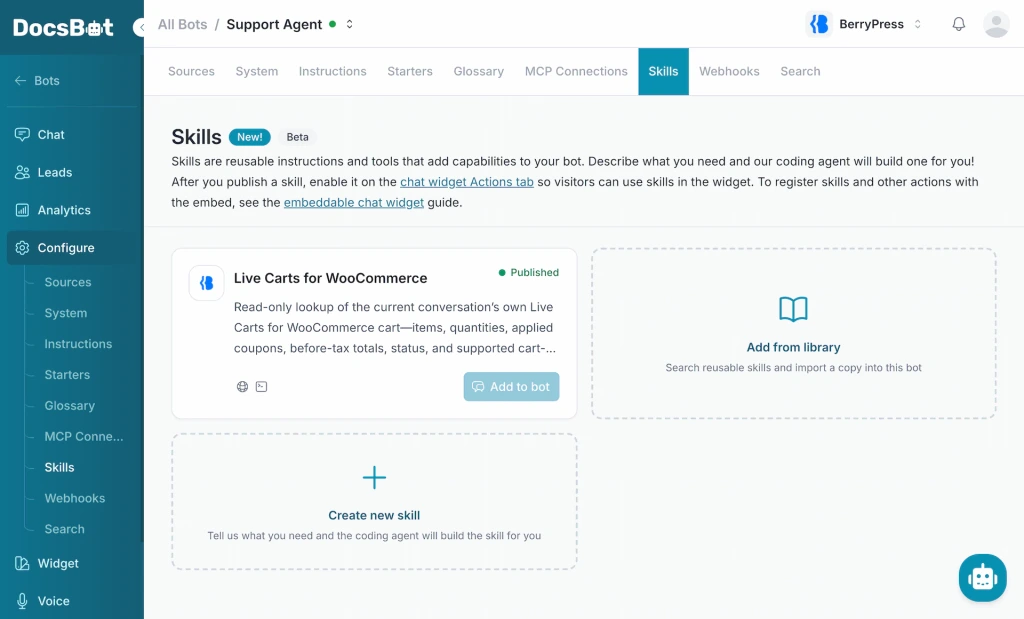
- Go to Configure > Skills.
- Select Add from library.
- On the Pre-created skills tab, find the Live Carts for WooCommerce skill and select Import.
Step 5: Fill in the skill settings
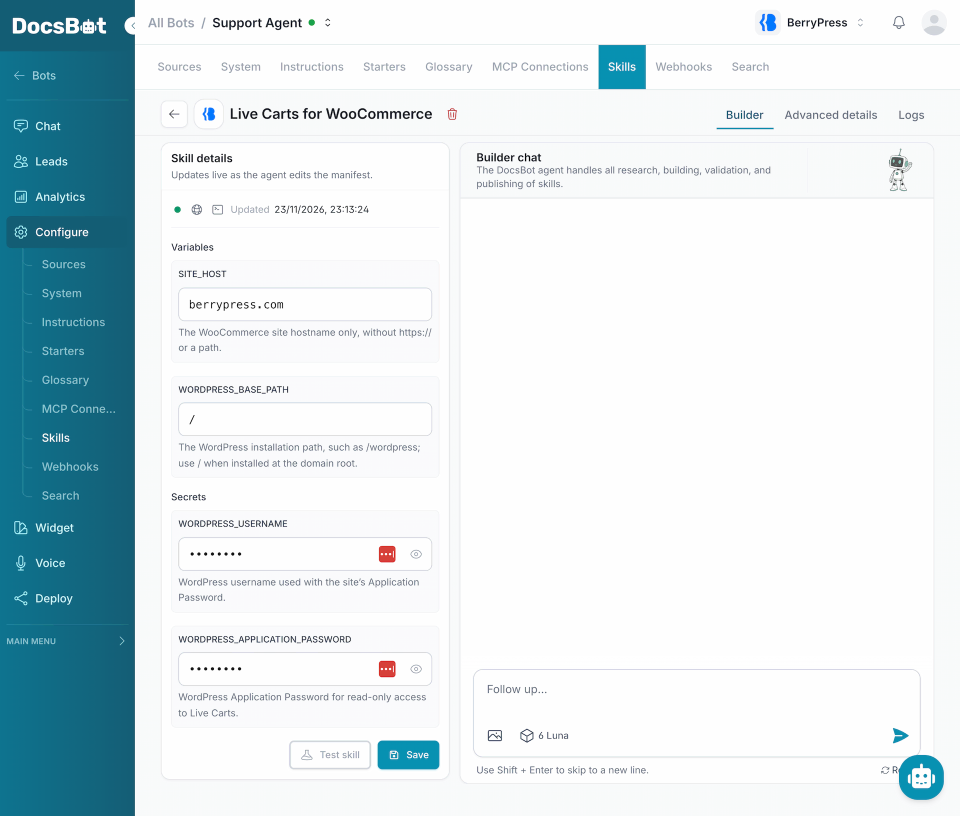
The skill asks for a few settings, which together tell it where to find the Live Carts API:
- SITE_HOST: your store’s domain only, without https:// or a path, for example example.com.
- WORDPRESS_BASE_PATH: the folder WordPress is installed in, for example /store. Use / if WordPress is installed at the root of the domain.
- WORDPRESS_USERNAME and WORDPRESS_APPLICATION_PASSWORD: the user and the Application Password from Step 3. Only enter these in the Secrets fields; never paste them into the Skill Builder chat.
The skill also expects one piece of visitor information called live_carts_id. This is the cart ID that the Live Carts integration sends from your site automatically.
Step 6: Test the skill
Open the skill and click Test skill. Give it a sample cart ID from your Live Carts for WooCommerce list when it asks for metadata. Then check the test output.
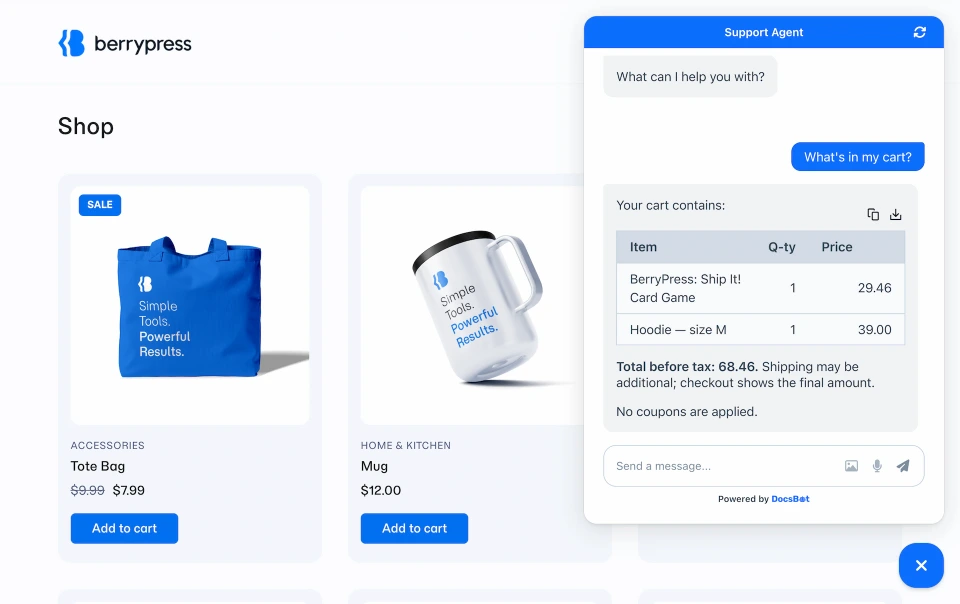
For a real check, use your own store: after Step 7, add a product to your cart, open your chat widget, and ask “What’s in my cart?”. If something is missing, such as a required setting or secret, DocsBot skips the skill without showing an error. If the bot can’t seem to see the cart, check the skill’s Logs tab first.
Step 7: Publish the skill and enable it for chat
This step is easy to miss; publishing and enabling are two separate actions in DocsBot.
- Ask the Skill Builder to validate and publish the skill. Saving settings alone does not publish it.
- Go to Skills, find the Live Carts skill and click “Add to bot”
What the Skill Does
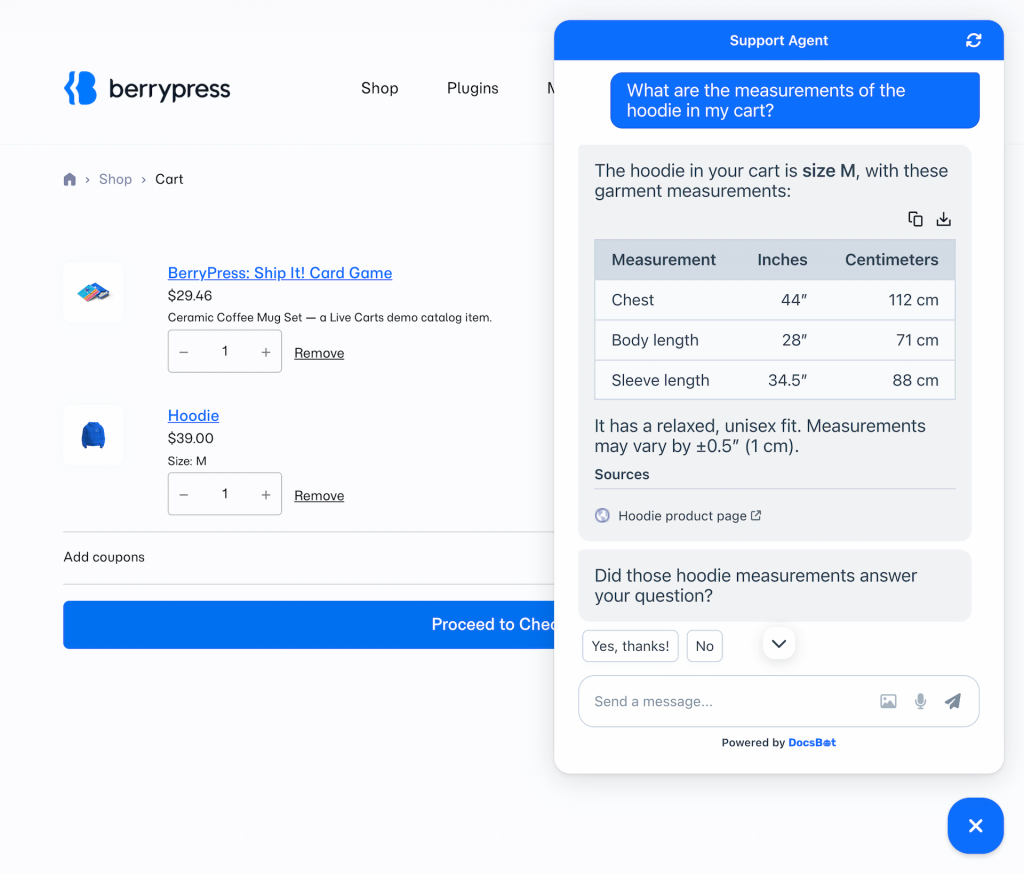
Once the skill is set up, the DocsBot bot can read details about the current visitor’s cart such as:
- items, quantities, and product attributes
- which coupon is applied, if any
- cart total before tax
- a history of changes, such as items added, updated, or removed
This helps in real conversations:
- “Are the things in my cart in stock?” The bot knows which products and variations are in the cart.
- “Did my discount code apply to my cart?” The bot can see whether a coupon is applied.
- “I took something out of my cart earlier. What was it?” The bot can check the cart’s change history.
Your team gets something useful too. The plugin adds the visitor’s cart ID to the DocsBot conversation history. When you review a chat later, you can match it to the cart in Live Carts.
The skill has clear limits, and most of them are there to protect your customers:
- It is read-only and can’t edit a cart, list carts, or create orders.
- It only checks the visitor’s own cart; it doesn’t accept a cart ID typed by the customer. If someone asks about another cart, the bot explains that it can only check the cart for the current session.
- Amounts are before tax and may not include shipping. The bot should not present them as the final price. Checkout shows the final amount.
Also keep in mind that DocsBot is a third-party service. The cart ID goes to DocsBot, and cart details are read when a visitor asks about their cart. You might need to mention this in your privacy policy if it isn’t covered already.
Try It on Your Own Store
If you already use DocsBot, you can have this running in an afternoon. Install or update Live Carts for WooCommerce, enable the DocsBot integration, then import the Live Carts for WooCommerce skill into your private bot.
We’d like to hear how you think this will help your customers. And which questions would you want your chat to answer that it can’t answer today? Tell us, and it may shape what we build next.