A shopper adds a few products to the cart, starts the checkout, and then the phone rings. Or the page is slow. Or they just want to think about it. They close the tab, and the cart sits in your store, unfinished. Abandoned cart recovery emails are a simple way to follow up.
This happens in every shop. Some of these shoppers never planned to buy. Others only needed a small reminder.
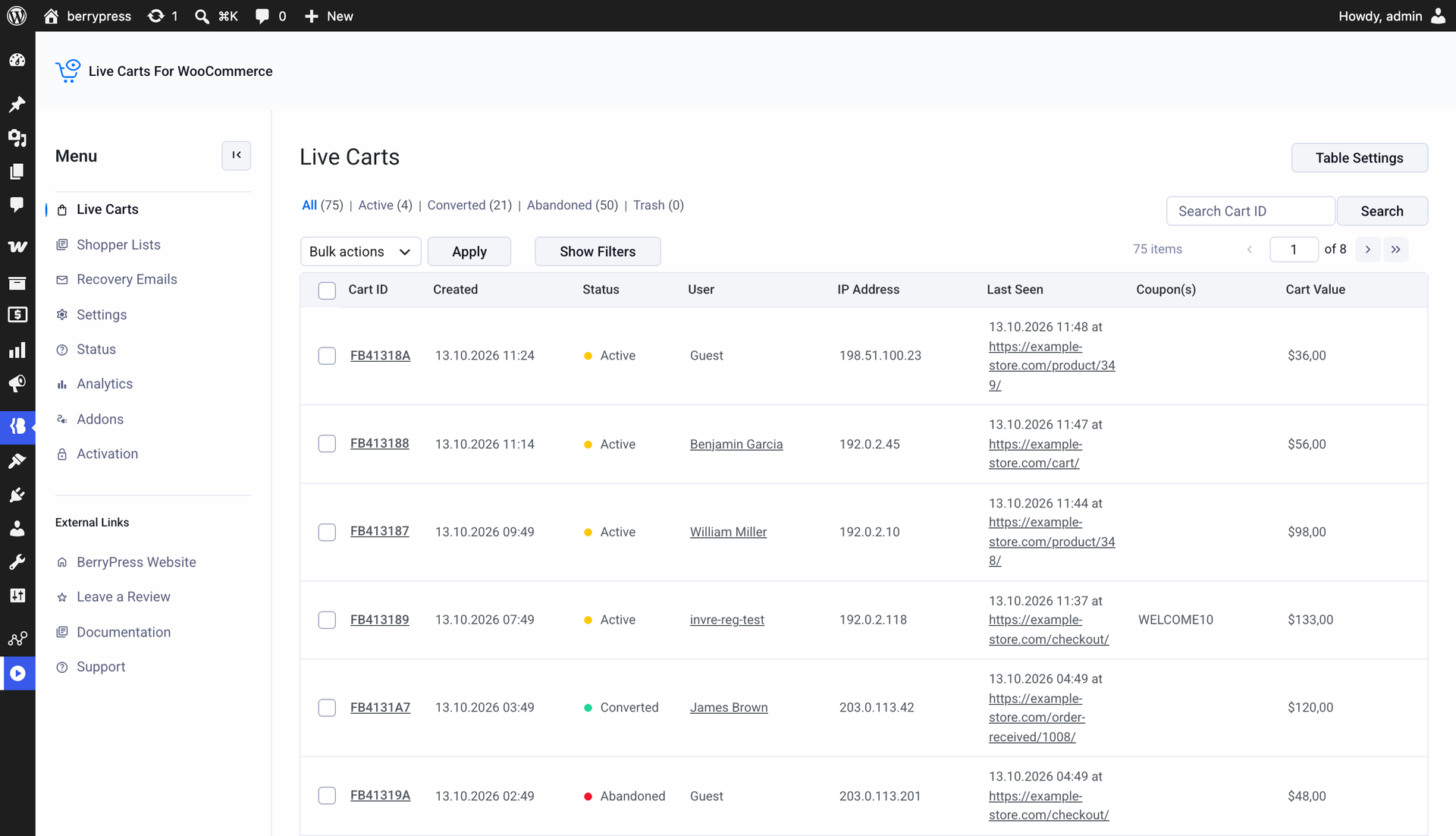
Live Carts is our plugin for tracking WooCommerce carts. Until now, it could show you the abandoned ones. With version 2.0.0, it can also help you win them back with abandoned cart recovery emails. The new Recovery Emails feature sends a short reminder to the shopper, with a link that puts their items back in the cart. It is part of the free plugin, so no Pro license is needed. Be sure to test it on your store.
If you want to know why tracking carts matters in the first place, read Why Your WooCommerce Store Should Track Carts in Real Time.
What an abandoned cart recovery email does
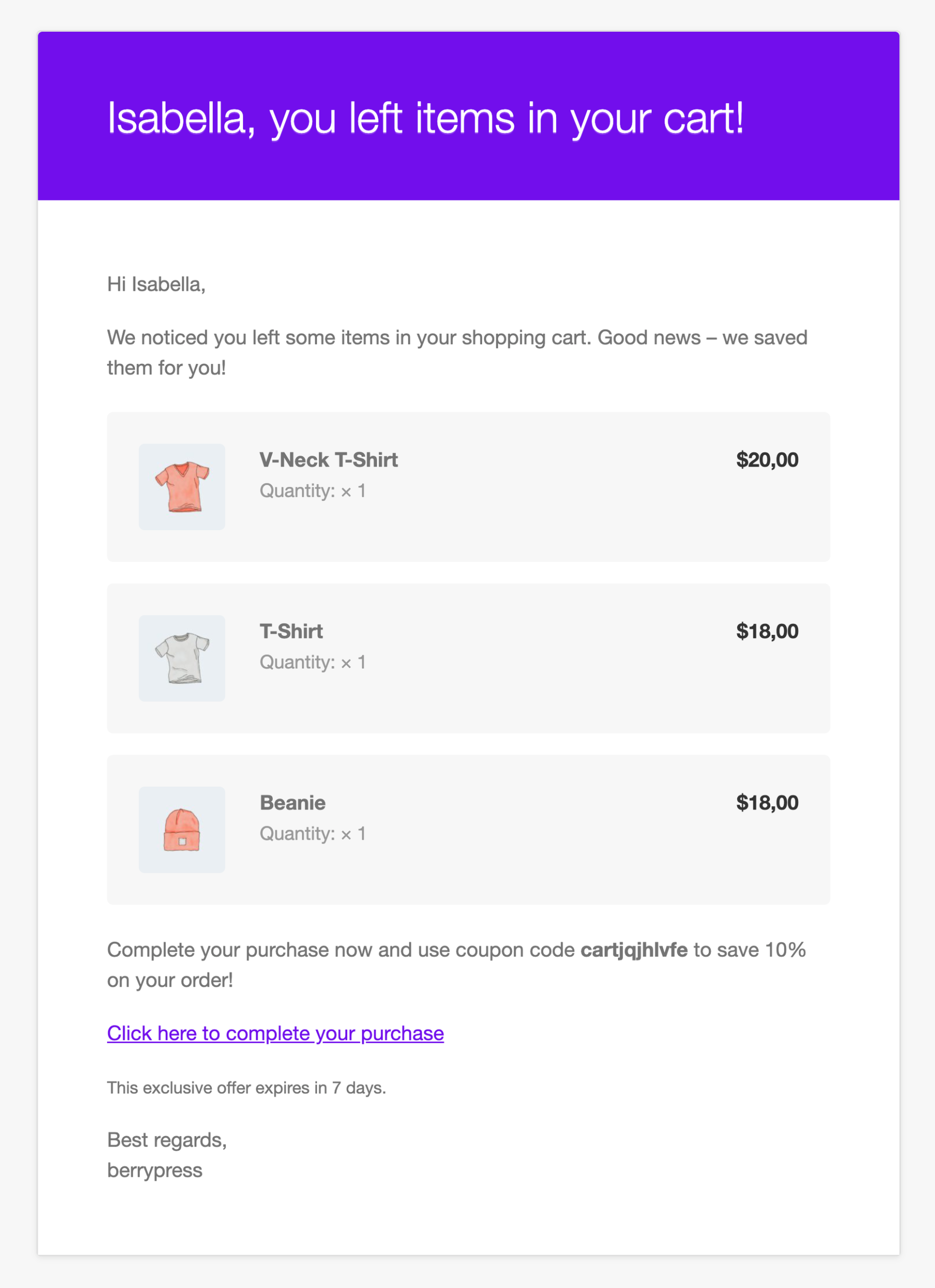
A recovery email is a normal email that lists what the shopper left behind and gives them one link back to the cart.
The email contains:
- your message, written by you;
- the products in the cart, with images, quantities, and prices;
- a link that restores the cart and opens the cart page;
- optionally, a reason to come back, such as a discount code.
Your message is placed inside your WooCommerce email template, so it uses the header, footer, and colors from WooCommerce > Settings > Emails.
A reason to come back, such as a discount, can help, especially in a later email. In the free plugin you can write one into your message. Live Carts Pro can create a unique coupon for each cart, as described below.
Live Carts does not promise that every cart will come back. It gives you a simple, automatic way to ask.
How Live Carts knows where to send the email
An email can only be sent to a cart that has an email address. Live Carts gets it in two ways:
- Logged-in customers. The email from their account is saved on the cart.
- Guests. When a visitor types their email in the checkout, Live Carts saves it on their cart straight away, before they click Place order. This works with the classic checkout and the block checkout.
So a guest who leaves at the payment step can still receive a reminder. If you do not want to collect addresses, you can clear Track cart emails in the Live Carts settings. Then guests will not receive recovery emails.
Note: collecting an email address before a purchase may need consent in your country. Check what applies to your store and update your privacy policy.
Set up your first abandoned cart recovery email
- Go to
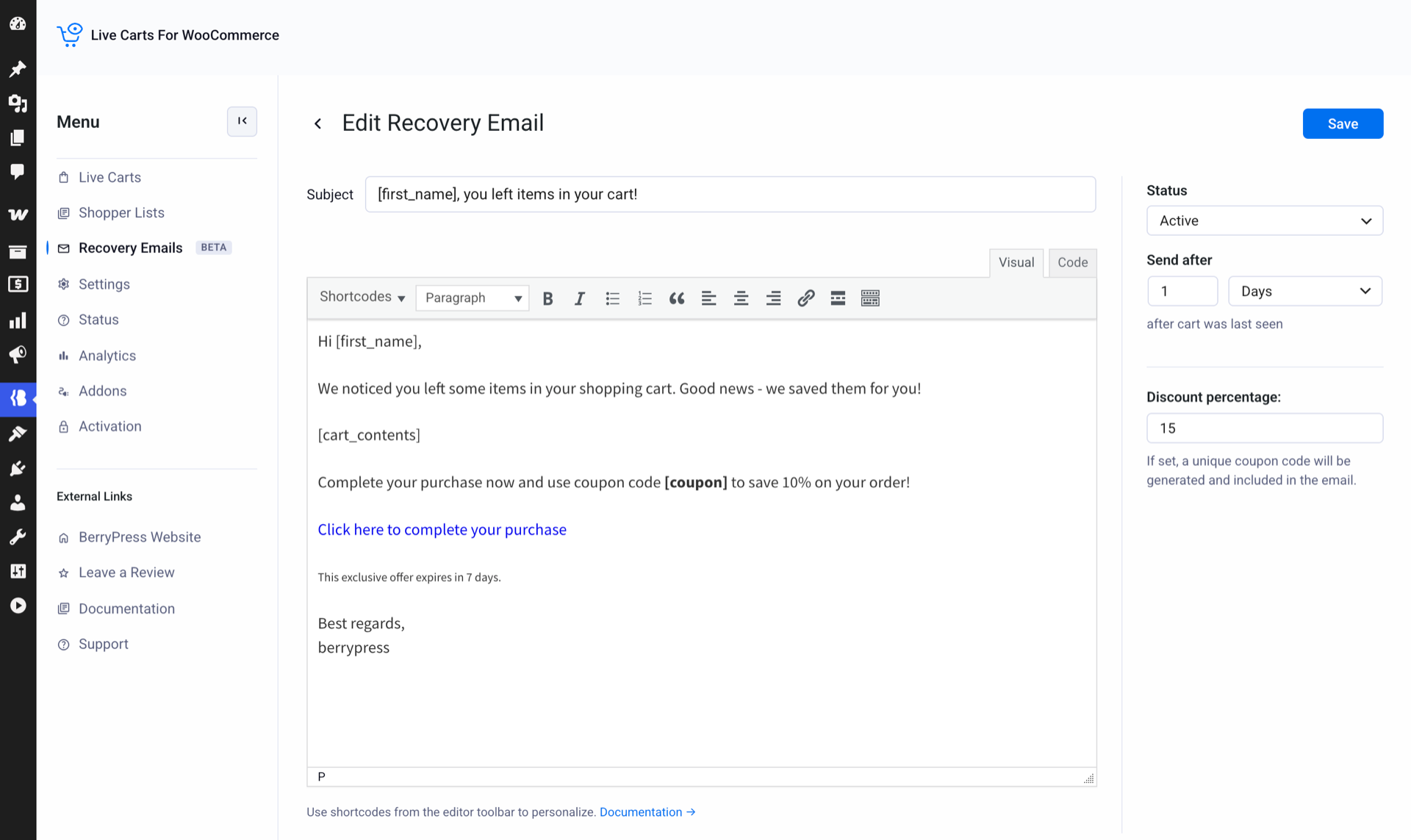
BerryPress → Live Carts → Recovery Emails. - Click Create First Recovery Email (or Add New Email if you already have some).
- Write the Subject. You can use shortcodes, for example
[first_name], you left items in your cart! - Write the Message. Use the Shortcodes menu in the editor toolbar to insert personal details.
- Set Send after: a number and a unit (minutes, hours, or days), counted from the moment the cart was last seen.
- Set the Status. Draft is saved but never sent. Active means matching carts will receive it.
- Click Save.
The shortcodes you can use
| Shortcode | What it shows |
|---|---|
[first_name] | The customer’s first name, if known |
[cart_contents] | A list of the products in the cart |
[cart_url] | The link that restores the cart |
[coupon] | A unique discount code (Pro) |
Tip: a guest may not have a name on file, so write a greeting that reads well either way. “Hi there,” works for everyone.
Note: create the email as a Draft first and read it carefully. To test it, set Send after to a few minutes, leave a cart behind in a private window with your own email address, and wait for the next hourly run.
When abandoned cart recovery emails are sent
Live Carts checks your carts once an hour, using WordPress scheduled tasks (WP-Cron). The exact timing can vary, because WP-Cron runs when your site gets visits unless you set up a server cron job. So an email can arrive later than the time you set.
A cart receives an email only if all of this is true:
- it has an email address;
- the shopper has not completed checkout with this cart yet;
- it is not empty and not in the trash;
- it was last seen at least as long ago as your Send after time, but no more than a week longer than that;
- this particular email was not sent to this cart before.
The last rule means no duplicates. Editing an email that was already sent does not send it again to the same carts. Timing counts from the moment the cart was last seen, not from the Abandoned status, so an email set to a few minutes can go out before the cart is marked as abandoned.
Build a short sequence of emails
You can create more than one email. Each has its own timing, so together they work like a sequence. Live Carts suggests this one on the Recovery Emails screen:
| Send after | Idea | |
|---|---|---|
| 1 | 1 hour | A gentle reminder. The shopper may have been interrupted. |
| 2 | 24 hours | A small incentive. |
| 3 | 3 days | A last reminder. |
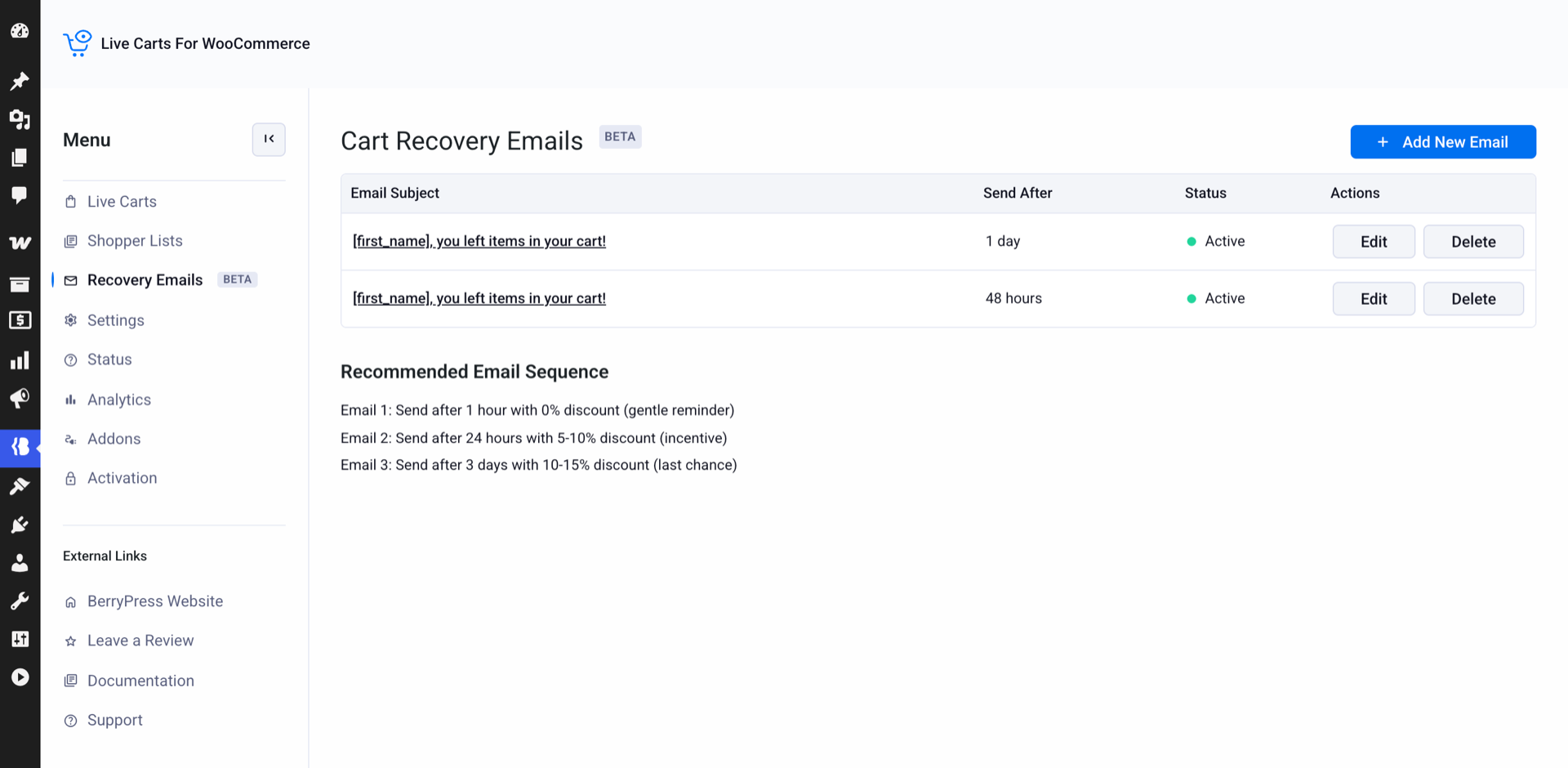
A few tips:
- Keep the subject short and clear, for example “[first_name], you left items in your cart!” Avoid vague subjects such as “Special offer”.
- Make one clear link the next step.
- Start friendly. Add urgency only in the later emails.
- Two or three emails are enough.
- Do not put a discount in the very first email. Shoppers may learn to abandon carts on purpose.
If you turn on several emails at once, an older cart may qualify for more than one of them and receive them in the same hourly run. To avoid it, activate the emails one at a time and wait for the next run in between.
Add a discount with Live Carts Pro
In the free plugin, recovery emails have no automatic discount. You can still add a coupon you created yourself in WooCommerce and type its code into the message.
With Live Carts Pro, each email can have a Discount percentage. When the email is sent, Live Carts creates a WooCommerce coupon just for that cart and puts the code where you wrote [coupon].
- It is a percentage discount, using the number you entered.
- It can be used only once.
- It is valid for 7 days.
- It cannot be combined with other coupons.
For a coupon to be created, you need both the discount percentage set in the email settings and the [coupon] shortcode in the message body. If either is missing, no coupon is created. If a shopper already used a recovery coupon, they do not get more recovery emails for that cart.
The recovery link also helps your support team
Every cart that is not converted has a Recovery URL. When the shopper opens it, their products and applied coupons go back into the cart, and they land on the cart page.
You can also copy this link from the cart details page and send it to a customer in a support reply. Treat it as private: anyone who has the link can restore that cart.
Help your emails reach the inbox
A recovery email is only useful if it arrives. Two small things help:
- In the Live Carts Settings, open the Email tab and set a sender name and an address on your own domain. If you leave the fields empty, Live Carts uses your WooCommerce sender details.
- Make sure your site sends email reliably. An SMTP or email delivery plugin is usually a good idea.
If nothing arrives, check that the email is Active, that the cart has an address, that WP-Cron is running, and that your site can send other emails. The Live Carts documentation has a full checklist.
Try it on your store
Abandoned cart recovery emails turn the carts you already see in Live Carts into a short, automatic follow-up. You write the messages once, choose the timing, and keep control of what is sent.
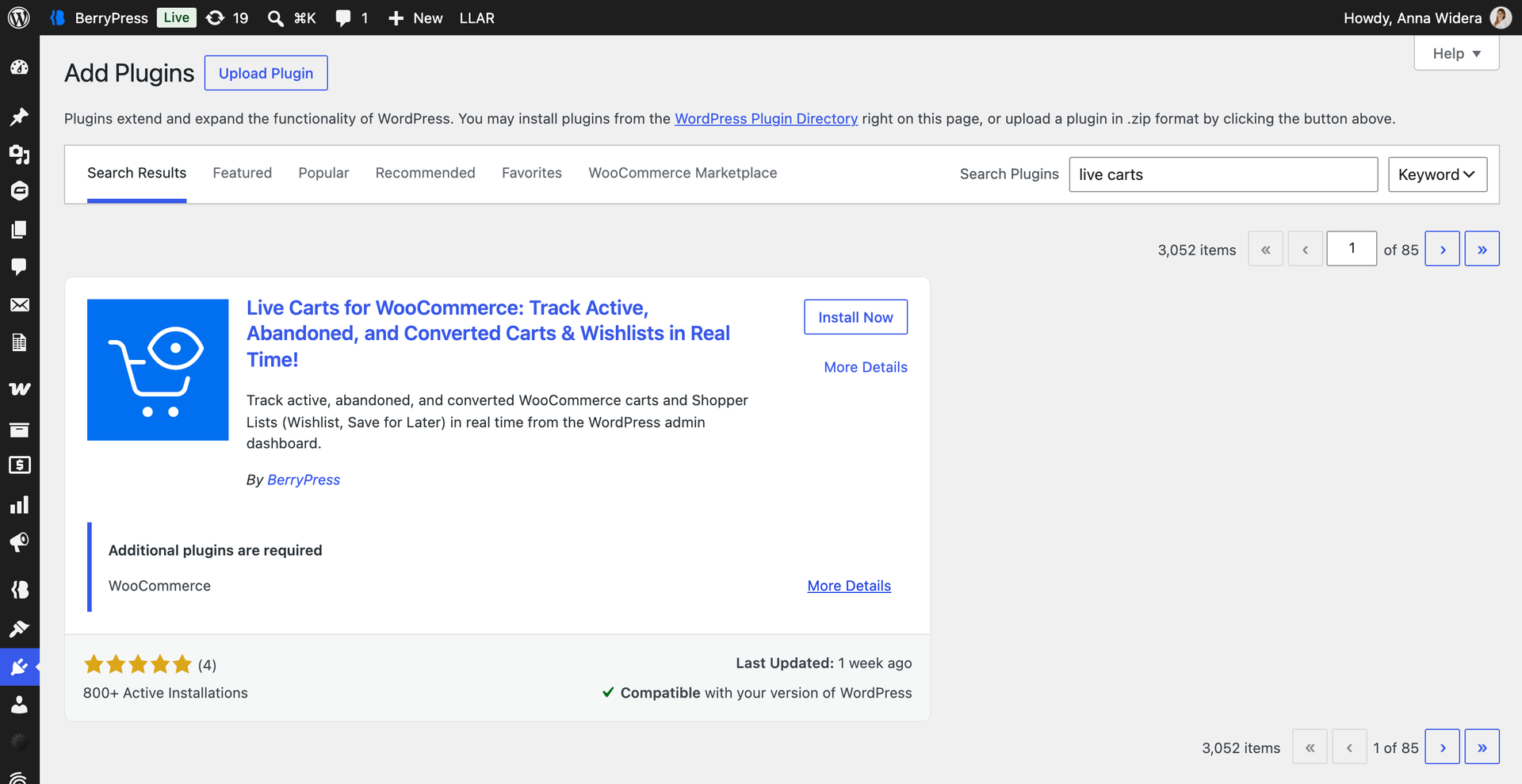
Install Live Carts for WooCommerce for free, create one email as a draft, and test it with your own address. To see what else the plugin can measure, read It’s Time to Start Tracking Your WooCommerce Cart Metrics.
Which part of your recovery flow would you like to improve next? We would like to hear how you use it.