
It’s Monday morning and you have one simple question: which products caused the most refunds last quarter?
You know Ninjalytics can show you. But first you have to decide a few things. Do you need a product report or an order export? Which refund columns should you add? What date range? How should you sort it? By the time the report looks right, your coffee is cold and the simple question doesn’t feel so simple.
Enter Ninjalytics Assistant, an AI assistant for WooCommerce reports, here to rescue your coffee and your Monday morning! Now all you need is your question (you’ve already got that). Type it in the chat inside the Ninjalytics plugin, and it takes care of finding the answer. Fields, filters, dates, and other settings are taken care of for you, just like that!
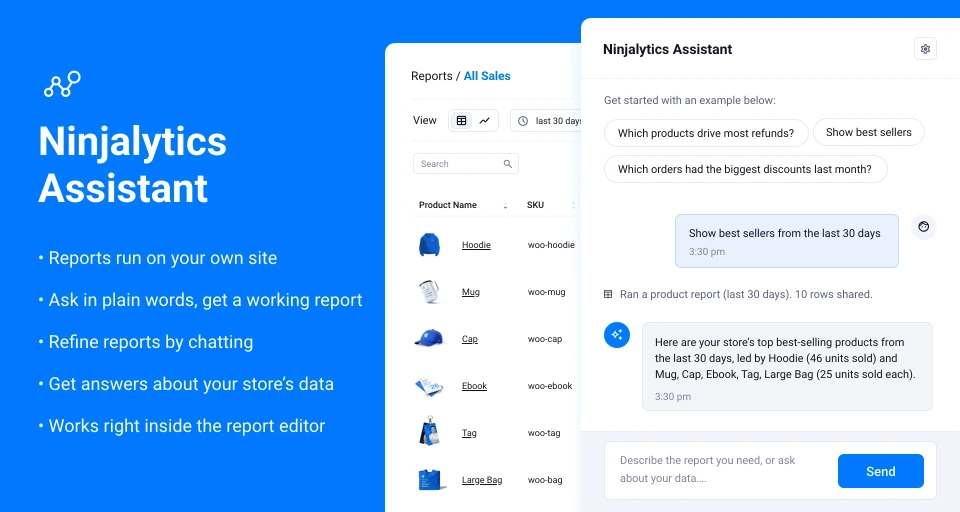
Often, convenience comes with a downside, like needing to sync all your data to the cloud and being concerned about how your customers’ data will be treated. But we designed Ninjalytics Assistant to be different: reports are run directly on your site and you have fine-grained control over what the Assistant service can access, so there is no ambiguity about where your data goes and who might be able to see it.
Also, Ninjalytics Assistant is completely optional. It’s off until an administrator turns it on, and you can continue creating and running reports manually if you prefer not to use it.
In this post
- What Ninjalytics Assistant does not do
- Why report setup often takes longer than the question
- What Ninjalytics Assistant does
- Real questions you can ask
- How it changes your reporting workflow
- How to get started
- You choose what the Assistant can see
- What to check before you rely on an answer
- Try Ninjalytics Assistant
What Ninjalytics Assistant Does Not Do
Usually, the point of a major feature announcement like this one is to showcase all the cool and useful things that our product can do. But for this feature, we feel that it is just as important (if not more) to highlight what it doesn’t do. So before we dive into the awesomeness of Ninjalytics Assistant, here are some things it is designed not to do:
- Export your store’s data to the cloud so that AI can analyze it off-site.
- Access report output or other potentially sensitive site data (such as custom field names) without your permission.
- Store your chat history on the Assistant’s server for future sessions. All conversations stay on your site except when the Assistant is actively responding to a question, unless you enable the option to share chats to improve the product.
- Use your messages or data to train AI models.
Why Report Setup Often Takes Longer Than the Question
After over a decade of development, user feedback, and meeting a wide range of analytics needs, Ninjalytics is a super flexible WooCommerce reporting plugin. It can report on just about any data field from products, variations, orders, line items, and customers. Tons of filtering and segmentation options help to drill down to the specific metrics that are required. Even the date range settings offer a lot of choice, with four different date range modes that each have their own set of options.
That flexibility is useful, but it also means there are a lot of settings to configure and UI sections to navigate. And every selection you make is a small step between your question and your answer.
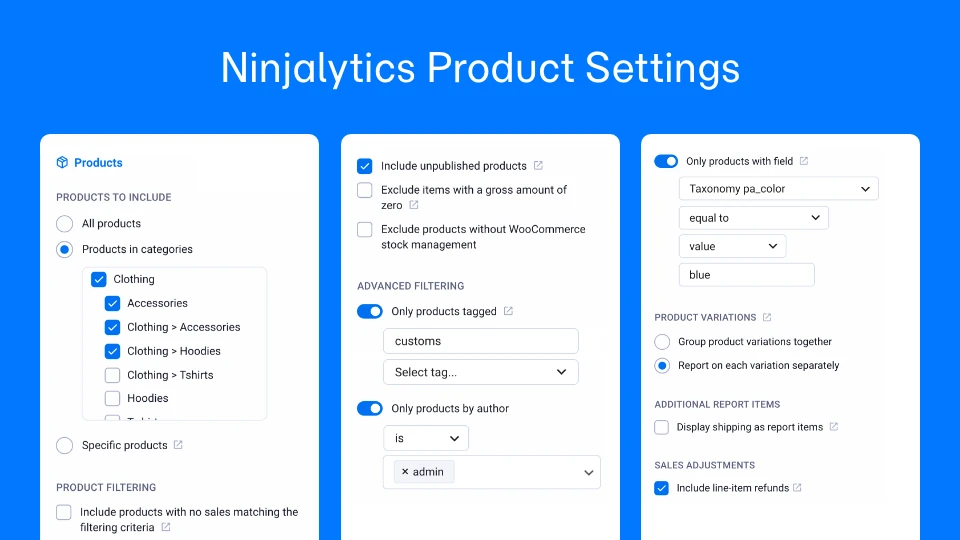
Before, you started with the settings panel. Now you can start with the question.
Let’s say your question is, “Which products were my best sellers last month?” Seems like an easy question, right? It is, but in order to answer it precisely the way you want, you might need to consider a bunch of additional questions as you set up the report in Ninjalytics:
- Which report template should I start with?
- Which columns do I need? Do I want to show gross sales before or after discounts? Do I need to consider taxes too?
- Is “last month” the previous calendar month or the last 30 days?
- How do I sort the report so that “best sellers” come to the top? Should that be defined by quantity sold or revenue?
- Should I show everything in my store or just the top 10 products?
None of these questions are hard on their own, but it’s a lot to think about. And if you only build a new report every few weeks, it’s easy to forget where each setting lives. Often you might run the report a few times until you get what you are looking for.
The Assistant’s job is to do that translation for you: from “what were my best sellers last month?” to a working report that answers that question in a sensible and usable way.
What Ninjalytics Assistant Does: AI-Built WooCommerce Reports
The Assistant has two main functions. Which one it can do depends on the settings you choose.
1. Automatically configure reports to meet your needs
At its core, Ninjalytics Assistant builds report configurations that run on your site. It doesn’t even need to see the report output to do this. When you ask it a question or describe a report you would like to build, it can fill out the report settings and run the report, leaving the interpretation of the chart or data table up to you. You can send follow-up messages to refine the report, and once you’re happy with it, you can optionally save it as a preset that you can run over and over again in the future.
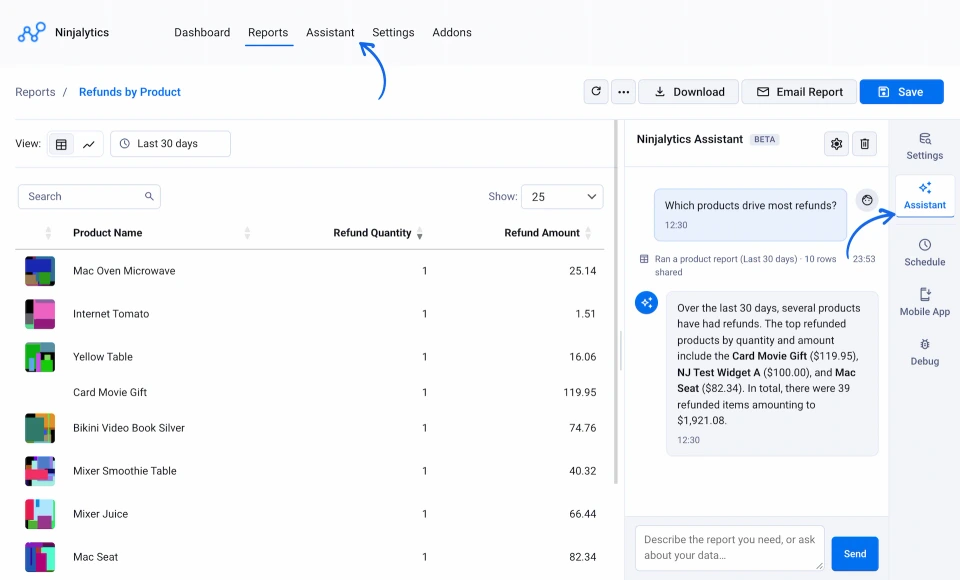
You can create a brand-new report with the Assistant by using the Assistant tab in the Ninjalytics admin, or you can refine an existing report by selecting the Assistant option in the sidebar on the right while the report is open.
2. Answer questions about your store’s data
Optionally, you can go one step further and let Ninjalytics Assistant interpret the report results for you and answer your question in the chat. When this is enabled, the Assistant creates a report configuration behind the scenes, and Ninjalytics runs that report on your own site, the same way it runs any other report. The Assistant then reads the results that your settings allow and gives you an answer, so you don’t need to sift through the table or derive it from a chart yourself.
Real Questions You Can Ask
Here are a few questions store owners ask us often, and the kind of WooCommerce sales report the Assistant builds for each one.
“Which products drive most refunds?” Helps you spot products that often get returned. This can point to a quality problem, a confusing product description, or wrong size information.
“Show best sellers from the last 30 days.” Spot trends and know where to focus your energy.
“Compare product sales this month with last month.” Helps you see which products are growing and which are slowing down.
“Build a margin report.” If your store records the cost of goods for your products, this can help you keep track of profit. And since you are asking for a report instead of just a one-time answer, you can run it again and again.
“Build a report of orders by shipping country.” Useful for shipping decisions, such as where to offer cheaper rates or which regions to focus on in your marketing.
“Who were my top customers this year?” Maybe they could use some special attention!
“Which orders had the biggest discounts last month?” See the effect of your promotions.
You don’t have to start from an empty report. If you’re already looking at a report, you can ask for small changes: “Add a column for discounts”, “Only show completed orders”, or “Segment this by month”.
How It Changes Your Reporting Workflow
The biggest change is where you start. Before, you started with the settings panel and worked toward your question. Now you can start with the question.
A typical session looks like this:
- You ask your question in the chat.
- The Assistant either answers it from a report it ran on your site, or loads a report for you.
- You ask for changes in the chat, or adjust settings yourself.
- When the report is right, you (optionally) save it so you can open it again any time.
Each report also keeps its own conversation, separate for each user who can access it. If you come back to a saved report later, your earlier chat about it is still there. You can start fresh at any time with the Clear button at the top of the Assistant panel.
How to Get Started
Currently Ninjalytics Assistant is only available in Ninjalytics Pro (we hope to bring it to the free version soon too!), so you’ll need the latest version of that plugin on a WooCommerce store. An administrator needs to do the first setup, because the settings apply to the whole site.
- In your WordPress admin, go to Ninjalytics > Assistant.
- If you’re an administrator, a welcome dialog explains the Assistant. Click Set up assistant. If you closed the dialog earlier, click the settings button at the top of the Assistant panel to open Assistant settings.
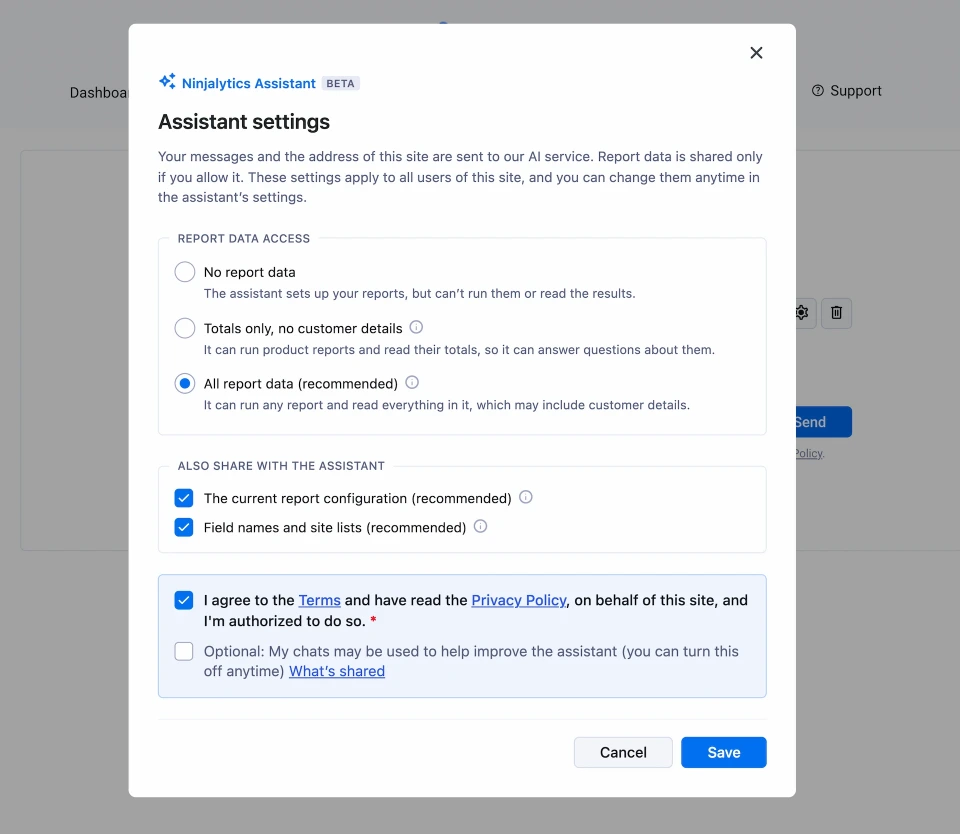
- Under Report data access, choose what the Assistant can see. The next section explains each option.
- Under Also share with the assistant, choose whether to share the current report configuration and your field names and site lists.
- Read and agree to the Ninjalytics AI Terms and Privacy Policy. You can also choose whether your chats may be used to help improve the Assistant. This is optional.
- Click Enable assistant.
- Type a request in the message box, or click one of the suggestions.
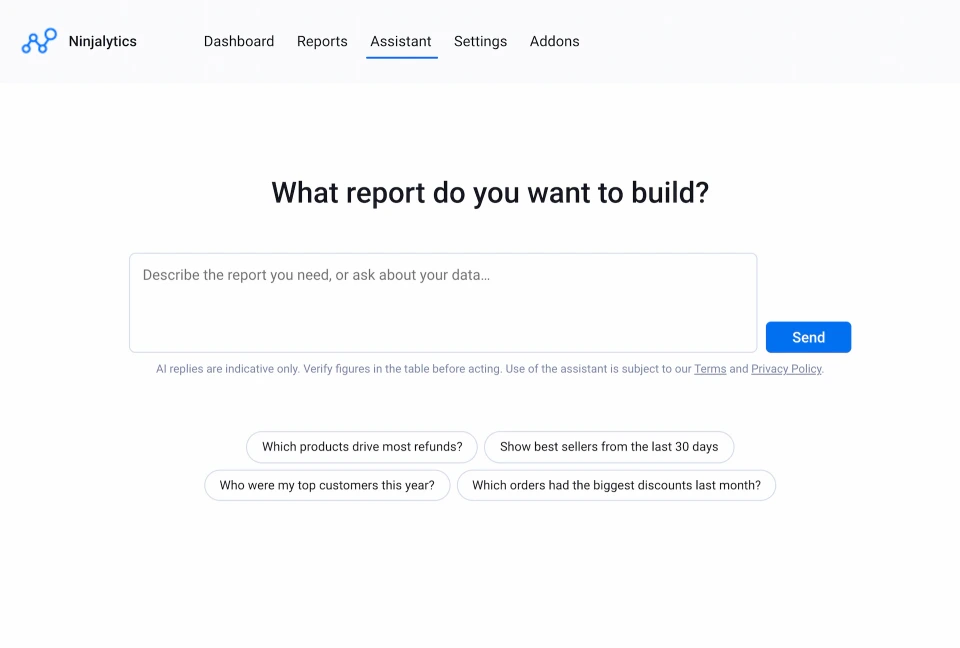
- When the Assistant gives you a report setup, click View Report to load it.
- To keep the report, click Save and give it a name. After you save it, the report opens in the full report editor, where you can also change its settings yourself.
You don’t have to use the Assistant page every time. The Assistant is also available inside the report editor: open any report and click the Assistant tab in the report sidebar, below Settings.
You Choose What the Assistant Can See
Sales data and customer details are sensitive. Before you use any WooCommerce analytics AI tool, you should know what it sends and where. Here is how it works in Ninjalytics.
Your store data stays in your WordPress database. We don’t copy your store to our servers. When the Assistant needs data, Ninjalytics runs the report on your site, and only the results your settings allow are sent to the Assistant.
What is always sent. When you use the Assistant, past chat messages from your current conversation and your site’s address are sent to our AI service, along with optional context such as the current report configuration, field names, and site lists, if enabled (see below). Nothing is sent while the Assistant is off or outside of an active chat session.
Report data access: three levels
You can choose one of these levels:
- No report data. The Assistant can set up reports for you, but it can’t run them or read the results. If you ask a question about your data, it will offer a report you can run yourself.
- Totals only, no customer details. The Assistant can run reports that contain aggregated sales data, so it can answer questions such as “which products sold best?”. Order-level and customer-level columns are sent blank or excluded.
- All report data. The Assistant can run any report and read everything in it. This may include customer details such as names or addresses if the report includes columns that contain this information. This option is marked as recommended in the settings, because many questions need the full results. But it’s your choice, and even if this is enabled, Ninjalytics Assistant doesn’t retain any data that it processes when you are not actively chatting with it (except when you enable the option to share chat history for product improvement).
Two optional extras
- The current report configuration. This helps the Assistant suggest changes that fit the report you have open.
- Field names and site lists. This shares your custom field, meta and taxonomy keys, plus lists of your product categories and tags, shipping methods, user roles and order statuses. It lets the Assistant use your custom fields and filter by things like a specific category. Without it, the Assistant knows less about your store’s setup.
Who controls the settings
- Only site administrators (users with the
manage_optionscapability) can enable the Assistant or change its data sharing settings. The settings apply to all users on the site. - Withdrawing your agreement to the Terms turns the Assistant off for all users of the site.
What to Check Before You Rely on an Answer
Note: Ninjalytics Assistant is a beta feature, and AI can make mistakes. Here’s what we recommend.
Check the figures in the report table. The Assistant’s replies are a helpful summary, not the final word. Before you make a decision based on a number, load the report and look at the table.
Ask it to clarify. If your question could mean more than one thing, the Assistant may ask you a question first. Answer it. A clear question gets a better report.
Don’t use it for everything. For tax filings, accounting or anything where a wrong number has a real cost, use it to build the report, then check and export the report itself. It is also important to reconcile reports against your payment processor or bank account.
Try Ninjalytics Assistant
Ninjalytics Assistant is designed to shorten the distance between a question and a working report. Instead of remembering where each setting lives, you describe what you want, check the result, and possibly save it for next time. And you decide how much of your report data the Assistant gets to see. That’s the kind of AI for WooCommerce reports we wanted to use in our own work.
If you use Ninjalytics Pro, update to the latest version and go to Ninjalytics > Assistant to set it up. Start with a question you ask often, like your best sellers from last month, and see how close the first answer gets.
Right now it’s an early beta, so we’d really like to hear from you. Which questions do you ask about your store every week? And which reports would you like the Assistant to get better at? Let us know!