
A member of your forum has a question. They want to show a screenshot of an error message, a photo of a broken part, or a quick sketch of an idea. They open the reply box, and there is no way to add the picture from their computer or phone. So they try to describe it in words, upload it to some other website and paste a link, or just give up.
If you run a bbPress forum, you have probably seen this happen. In this guide, we’ll show you how to let members insert images in bbPress posts with our free plugin, Inline Image Upload for bbPress. Then we’ll show you how to move those bbPress images off your own server with Infinite Uploads, which the plugin supports directly in version 1.2.0 and newer.
What bbPress Can’t Do with Images Out of the Box
bbPress is a simple forum plugin for WordPress, and it does a lot of things well. But it doesn’t give forum members a button to upload an image from their own device into a topic or reply. In real forum life, this causes a few problems:
- Many members don’t know how to host an image somewhere else and copy its address.
- Images hosted on other websites can disappear later, leaving old, helpful topics with broken images.
- Members who can’t share a picture write longer, less clear posts, which makes it harder for others to help them.
For support forums, hobby communities, and product forums, a picture often explains the problem faster than words.
Let Members Upload Images Right in the Editor
Inline Image Upload for bbPress turns on the visual editor for bbPress topics and replies. (The visual editor shows formatting, like bold text, as you type.) It also adds an upload button to the editor’s image window.
For your members, adding an image takes two steps:
- Click the Insert/edit image button in the editor toolbar.
- Click the Browse button in the image dialog, and choose an image from their device.
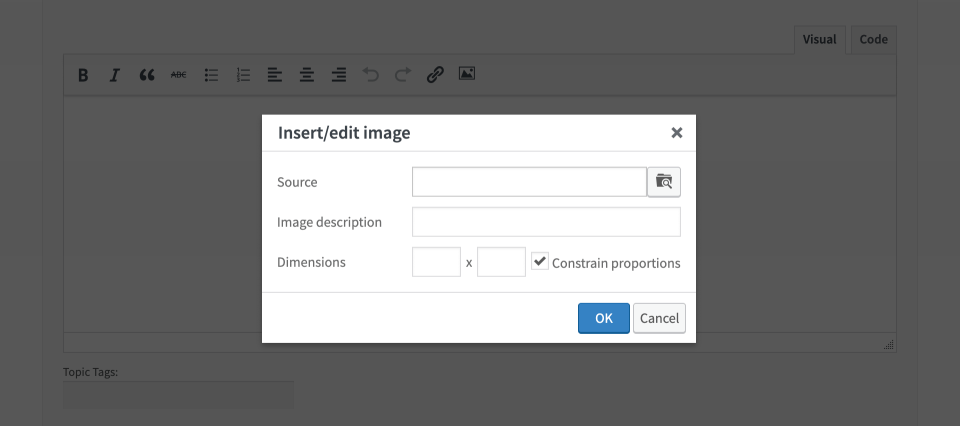
The image then appears inside the post, exactly where the member placed it. There is no separate attachment list to scroll through.
The plugin supports JPEG, PNG, and GIF images. The largest file a member can upload depends on your server’s PHP settings (upload_max_filesize and post_max_size). You can see your current values on the plugin’s settings page.
What Happens to the Image Files
When a member uploads an image, the plugin first saves it in a temporary folder. When they publish the topic or reply, the plugin moves the image into a folder for that post. The plugin also cleans up after itself:
- Images that were uploaded but never used in a post are removed automatically after about a day.
- When a member edits a topic or reply and removes an image, the image file is deleted when the post is saved.
- When a topic or reply is deleted, its images are deleted too.
- The Cleanup Unnecessary Files button on the settings page removes any leftovers if you want to clean up by hand.
By default, forum images are saved in a folder inside your WordPress uploads folder. They are not added to your Media Library, so forum pictures don’t mix with the images you use in your pages and posts.
Why Forum Images Can Outgrow Your Hosting
On a small forum, a few hundred images are not a problem. On an active forum, the picture changes. Every screenshot in every reply adds another file, and after months or years those files can take up a lot of space on your server.
Storage is only one part of it. Every time someone opens a topic, your server also has to send those images to the visitor. Busy forums with many images can put extra load on a hosting plan that was chosen for a normal website.
This is where offloading helps. “Offloading” means your images are stored in cloud storage instead of on your web server, and visitors load them from there.
What Infinite Uploads Does
Infinite Uploads is a cloud storage service for WordPress. Its plugin offloads the files in your uploads folder to cloud storage and serves them through a CDN (content delivery network). A CDN is a group of servers around the world, so visitors load images from a location close to them. Infinite Uploads also includes automatic image optimization, which makes image files smaller.
Built-In Infinite Uploads Support (Version 1.2.0 and Newer)
Since version 1.2.0, Inline Image Upload for bbPress has a Storage Engine setting. The storage engine decides where the plugin keeps your forum images:
- Filesystem (default): images stay on your own server.
- Infinite Uploads: images are saved to the same folder, and Infinite Uploads offloads them to the cloud and optimizes them. You can select this option only when the Infinite Uploads plugin is active.
- Amazon S3: available with the paid S3 Image Storage for bbPress add-on.
We built this integration together with the Infinite Uploads team, with code changes on both sides. Thank you to them for the great collaboration.
We also made sure that the plugin’s temporary folder is excluded from the Infinite Uploads sync, so images that members upload but never post don’t get sent to the cloud.
How to Set Up bbPress Images with Infinite Uploads
Here are the steps, from a forum without image uploads to forum images served from the cloud.
Step 1: Install Inline Image Upload for bbPress
- In your WordPress admin, go to Plugins > Add Plugin.
- Search for “Image Upload for BBPress.”
- Click Install Now, then Activate.
The plugin needs WordPress 6.5 or newer and PHP 7.0 or newer. Before you continue, open a topic on your forum and try uploading an image. It’s good to confirm that uploads work before you add cloud storage.

Step 2: Install and Connect Infinite Uploads
- Go to Plugins > Add Plugin, search for “Infinite Uploads,” then install and activate it.
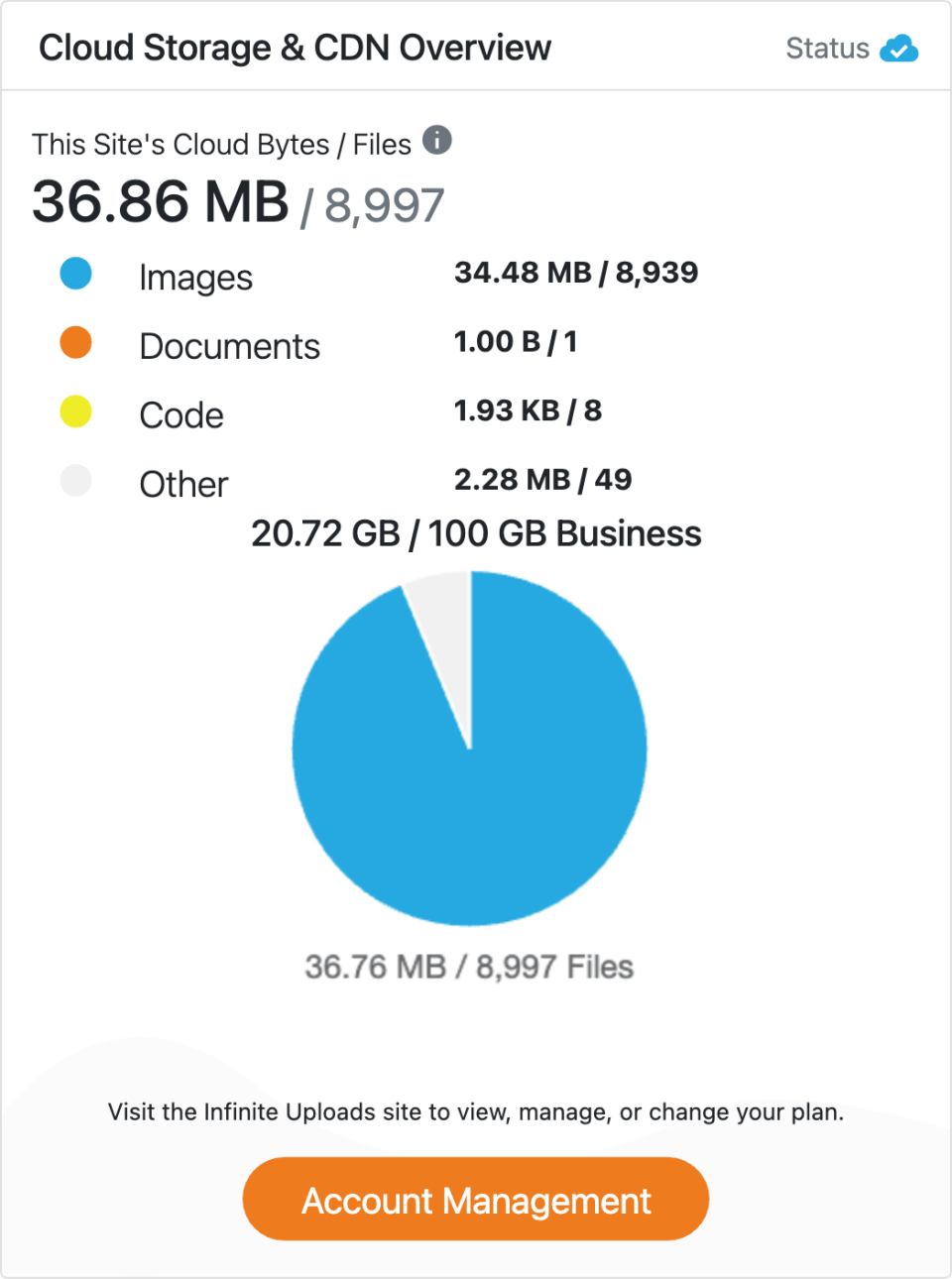
- Open the Infinite Uploads screen in your WordPress admin and connect your site to an Infinite Uploads account. You can create a new account or log in to an existing one.
- Follow the on-screen steps to sync your existing files to the cloud and start serving them from the CDN.
The exact screens may change as Infinite Uploads updates its plugin, so follow its on-screen instructions and its documentation for the details.
Save 10%: use the coupon code BerryPress when you sign up for Infinite Uploads through our link to get 10% off all your Infinite Uploads payments.
Step 3: Choose Infinite Uploads as Your Storage Engine
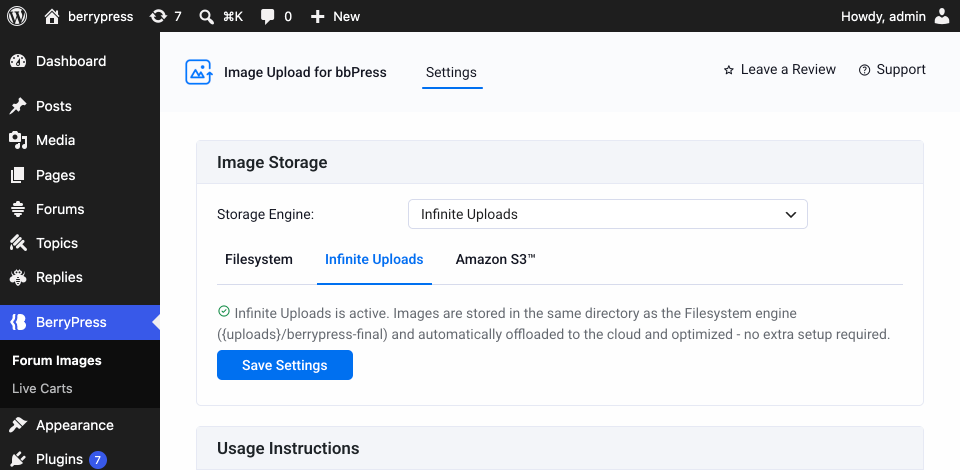
- Go to BerryPress > Forum Images.
- In the Image Storage section, open the Storage Engine list and select Infinite Uploads.
- Save the settings.
If the Infinite Uploads option is greyed out, the Infinite Uploads plugin is not active yet.
Step 4: Test It
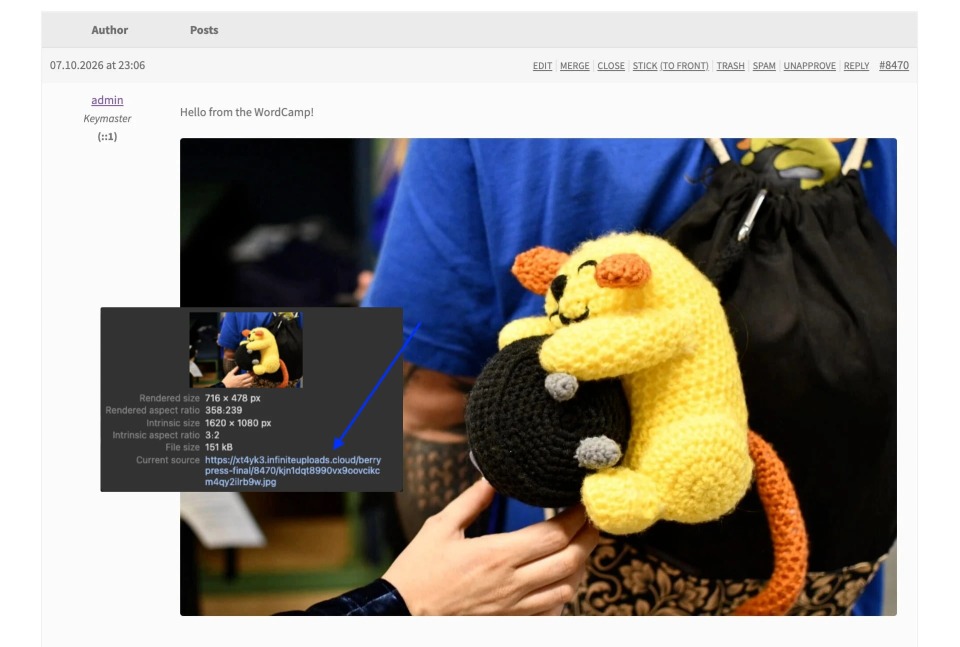
Post a reply with an image on your forum. Then right-click the image and open it in a new tab. The address should now come from the Infinite Uploads CDN instead of your own website’s domain.
Free and Pro: What Each Version Includes
The free plugin covers the basics: members can upload images into topics and replies, and you can choose where those images are stored.
Image Upload for bbPress Pro adds more control for larger or busier forums:
- Upload several images at once with a drag-and-drop uploader
- Limit which user roles can upload images
- Limit the number of images per post
- Automatically make large images smaller to fit a maximum size
- Convert all uploads to one image format
- Set JPEG and PNG compression levels to save disk space
- Let visitors click an image to see it larger in a lightbox
- See total image count and file size statistics
- Keep GIF animations when members upload animated GIFs
Smaller files mean less storage and less bandwidth, so the Pro resizing and compression features work well alongside Infinite Uploads.
Things to Know Before You Start
- Infinite Uploads is a paid service. Check the current plans on the Infinite Uploads website before you connect your site.
- Bring your files back before you cancel. Use the Infinite Uploads plugin’s option to download your cloud files back to your server first, so your forum images don’t disappear from your site.
- Keep forum images inside your uploads folder. Infinite Uploads works with your WordPress uploads folder, so leave the plugin’s storage directory at its default location.
- Upload size limits come from your server. If members can’t upload larger photos, ask your host about your PHP upload limits.
A note on transparency: we have an affiliate partnership with Infinite Uploads. If you sign up through our link, we may earn a commission at no extra cost to you.
Better Conversations, Lighter Server
With Inline Image Upload for bbPress, your members can show what they mean instead of trying to describe it. With Infinite Uploads, those bbPress images are stored in the cloud and loaded from a CDN, so your forum can keep growing without every picture filling up your server.
To get started, install Inline Image Upload for bbPress for free from the WordPress plugin directory, then connect Infinite Uploads with the coupon code BerryPress to get 10% off all your Infinite Uploads payments.
How do members share images on your forum today? And is there a feature you still miss for forum images? We’d love to hear about it.