
The best free WooCommerce reporting plugin depends on whether you need sales analysis, order exports, or both. Ninjalytics is our top pick for combining reporting and order export in one free plugin, Advanced Order Export for WooCommerce is the strongest choice for detailed file exports, and Order Export & Order Import for WooCommerce is best when data needs to move both into and out of a store.
But store reporting often becomes more complicated once you have a real workflow to support. You may need to export every order line for fulfillment, compare product sales by region, build a report for accounting, or save the same filtered view for next Monday. That is where free WooCommerce reporting plugins can help.
The plugins in this comparison don’t all solve the same problem. Some focus on product and order reports. Others are designed mainly for moving order data into CSV, Excel, or another system. We compared both types because many store owners need a little of each.
For this comparison, we installed each plugin’s current free version from WordPress.org on a live WooCommerce staging site and checked every free-versus-Pro claim against the plugin’s own code and documentation, not just marketing copy.
We looked at how the interface is organized, where free features actually stop, and how many stages are involved in creating a useful report or export. Because every store has different extensions and data, you should still test your preferred option with your own orders before making it part of a critical workflow.
Quick Comparison: Which Free Plugin Fits Your Workflow?
| Plugin | Best for | Main free strength | Main limitation |
|---|---|---|---|
 Ninjalytics Ninjalytics | Reporting and order export in one plugin | 15+ templates, live, interactive report preview, charts, saved presets, and CSV export | Advanced fields and XLSX/HTML exports require Pro |
 Advanced Order Export for WooCommerce Advanced Order Export for WooCommerce | Detailed exports in many formats | Flexible filters, fields, grouping, and export formats | Focuses on exports rather than visual sales analysis |
 Order Export & Order Import for WooCommerce Order Export & Order Import for WooCommerce | Moving order data between systems | CSV import and export with reusable templates | Not intended to be a sales analytics dashboard |
 REPORTiT REPORTiT | Visual sales dashboards | Product, customer, and sales reports with charts | Smaller user base than the established export tools |
 WP All Export – Order Export for WooCommerce WP All Export – Order Export for WooCommerce | Users already working with WP All Export | Drag-and-drop CSV and XML export building | Requires the main WP All Export plugin; some order fields need Pro |
 Dashboard and Analytics for WooCommerce Dashboard and Analytics for WooCommerce | A quick KPI dashboard | Revenue, AOV, refunds, and top-product views | 30-day limit and several visible Pro-only cards |
 Booster for WooCommerce Booster for WooCommerce | Stores already using a broad WooCommerce toolkit | Reporting sits alongside 120+ other modules | More menus and settings than a dedicated reporting tool |
Icon source: WordPress.org, except Ninjalytics – not our copyright, used for identification purposes only.
There is no universal winner for every store. If your only job is sending an XML file to another system, a dedicated exporter may be the better choice. But if you want to understand sales and export the result without switching tools, Ninjalytics covers more of that workflow in one free plugin.
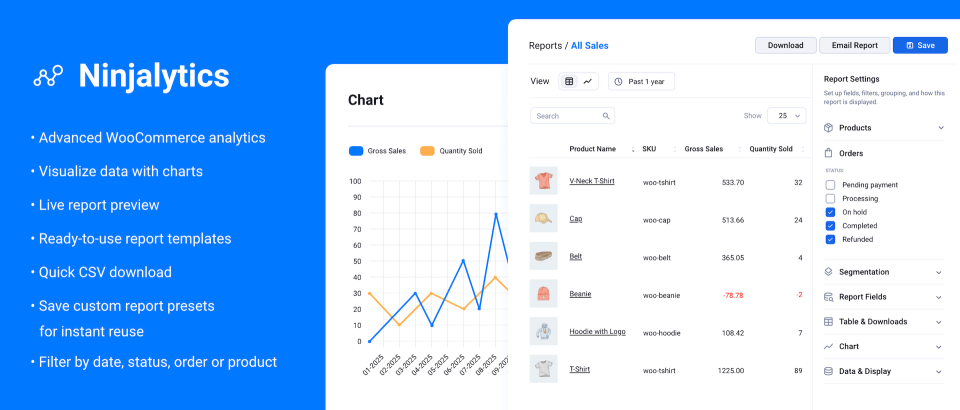
1. Ninjalytics: Best All-Round Free Reporting and Export Plugin
Ninjalytics is a free WooCommerce plugin that combines product sales reporting and detailed order line item exports in one tool, jobs that are often split between separate plugins. It works inside WordPress and includes more than 15+ ready-made templates, including All Sales, Top Selling Products, Stock Report, Sales by Country, Sales by Currency, and New Order Export. Formerly known as Product Sales Report for WooCommerce, Ninjalytics recently absorbed the features of Export Order Items for WooCommerce too.
The live preview is particularly useful when you are building a custom report. You can choose fields, change the date range, filter order statuses, group the data, and check the result before downloading anything. For repeated work, you can save the configuration as a preset instead of rebuilding the same spreadsheet every week.
View Ninjalytics Interface
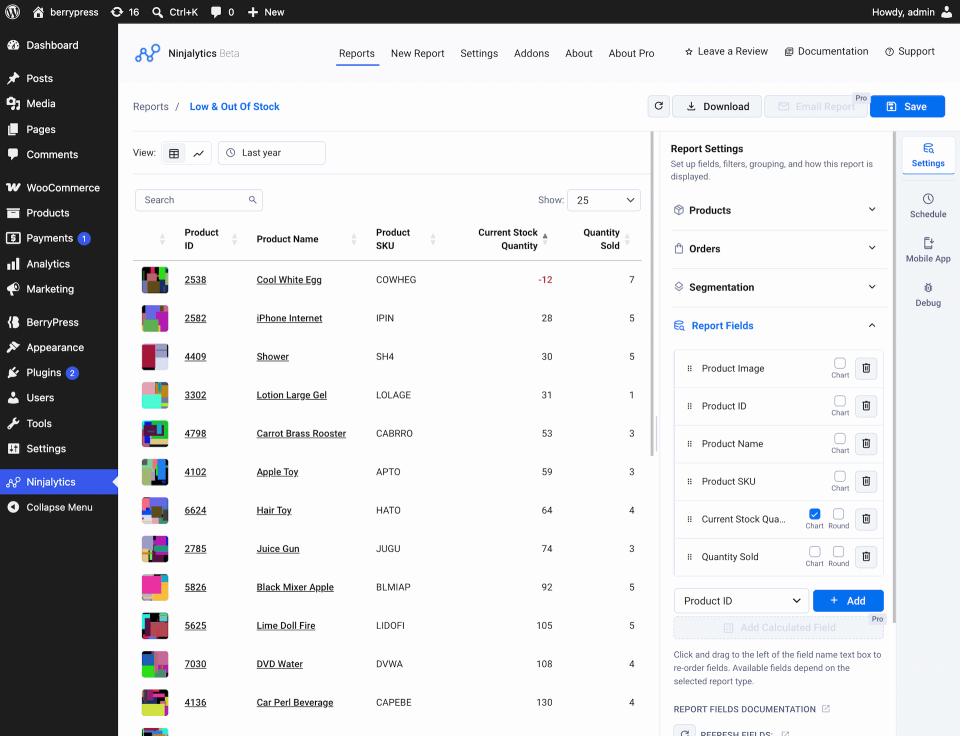
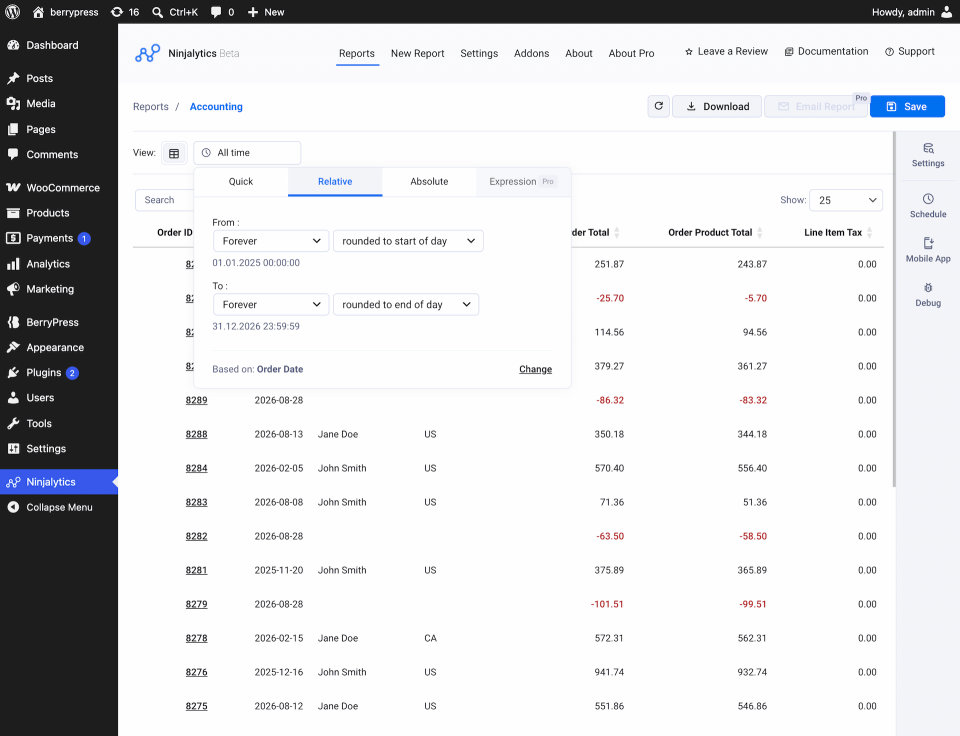
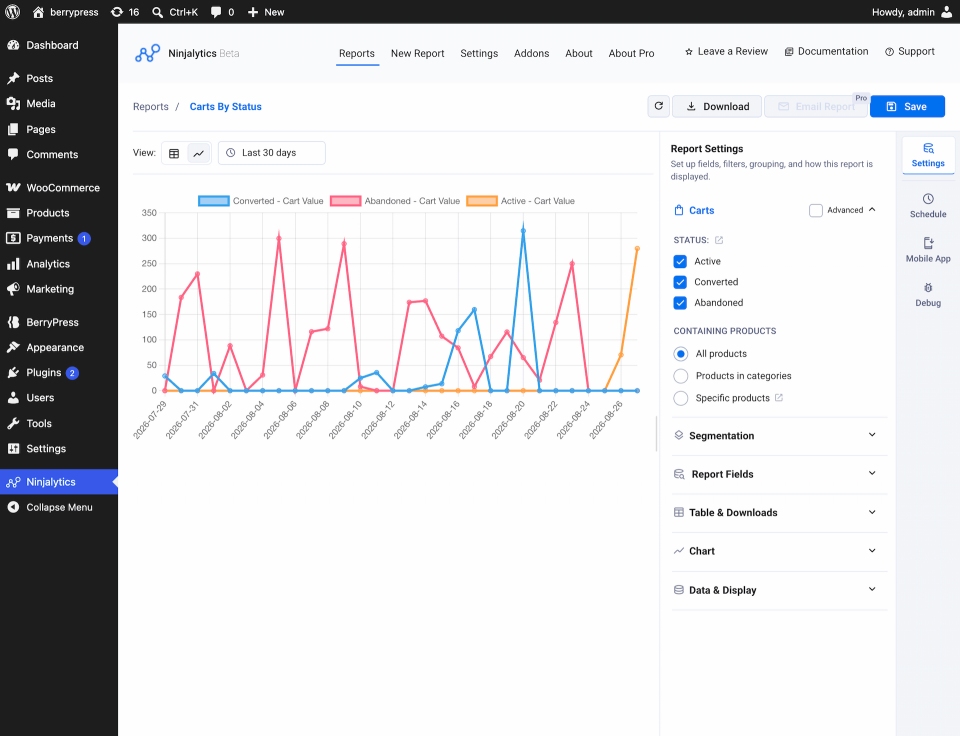
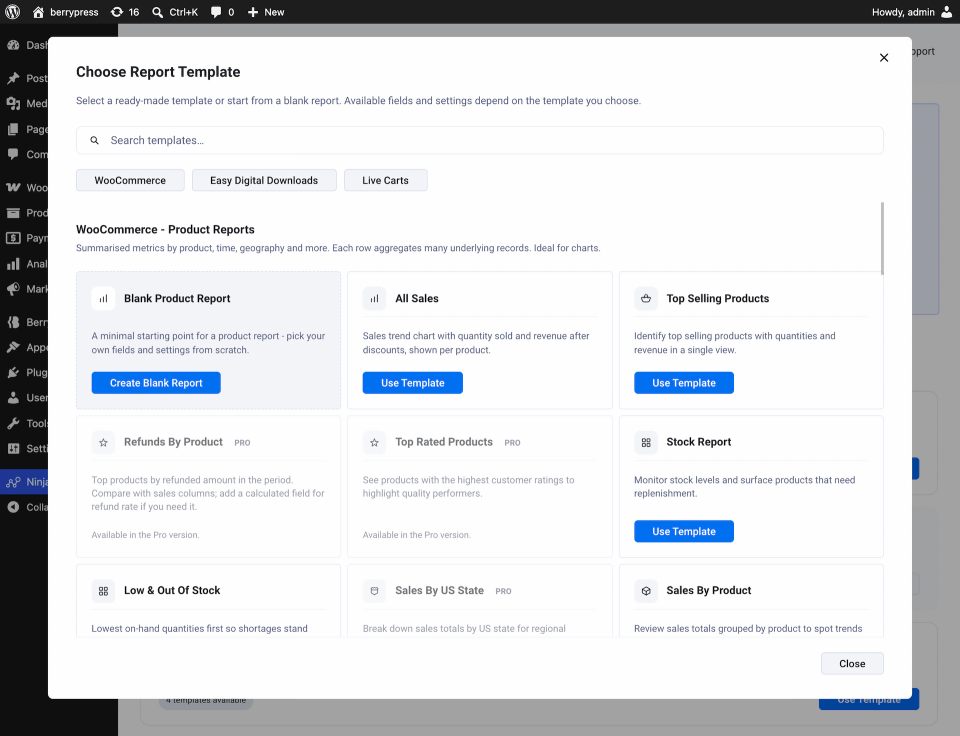
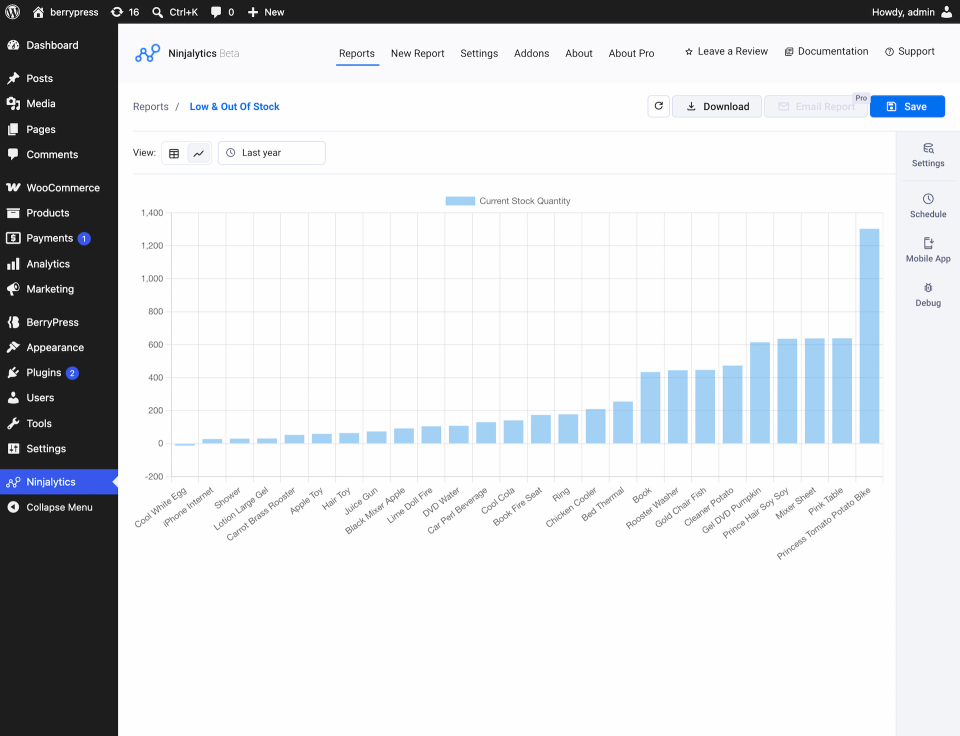
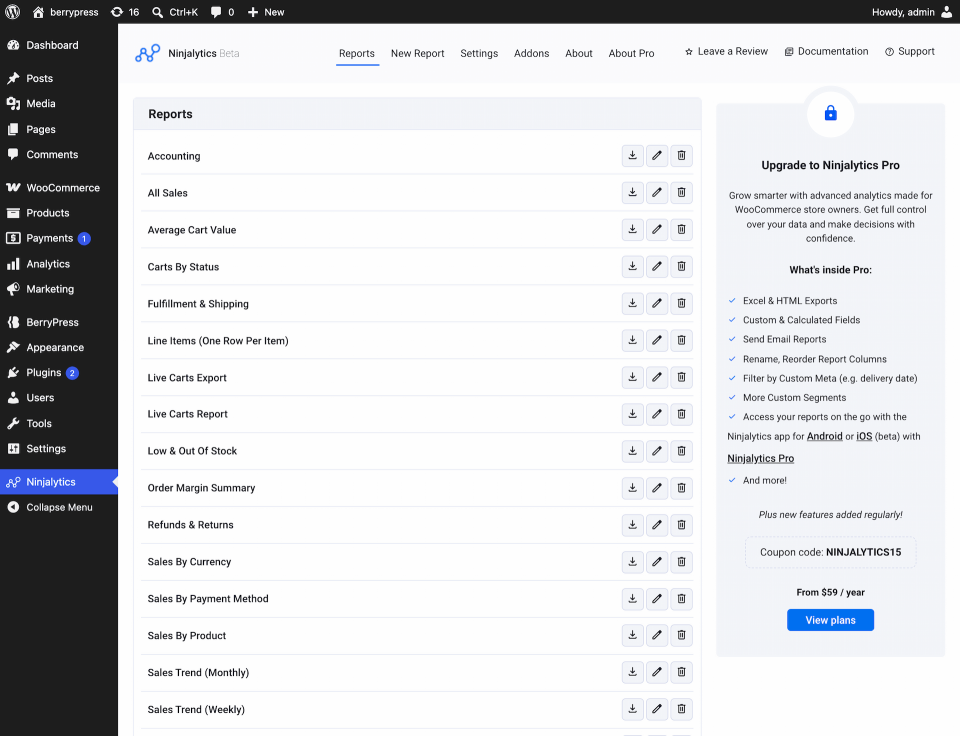
The interface follows a template-first workflow. When creating a report, you can choose a ready-made template or start with a blank configuration. The template library can be searched and filtered, while the saved reports screen gives you direct actions to open, download, duplicate, or delete a report. This keeps recurring reporting work in one place instead of spreading it across several WooCommerce settings pages.
The free version includes:
- product sales reports and individual order line item exports;
- 15+ report templates;
- line and bar charts;
- flexible date ranges and order status filters;
- filtering by products and categories;
- saved report presets;
- CSV downloads;
- variation support and custom sorting;
- HPOS support;
- compatible with Scheduled Email Reports – to schedule sending saved reports via emails on a daily, weekly, monthly, or custom schedule
- compatible with Frontend Reports for WooCommerce – to display reports on any page or post via shortcode, so team members or clients can view up-to-date sales data without wp-admin access.
- WooCommerce and Easy Digital Downloads support, with EDD currently marked as beta.
This combination makes Ninjalytics a good fit for a store manager who wants to answer questions such as:
- Which products generated the most revenue this month?
- Which regions or currencies account for our sales?
- What needs to be included in today’s fulfillment file?
- Which low-stock products have also been selling well?
Advantages
You can move from a question to a chart, table, or CSV without using separate reporting and order export plugins. Templates make common reports quick to start, while the custom builder supports more specific workflows. Ninjalytics also builds on more than a decade of WooCommerce reporting development: the original Product Sales Report plugin was added to WordPress.org in June 2015 and has since evolved into the broader Ninjalytics reporting and order export platform.
Disadvantages
The free version does not include every advanced field or export format. XLSX and HTML exports, pie charts, calculated fields, custom product or order meta fields, advanced filtering, and WordPress dashboard widgets are Pro features. Some templates and fields remain visible with Pro labels, which is useful for understanding the upgrade but adds locked options to the interface.
Best for
Store owners, managers, and agencies that need both repeatable sales analysis and practical order exports.
2. Advanced Order Export for WooCommerce: Best for Export Format Choice
Advanced Order Export for WooCommerce is the most established plugin in this comparison, with more than 100,000 active installations at the time of writing. It is built for detailed export jobs rather than visual analytics.
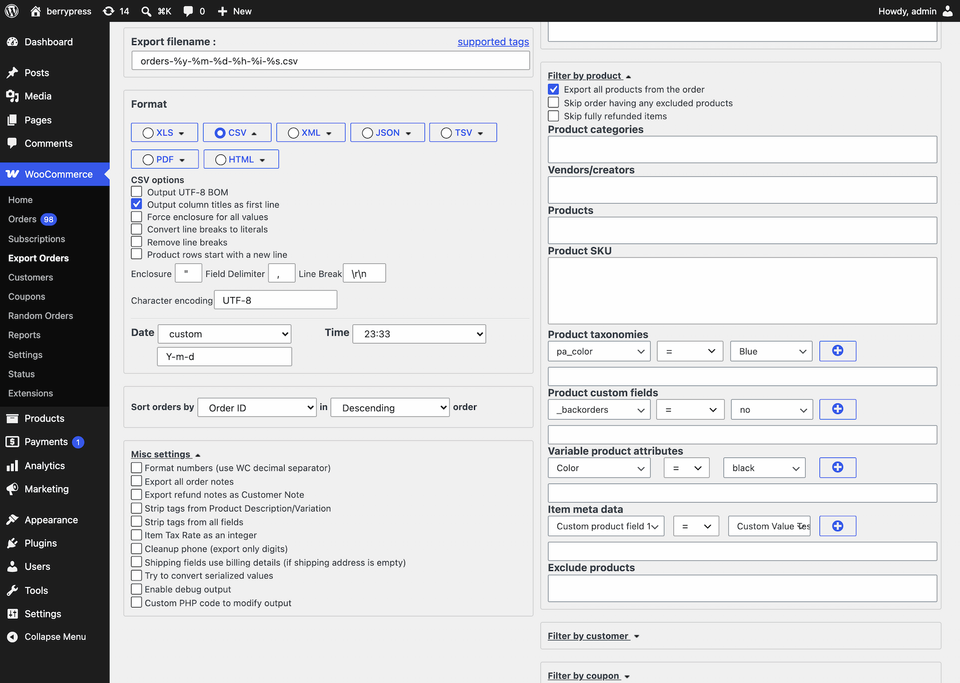
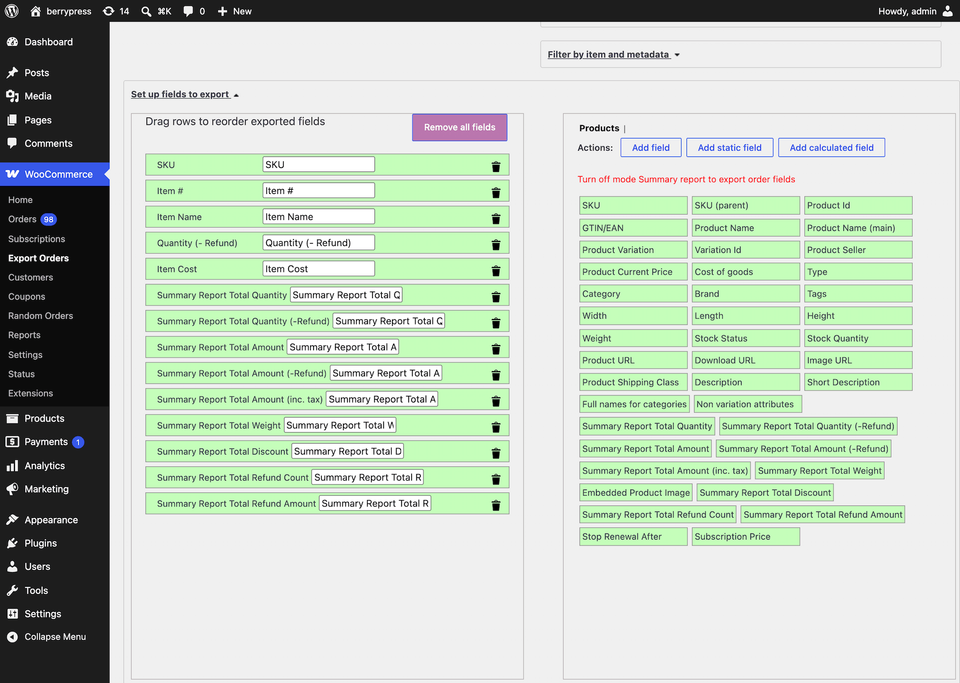
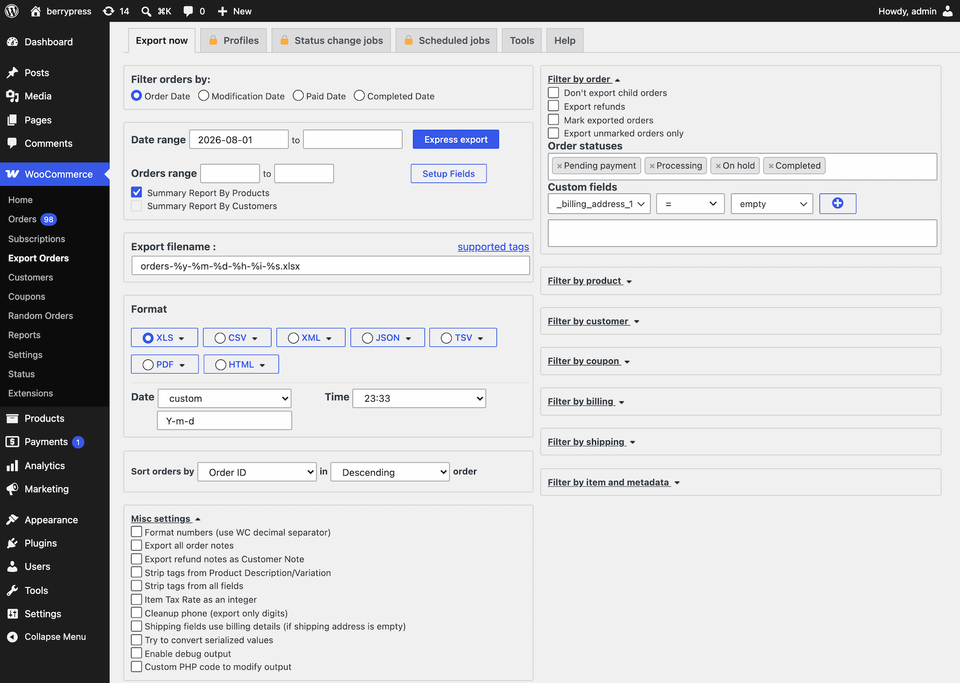
The plugin can export WooCommerce order data to formats including Excel, CSV, XML, JSON, PDF, and HTML. You can select fields, apply filters, rename columns, sort results, and group data. It also supports custom fields and HPOS.
Most of this configuration is presented on one large, tabbed export screen. You can adjust the fields and filters, choose how many records to preview, and generate the file without moving through a wizard. This is efficient once you know what the receiving system expects, although the number of controls can feel dense during the first export.
View Plugin Interface
Advantages
It gives you broad control over the shape and format of exported data. That makes it a strong option when a warehouse, accountant, courier, or other external system expects a specific file structure.
Disadvantages
It is an exporter first. If your main goal is to compare trends, view product performance in charts, or maintain a reporting dashboard, you will need WooCommerce Analytics or another reporting tool alongside it. Saved export profiles appear as a separate tab but require Pro.
Best for
Stores with detailed export requirements or several external systems that expect different file formats.
Banner source: Advanced Order Export for WooCommerce on WordPress.org
3. Order Export & Order Import for WooCommerce: Best for Data Migration
Order Export & Order Import for WooCommerce by WebToffee handles data in both directions. You can export orders and coupons to CSV, then import data into WooCommerce when needed. Reusable templates and job history make it practical for repeat migrations or data transfers.
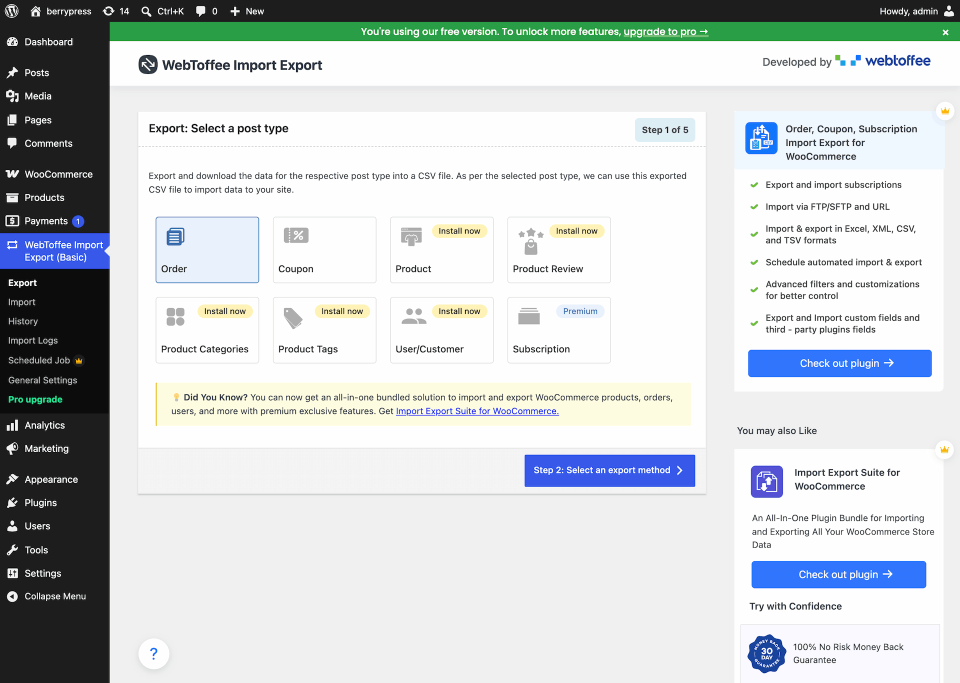
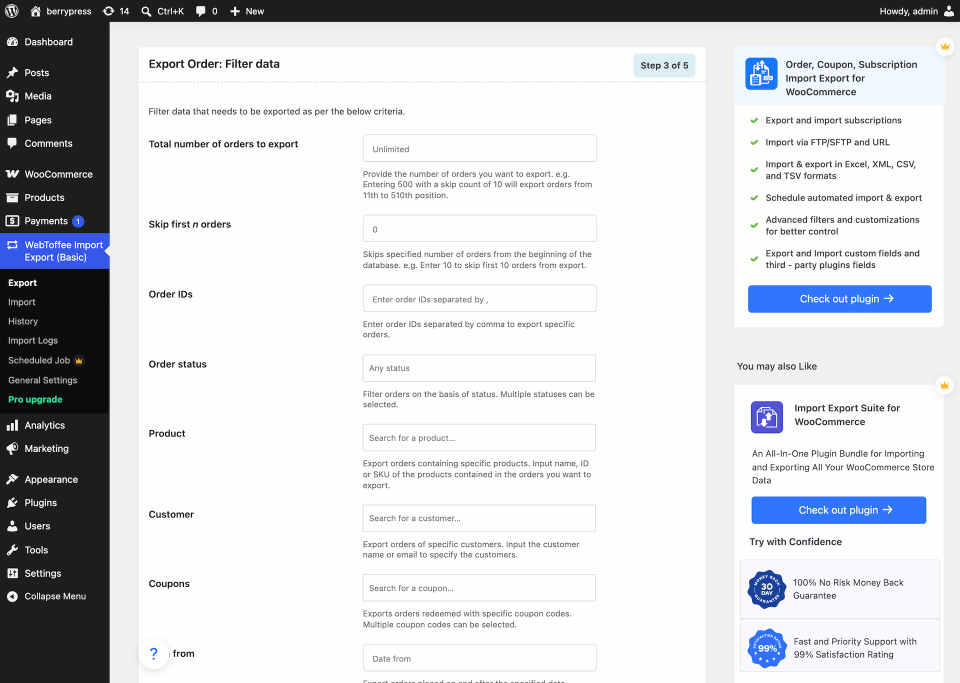
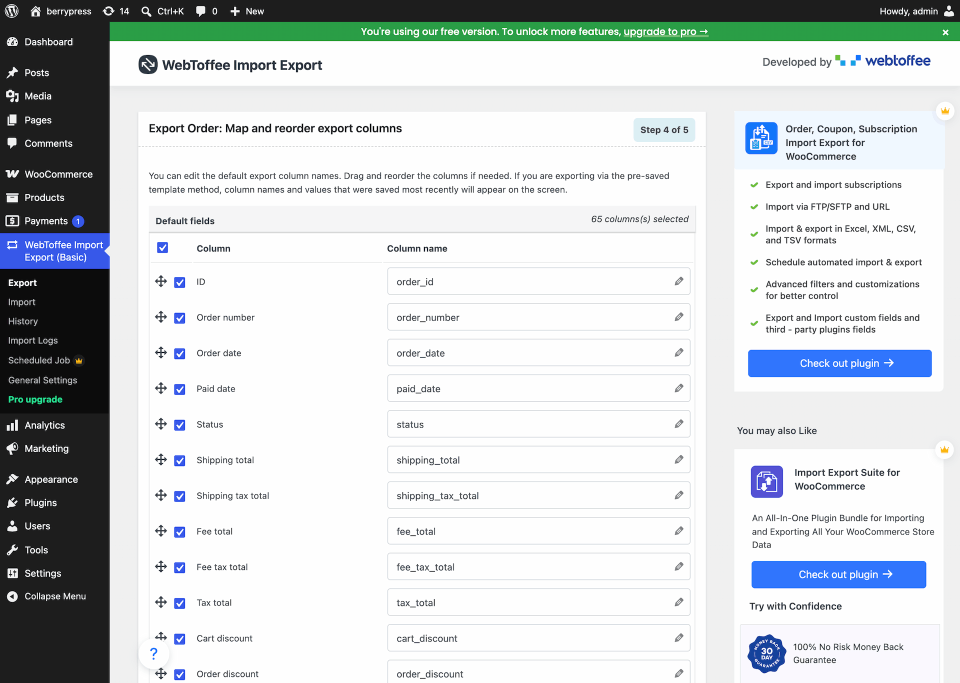
The two-way workflow is the important difference here. A reporting plugin helps you understand data, while an import/export plugin helps you move or restore it. WebToffee uses a step-by-step process: choose the data type and export method, apply filters, map and reorder columns, then review advanced options. You can use a quick export, load a saved template, or build an advanced export.
View Plugin Interface
Advantages
It is useful for migrations, bulk updates, backups, and transfers between WooCommerce stores. It also has a large user base and supports HPOS.
Disadvantages
CSV files are the focus, and the plugin is not intended to provide charts or a KPI dashboard. The guided workflow is easier to follow than one very large form, but it also takes more screens. Additional formats and remote transfer options are promoted as premium features.
Best for
Agencies, developers, and store owners moving order or coupon records between sites and systems.
Banner source: Order Export & Order Import for WooCommerce on WordPress.org
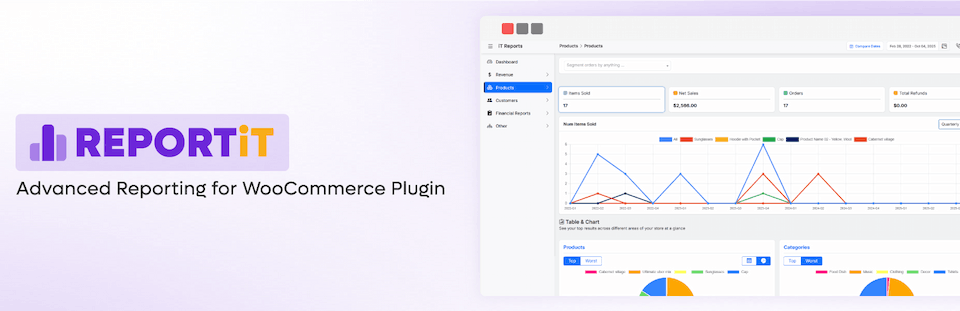
4. REPORTiT: Best for a Visual Reporting Dashboard
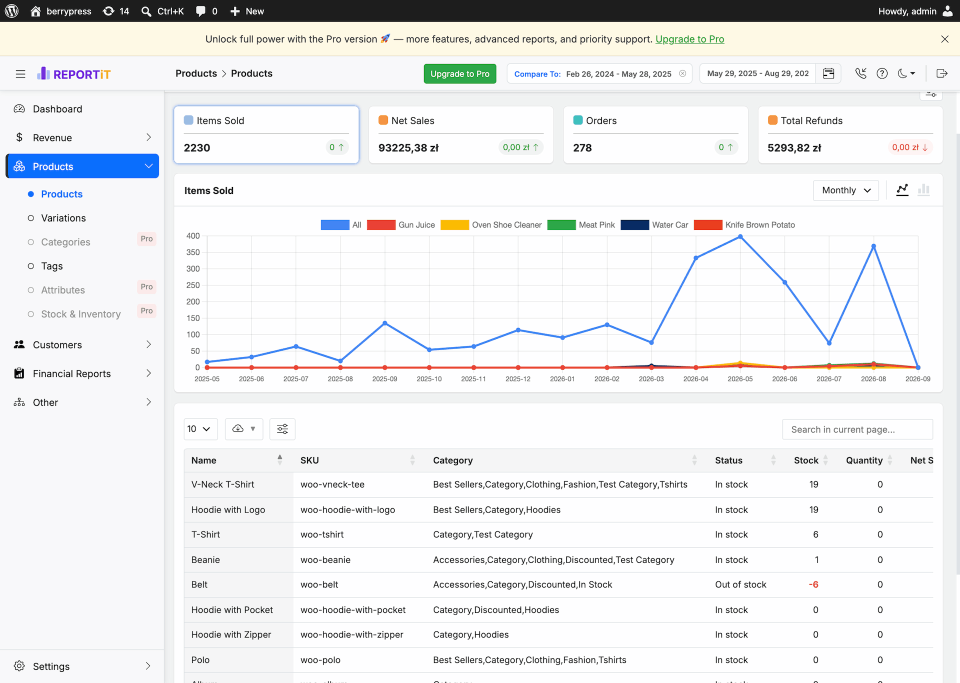
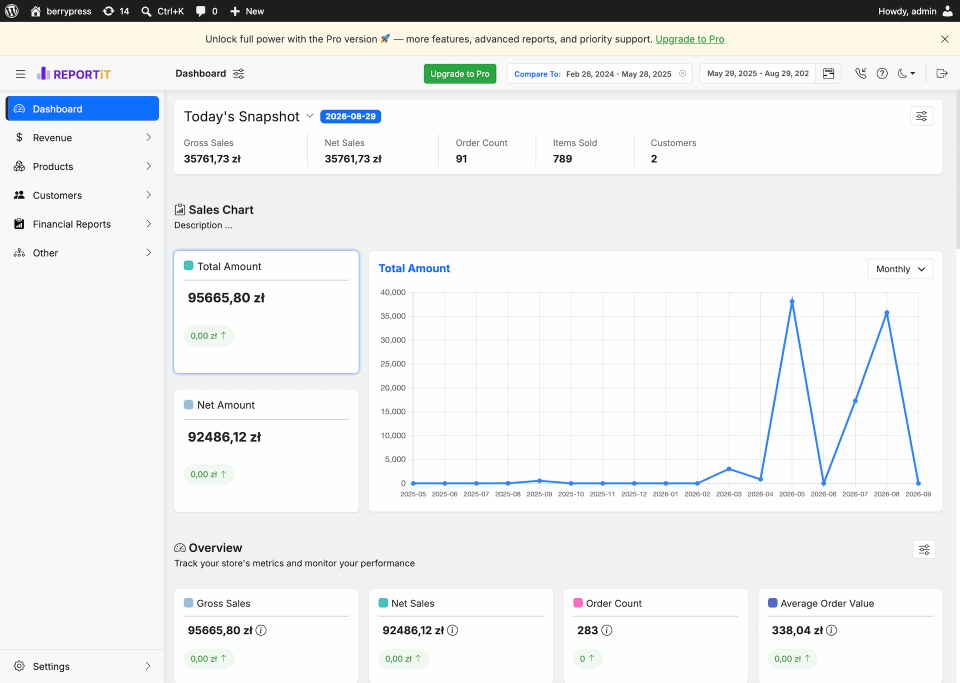
REPORTiT – Advanced Reporting for WooCommerce focuses on visual reports for sales, products, and customers. It includes filtering, charts, and CSV or Excel export, so it sits closer to Ninjalytics than the export-only tools do.
It can be helpful when you want to browse store performance in the WordPress admin instead of opening each export in a spreadsheet. Product and customer views also give teams several ways to explore results. The interface feels like a reporting suite, with separate sections for products, variations, categories, tags, attributes, and stock. A persistent date control, period comparison, configurable dashboard, and line or bar charts support visual exploration.
View Plugin Interface
Advantages
It combines dashboards, charts, filters, and export features. The range of report types is useful for managers who want more than order rows. Modern, easy to use interface.
Disadvantages
Its community is much smaller than those of the leading export plugins. At the time of writing, WordPress.org lists around 700 active installations and only a handful of ratings, so there is less public feedback to use when evaluating it for a critical store workflow. Several report sections are marked Pro, and upgrade calls to action appear in both the main layout and report toolbar. Several negative reviews describe reports returning zeros or failing to generate properly, and one mentions a long, unresolved support exchange.
Best for
Store managers who prefer visual exploration, want to try an alternative reporting interface, and can accept some risk of running into bugs.
Banner source: REPORTiT – Advanced Reporting for WooCommerce on WordPress.org
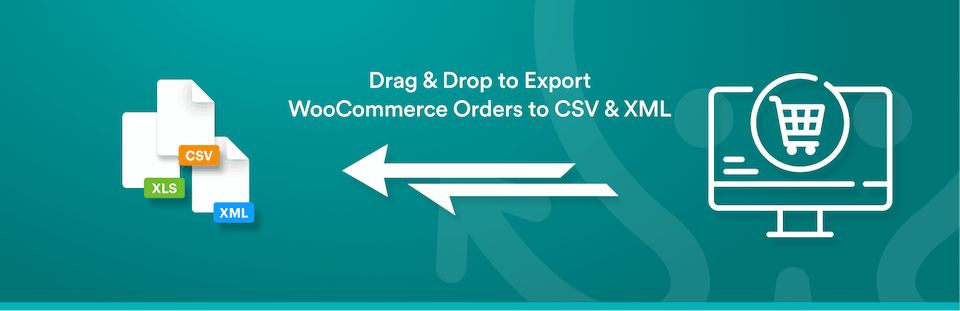
5. WP All Export – Order Export for WooCommerce: Best for Existing WP All Export Users
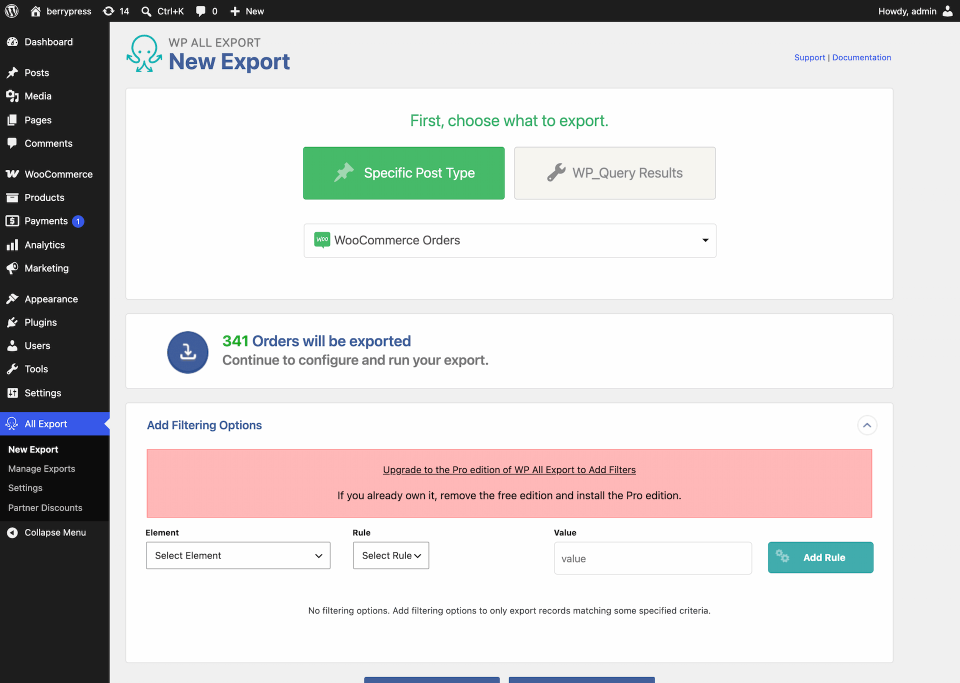
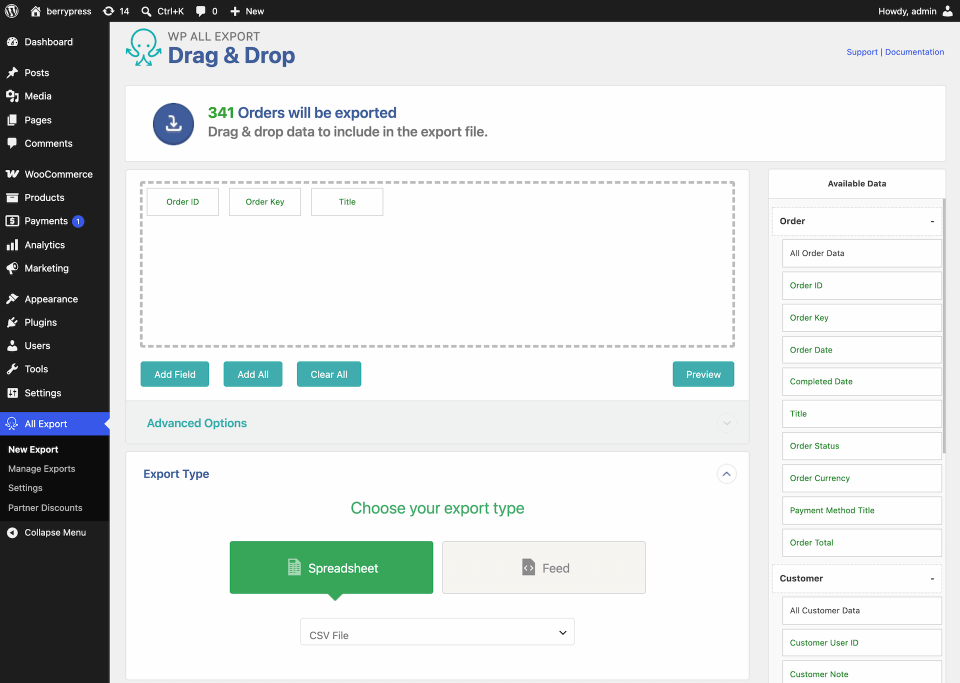
WP All Export – Order Export for WooCommerce adds WooCommerce order support to WP All Export. Its drag-and-drop builder lets you choose and arrange order data for CSV or XML files.
This option makes the most sense when WP All Export is already part of your site or agency workflow. Keeping product, customer, and order exports in the same tool can be more convenient than learning another interface. The order plugin is an add-on rather than a self-contained exporter: it supplies WooCommerce order fields to the separate WP All Export builder and uses that plugin’s drag-and-drop workflow.
View Plugin Interface
Advantages
The visual export builder is flexible, and it fits into a familiar system for current WP All Export users.
Disadvantages
The main WP All Export plugin is required. Several important order sections – including line items, taxes, shipping, fees, notes, and refunds – display upgrade links, while direct Excel and Google Sheets options are also part of the paid offering. The tool is focused on data extraction rather than charts or sales interpretation.
Best for
Agencies and store teams already using WP All Export for other WordPress data.
Banner source: WP All Export – Order Export for WooCommerce on WordPress.org

6. Dashboard and Analytics for WooCommerce: Best for a Quick KPI View
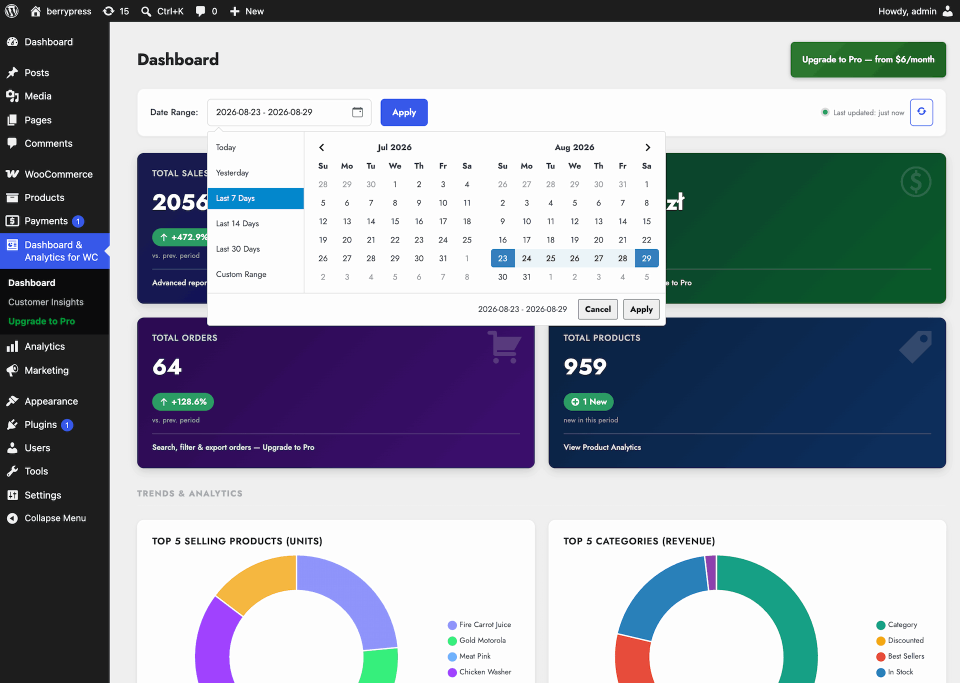
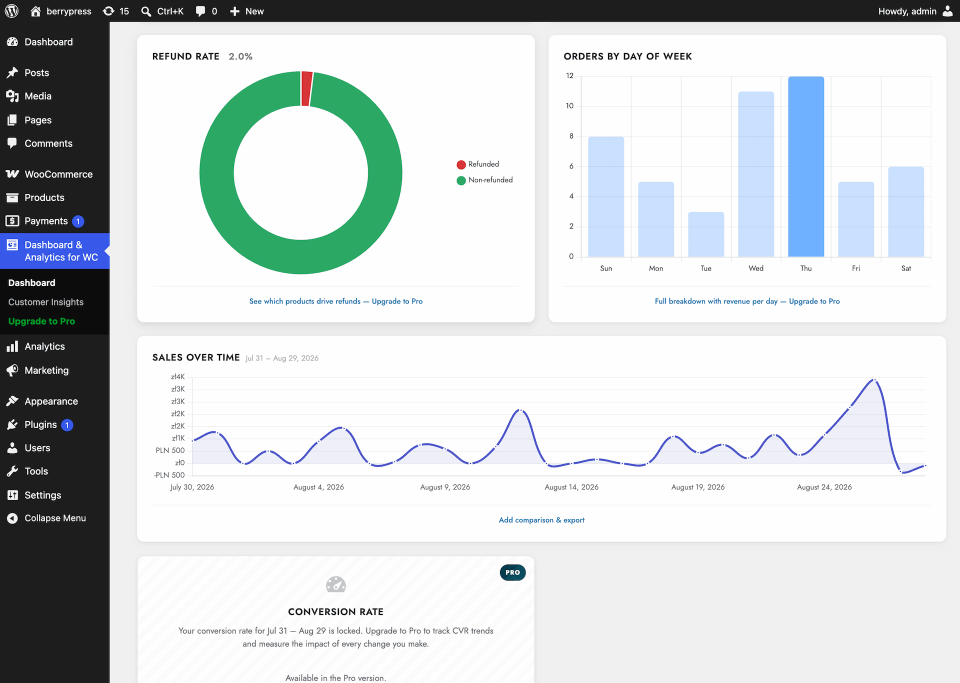
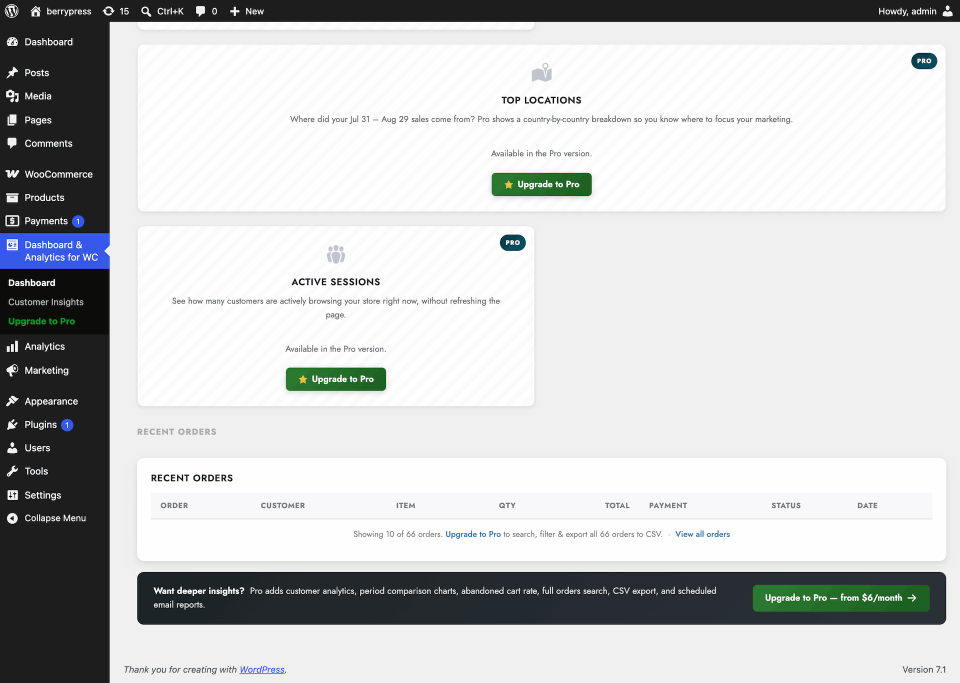
Dashboard and Analytics for WooCommerce presents key store numbers in a modern dashboard. Its reports include sales, average order value, refund rate, and top products.
This is the kind of tool you can use for a quick daily check. Revenue tells you the size of sales, average order value helps you see how much a typical order contributes, and refund rate can point to a product or fulfillment issue that needs investigation. The compact card layout puts metrics, sales trends, category and order-status charts, and recent orders on one screen.
View Plugin Interface
Advantages
It gives important KPIs a clear visual home and does not require building an export first.
Disadvantages
The free version is limited to a 30-day reporting window. Conversion Rate, Top Locations, and Active Sessions remain visible as locked or Pro-only cards, and full order history, advanced filtering, and CSV export also require Pro. This makes the upgrade clear, but it also makes the free dashboard feel more restricted. The plugin has a small user base, so it is worth testing with your extensions and store data before relying on it.
Best for
Newer stores that mainly want a clean view of recent performance.
Banner source: Dashboard and Analytics for WooCommerce on WordPress.org

7. Booster for WooCommerce: Best for Stores Already Using Its Toolkit
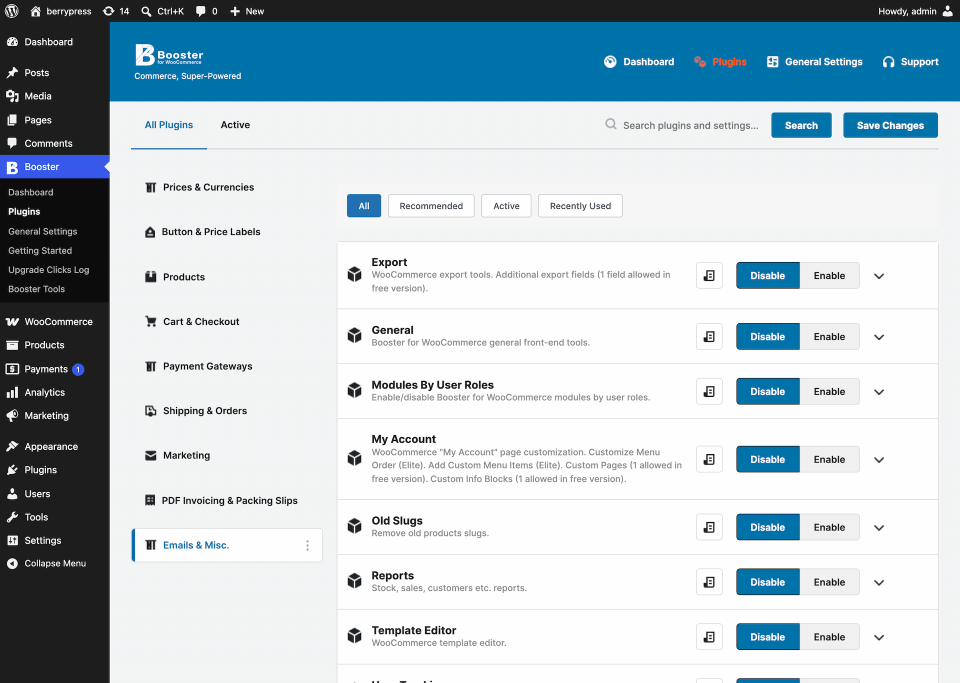
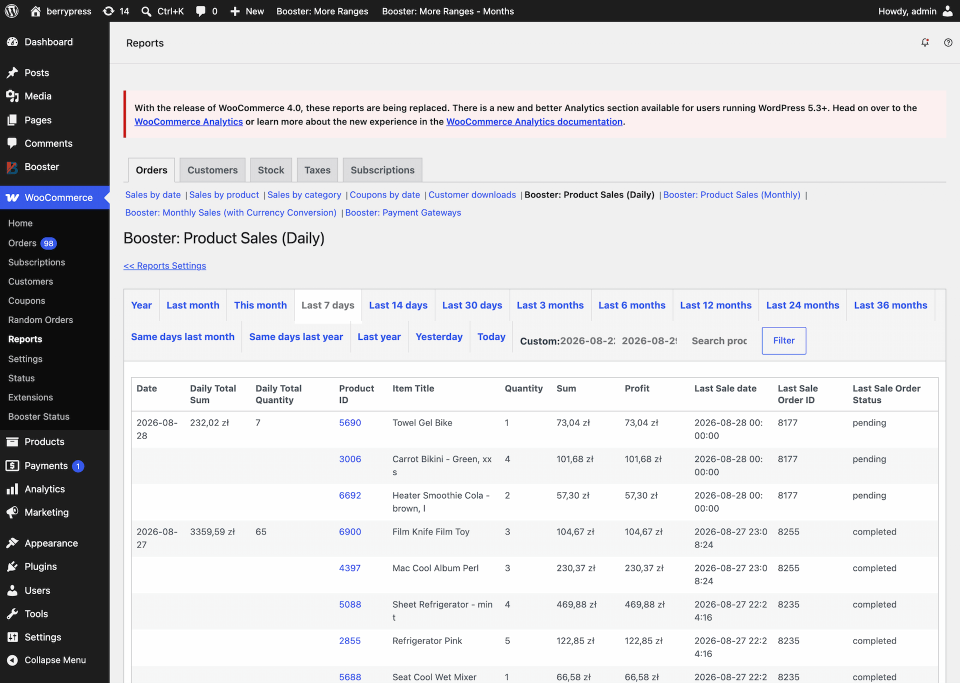
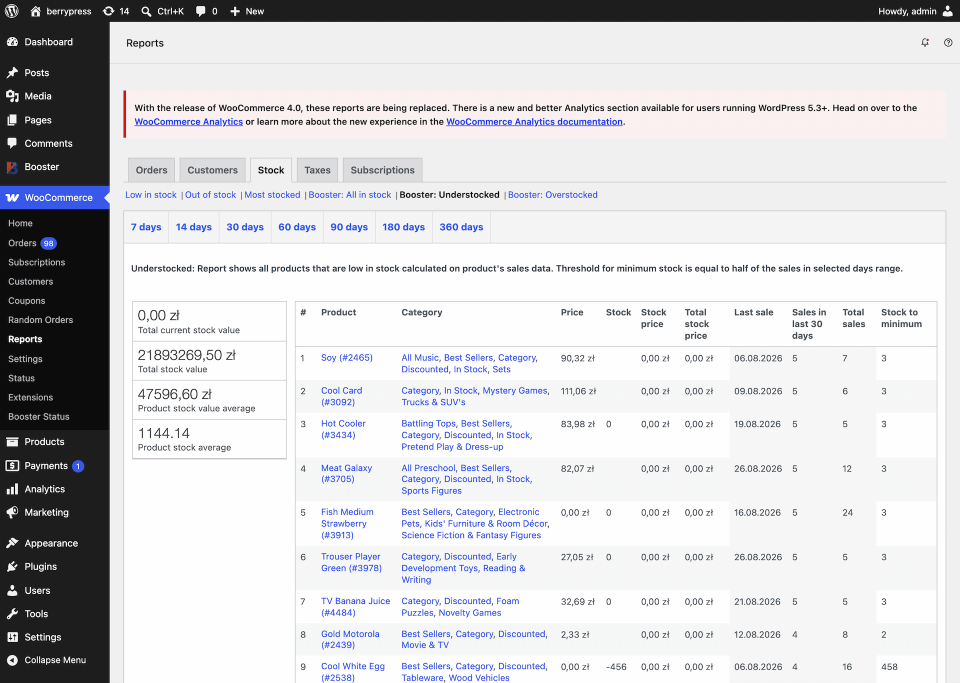
Booster for WooCommerce is a modular WooCommerce toolkit, different from the dedicated reporting tools in this comparison, with more than 120 features covering areas such as invoicing, prices, currencies, checkout, products, orders, and store administration. Reporting and export functions are only one part of that wider package.
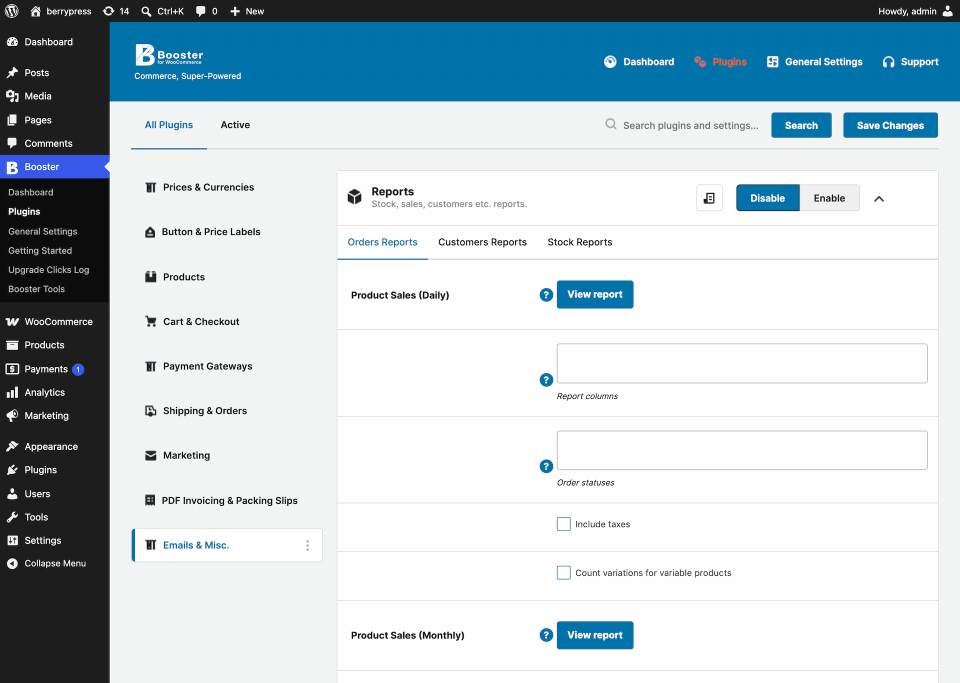
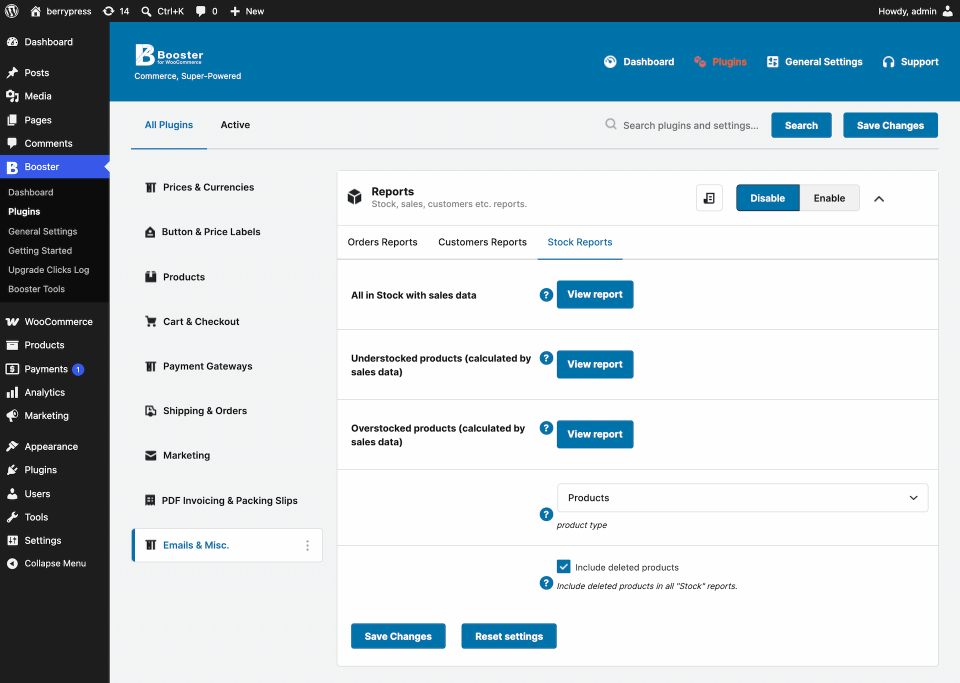
Its interface reflects that broad scope. You first find and enable a module on the Booster Plugins screen, then configure it through its own section under the Booster settings. Some enabled tools appear in additional tabs. Search, category filters, and Active/All views help manage the module list, but reaching one report can involve more navigation than it would in a dedicated reporting plugin.
View Plugin Interface
Advantages
One plugin can cover many WooCommerce administration tasks. If your store already relies on several Booster modules, using its reporting or export functions can keep those tools in the same ecosystem. The module search and enable/disable controls help you focus the interface on features you actually use.
Disadvantages
Reporting is not the central workflow. Users may need to move from the module list to WooCommerce settings and then to a separate tool screen. The dashboard also includes Lite/Elite labels, upgrade prompts, and a Free vs Elite comparison. Stores needing only product reports or order exports may find a focused plugin quicker to navigate.
Best for
Existing Booster users and stores that want a broad suite of WooCommerce tools rather than a dedicated reporting environment.
Banner source: Booster for WooCommerce on WordPress.org
Do You Need a Reporting Plugin or an Order Export Plugin?
Before installing anything, start with the task you repeat most often.
When should you choose a reporting and analytics plugin?
When you need to:
- compare sales across products, dates, categories, or regions;
- spot trends in charts;
- monitor KPIs;
- save a report and return to it regularly;
- answer store performance questions without rebuilding a spreadsheet.
When should you choose an order export plugin?
When you need to:
- send order details to fulfillment or accounting;
- create a file with an exact column structure;
- move data into another store or service;
- download individual order lines rather than aggregated sales totals;
- work with XML, JSON, PDF, or another required format.
If both lists sound familiar, begin with a tool that handles both. Ninjalytics is our preferred free option for that reason: it lets you analyze aggregated sales, preview the result, and switch to detailed order export work in the same plugin. If a partner requires a specialized format such as XML or PDF, Advanced Order Export may still be a better match for that particular job.
Feature-by-Feature Comparison
We build Ninjalytics, so we went looking for a fair way to show that instead of just claiming it. We read the actual plugin code of every tool in this comparison (not just the marketing copy) to check which specific filters, fields, and free-tier features are real. Here’s what we found.
| Feature | Ninjalytics | Advanced Order Export | Order Export & Import | REPORTiT | WP All Export | Dashboard & Analytics | Booster |
|---|---|---|---|---|---|---|---|
| Reports on overall sales trends (revenue, order counts, totals over time) | Yes | No | No | Yes | No | Yes | Yes |
| Reports on individual products (best-sellers, stock levels, category performance) | Yes | No | No | Yes | No | No* | Yes |
| Visualizes data with charts | Yes | No | No | Yes | No | Yes | No |
| Shows key numbers on an always-visible dashboard, without opening a report | No (Pro) | No | No | Yes | No | Yes | No |
| Calculates profit and margin from your product costs (Cost of Goods Sold) | Yes | No | No | No | No | No | No |
| Flexible custom segmentation (group by any order/product/customer field, with a chart) | Yes | No | No | No | No | No | No |
| Can report on abandoned carts | Yes* | No | No | No | No | No | No |
| Export arbitrary custom/meta fields (order, product, or customer) | No (Pro) | Yes | No | No | No | No | Yes |
| Filter by shipping method or customer role | No (Pro) | Yes | No | No | No | No | No |
| Clickable link to the order’s edit screen | Yes | Yes | No | No | Yes | Yes | No |
| Clickable link to the product’s edit screen | Yes | No | No | No | No | No | No |
| Styled output (status colors, currency formatting, or conditional coloring) | Yes | Yes | No | No | Yes | Yes | Yes |
| Live/interactive data preview before download | Yes | Yes | No | Yes | Yes | No | Yes |
| Reports on shipping cost as its own line, not just folded into the order total | Yes | No | No | No | No | No | No |
| Lets you control which numbers get rounded, and when, for cleaner reports | Yes | No | No | No | No | No | No |
| Breaks down sales by individual customer | Yes | Yes | No | Yes | No | No | No |
| Lets you report on product variations separately from their parent product | Yes | N/A | N/A | Yes | N/A | No | Yes |
| Includes individual refunded items in reports/exports | Yes | Yes | Yes | No | No | No | No |
| Automatically compares sales to the previous period (e.g. this month vs. last month) | No | No | No | Yes | No | Yes | No |
* Custom segmentation: Ninjalytics’ one free segment slot covers dozens of dimensions – US state, country, currency, payment method, or any order/item/product meta key.
* Abandoned cart reporting requires the free Live Carts for WooCommerce plugin installed alongside Ninjalytics — it isn’t built into Ninjalytics on its own.
* Dashboard & Analytics displays only top 5 best selling products and categories
Test With Your Own Store Data Before Committing
A feature list cannot tell you whether a report matches your store’s data. Before making a plugin part of an important workflow:
- Test it on a staging site or create a backup first.
- Run the same date range in the plugin and WooCommerce Analytics.
- Check which order statuses, refunds, taxes, shipping amounts, and discounts are included.
- Open the export in the software that will actually use it.
- Confirm that product variations and custom fields appear as expected.
- Check whether your store uses HPOS and whether the plugin supports it.
- Save or document the configuration if the task will be repeated.
Small differences in filters can produce different totals without either tool being broken. For example, one report may include processing and completed orders while another also includes refunded orders. Always check the report definition before comparing the numbers.
Our Recommendation
The best free WooCommerce reporting plugin depends on the job.
- Choose Ninjalytics for the strongest balance of sales reports, charts, templates, saved configurations, seamless configuration, and order line exports in one free plugin.
- Choose Advanced Order Export for WooCommerce when export formats and detailed file configuration matter more than visual analysis.
- Choose Order Export & Order Import for WooCommerce when data needs to travel both into and out of a store, or you will use external tool to run reports on exported data.
- Choose Dashboard and Analytics when your priority is a quick visual check rather than an operational file and you don’t need advanced reporting settings.
- Choose Booster when reporting is one of many WooCommerce functions you want to manage within the same modular toolkit.
We build Ninjalytics, so our recommendation is not presented as neutral. We also think the best way to position it is to be specific about where it helps.The free version is useful on its own, while Pro is available when you need advanced fields, more export formats, pie charts, dashboard widgets, or calculated fields.
Try Ninjalytics for free on WordPress.org, build a report from one of the included templates, and compare the result with your current reporting workflow.
What report or export do you still have to rebuild manually every week?