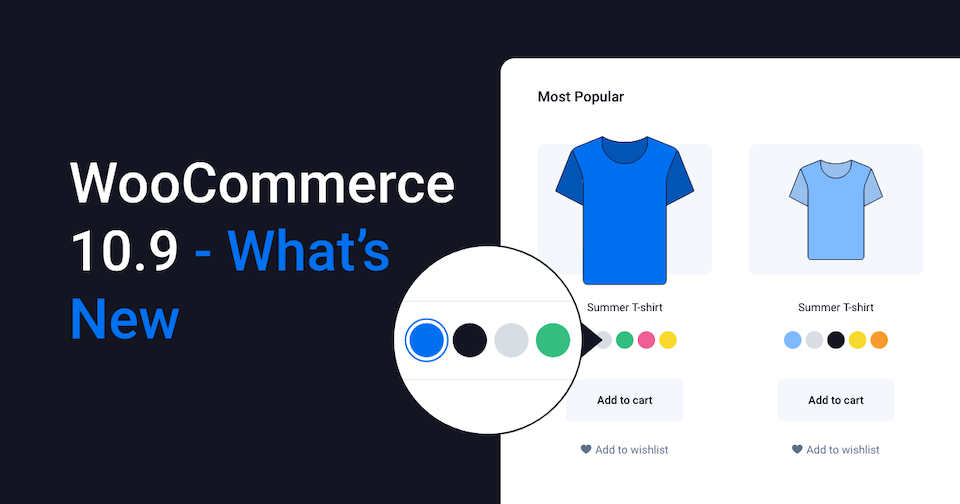
WooCommerce 10.9 just dropped today with lots of feature adds and improvements, undoubtedly alongside a generous sprinkle of bug fixes. Our favorite e-commerce platform has awesome new tricks up its sleeve, and I’m excited to share a couple of my favorite ones with you!
1. Visual Attributes
Whether your WooCommerce store sells clothes or cars, chances are color is a characteristic your customers are concerned with (…you “c”?). Well, there is great news for enthusiasts of intuitive user experience aesthetics everywhere: WooCommerce 10.9 includes a new visual product attributes feature. Move over, boring text labels, and make room for color and image based representations of product characteristics!
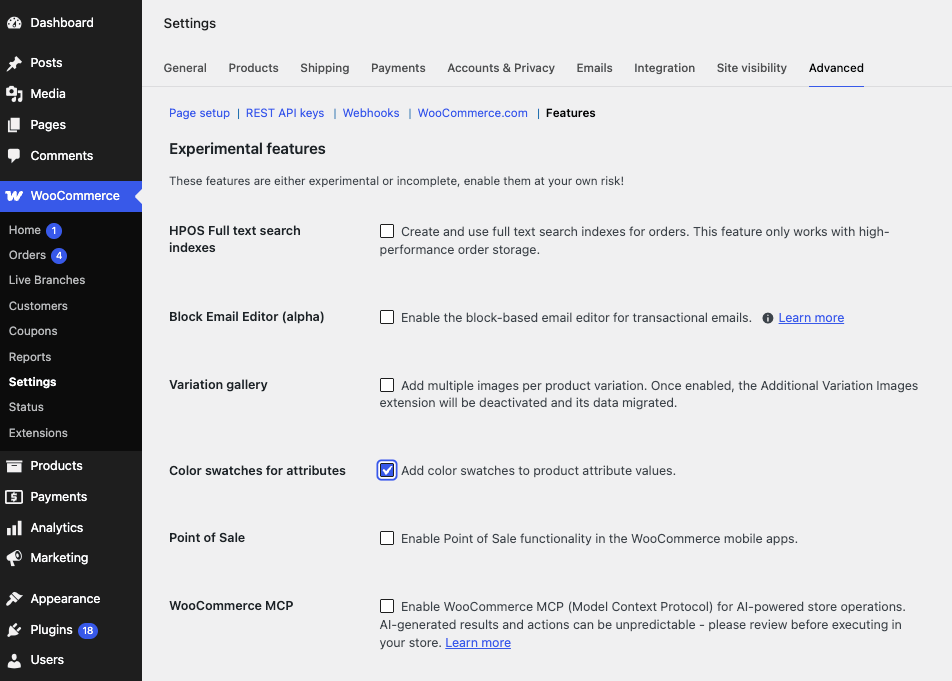
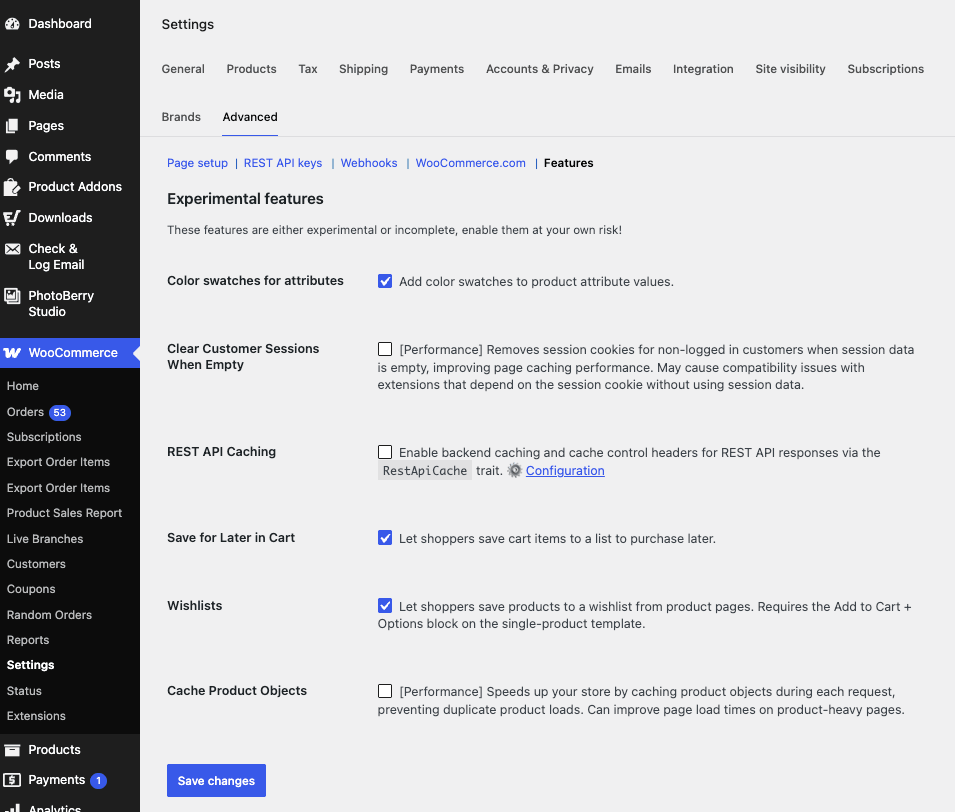
If you’re running WooCommerce 10.9 on a block-based theme, you can enable this experimental feature in WooCommerce settings under the Advanced tab and Features sub-tab. Look for “Color swatches for attributes”.
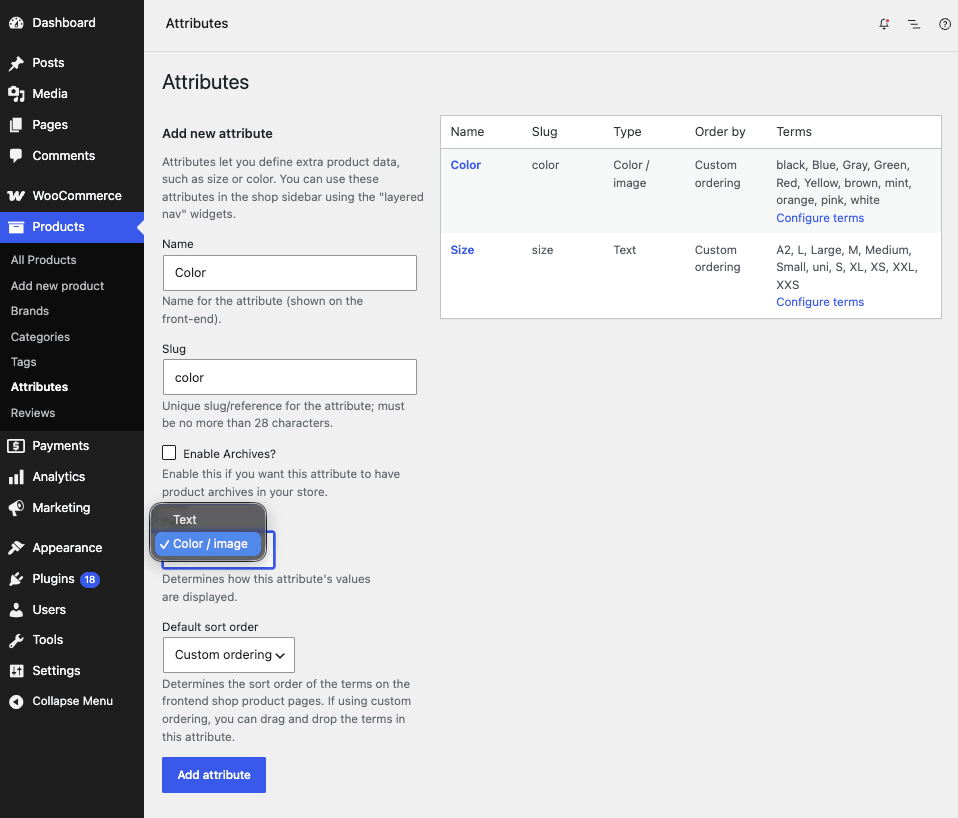
Next, edit the attribute that you want to represent visually by clicking it in the Products > Attributes page, and modify its type to “Color / Image”.
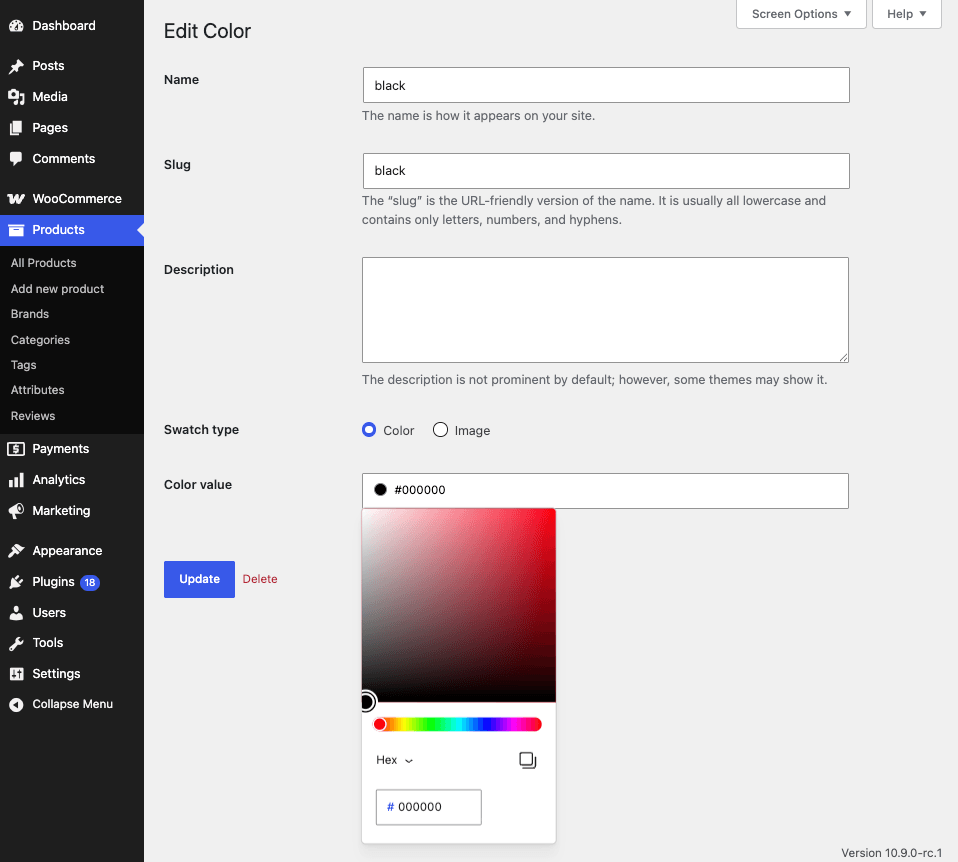
Now, when you edit or add attribute values, you’ll see an option near the end of the edit form to specify either a color or an image to represent the attribute. You can even mix and match color and image attribute values within the same attribute!
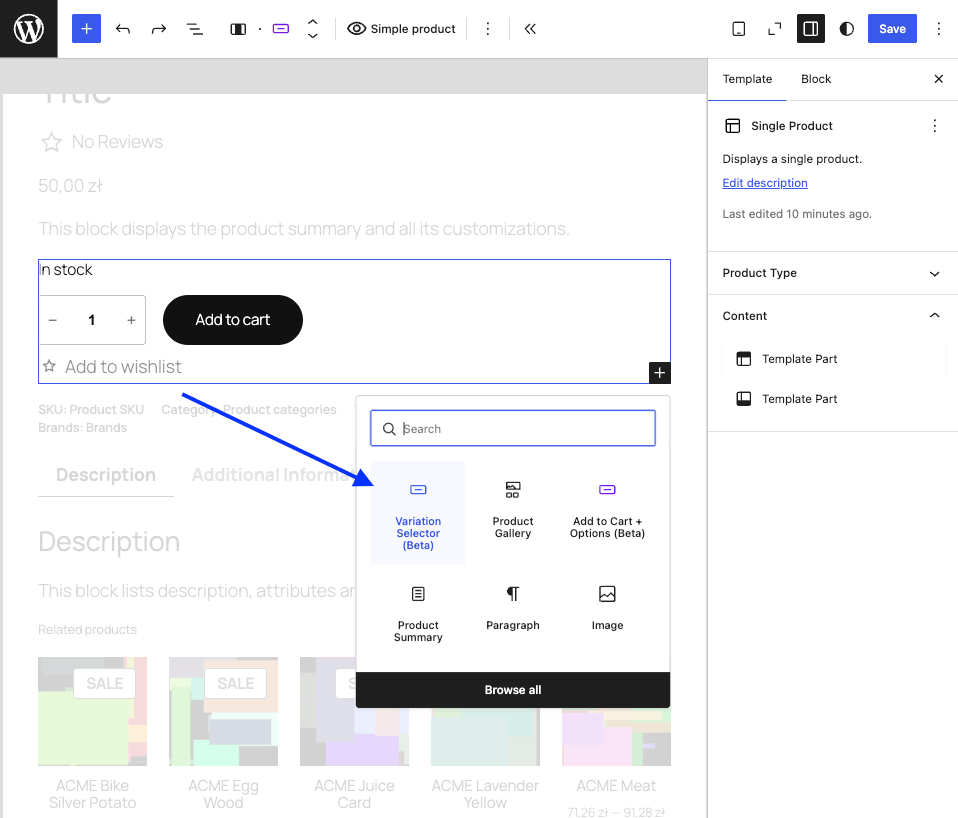
With the feature enabled and your attributes configured as above, those colors and images carry through to the storefront – in product filtering controls and in the Add to Cart + Options: Variation Selector block on variable product pages. WooCommerce 10.9 also introduced shared inner blocks between Product Filters and the Variation Selector – the same Chips block (and its new swatch styles) powers both. If you have already customized the Variable Product template part of Add to Cart + Options, you do not need to redo that work: WooCommerce applies backwards compatibility automatically, and the new inner blocks are used when the template is opened in the editor or viewed on the frontend.
If your single product template still uses the legacy Add to Cart block, you will need to switch to Add to Cart + Options first – the walkthrough in the Wishlist section below covers the same upgrade path. Otherwise, you are ready to go – and your customers get a more intuitive way to browse variations and filters, which is probably a win-win for you as well as them!
2. Shopping Lists
WooCommerce 10.9 also adds two features that let logged-in customers organize products into lists on the frontend while they browse your site: “Save for Later” and “Wishlists”. Both can be enabled (individually) in WooCommerce settings under the Advanced tab and Features sub-tab.
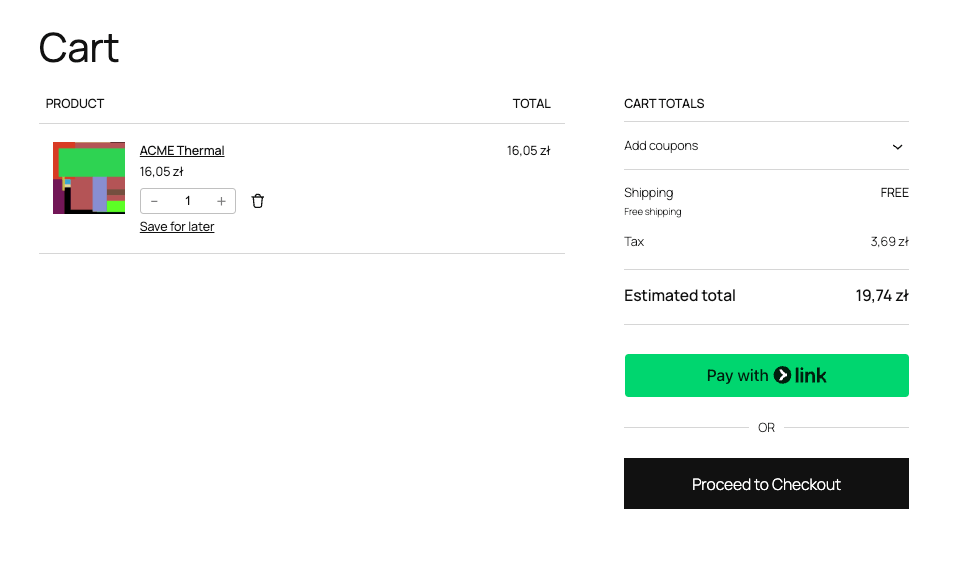
Save for Later lets customers take products out of their cart without forgetting about them entirely. Selecting this option for a product in the cart moves it to a separate area below the cart, where it can easily be moved back if the customer chooses. Great for those difficult shopping decisions!
To see it in action, log in as a customer, add a product to the cart, then click “Save for Later” on the cart page. The product moves to the Saved for Later section just below the cart.
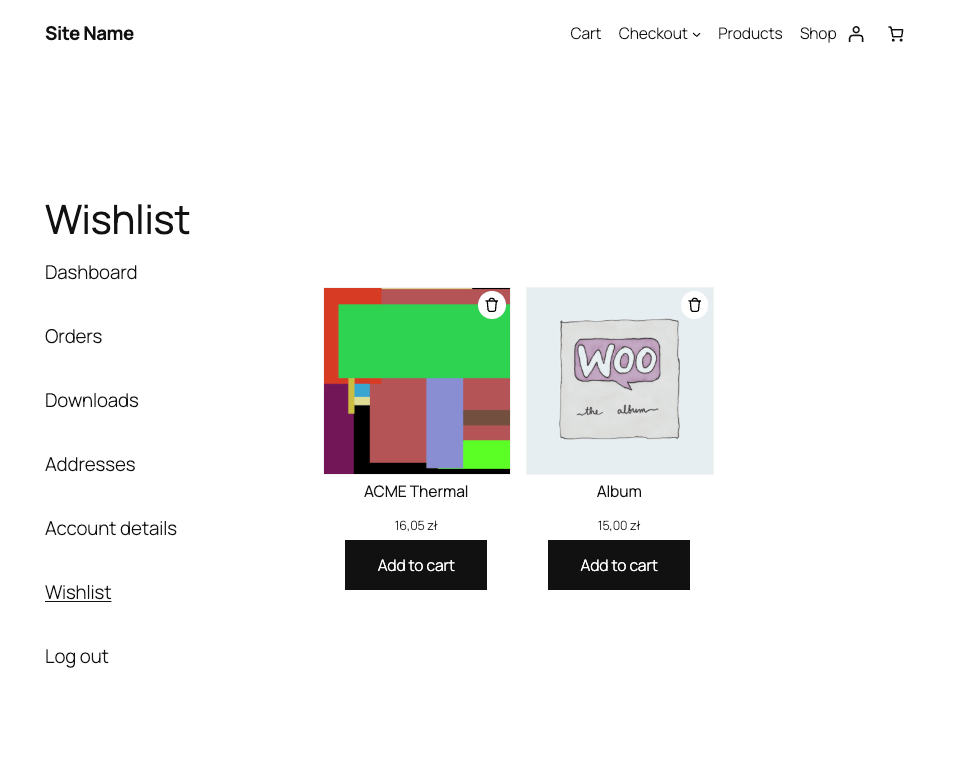
Wishlist serves a similar purpose, except customers can populate it from the Add to Cart area on product pages, instead of needing to add the product to their cart first. Wishlisted products can be viewed on a dedicated page in the My Account section. There is also a block to show the wishlist elsewhere, which might be a good idea to remind customers of the products they’ve saved in the past!
Enabling Wishlist under WooCommerce Advanced Settings is only the first step. The wishlist link lives inside the Add to Cart + Options block, so if your single product template still uses the legacy Add to Cart block, you will need to upgrade it. Stores already using Add to Cart + Options can skip ahead – open a product page and check for the Add to Wishlist link below Add to Cart. Here is a quick walkthrough for everyone else (keep in mind these steps may change once the features leave beta):
- From the WordPress dashboard, go to Appearance > Editor and click Templates.
- Under the Template dropdown, select WooCommerce.
- In the list, find Single Product and click it.
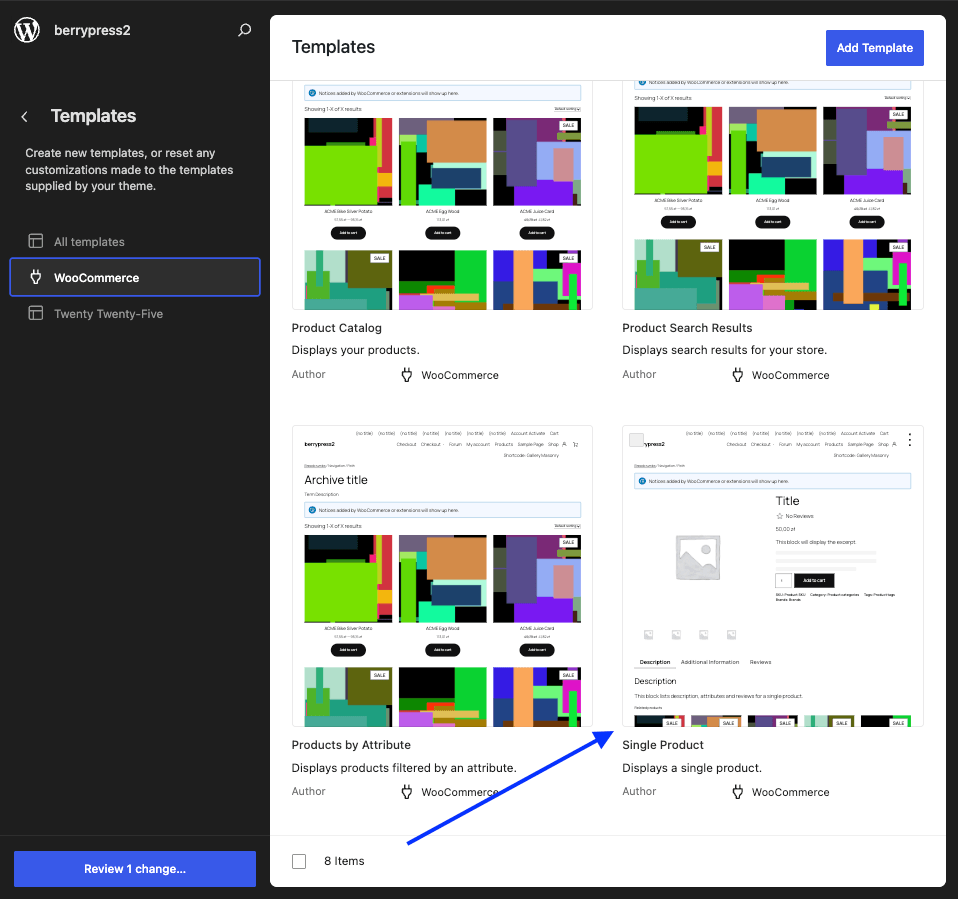
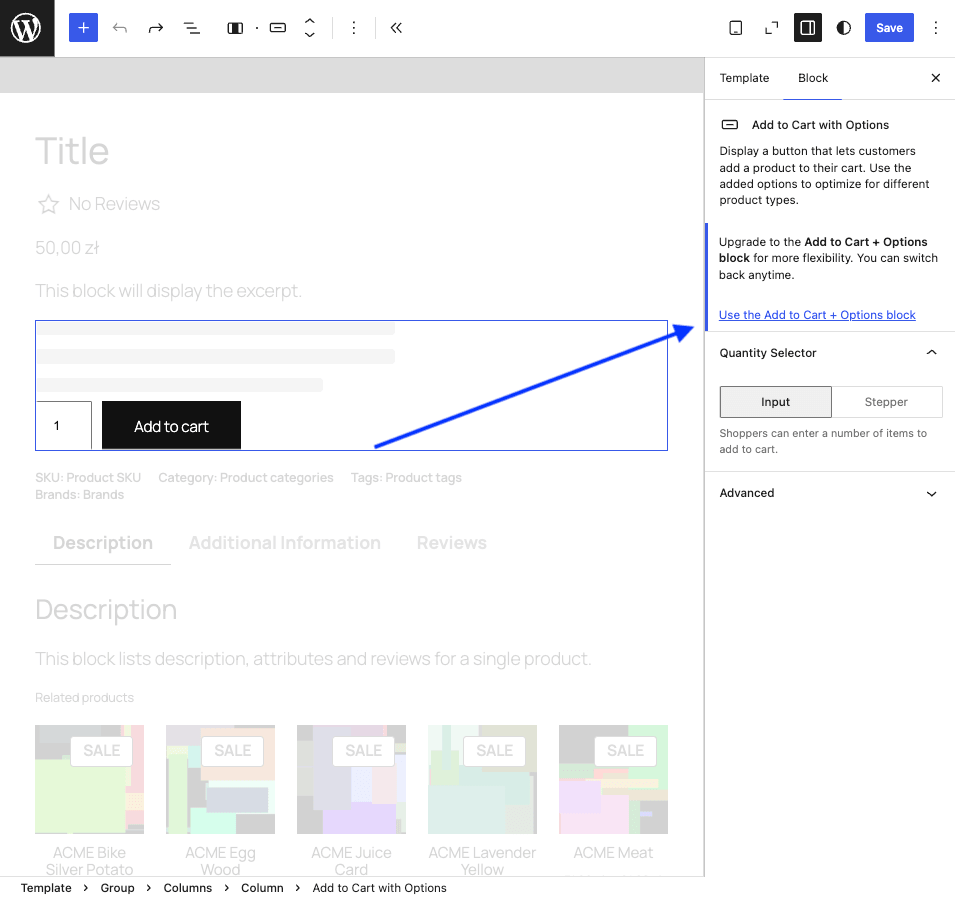
- Click Edit to open the template. Select the Add to Cart block – in the sidebar you should see a prompt to upgrade to the Add to Cart + Options block for more flexibility (you can switch back anytime). Click “Use the Add to Cart + Options block”.
- You should now see an “Add to Wishlist” link below the Add to Cart button.
- Save your changes.
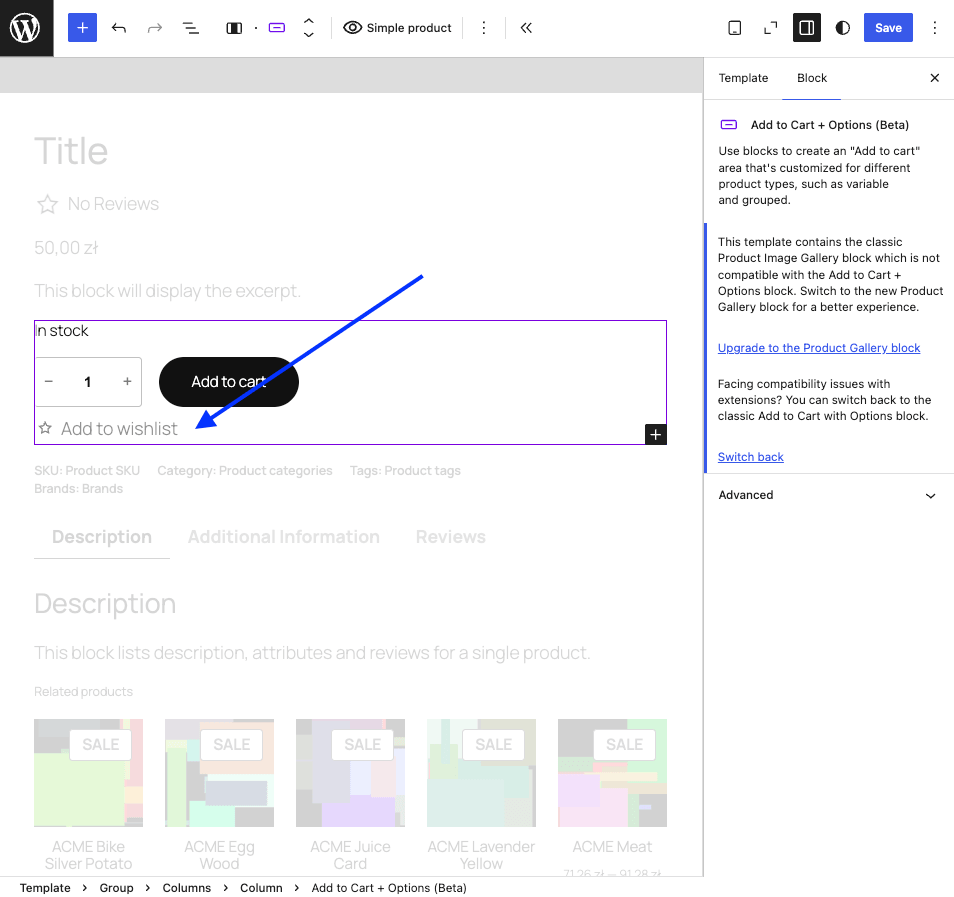
- Log in as a customer, visit a product page, and click “Add to Wishlist” to try it out.
On the My Account page, customers will find a new Wishlists tab where they can view everything they have saved.
Knowing what is in a customer’s cart is useful – but these new lists capture a different kind of shopping intent. Someone might move a product to Save for Later because they are not ready to check out yet, or add something to a Wishlist weeks before they plan to buy. That is a valuable signal for support, merchandising, and follow-up, and until now it mostly lived on the customer’s side of the store.
3. Tracking Wishlists and Save for Later with Live Carts 1.3.0
If you already use Live Carts for WooCommerce, version 1.3.0 picks up right where WooCommerce 10.9 leaves off. When Wishlists and/or Save for Later are enabled in your store, Live Carts automatically tracks them as Shopper Lists – one record per logged-in customer, per list type – and keeps the contents in sync as shoppers add, remove, or move products around.
In practice, that means a customer’s Wishlist and their Saved for Later items show up in the WordPress admin alongside the live carts you are already monitoring. Open the new Shopper Lists tab under Live Carts to browse them, filter by list type, and drill into individual lists to see products, quantities, variations, and total value – the same level of detail you get for active carts.
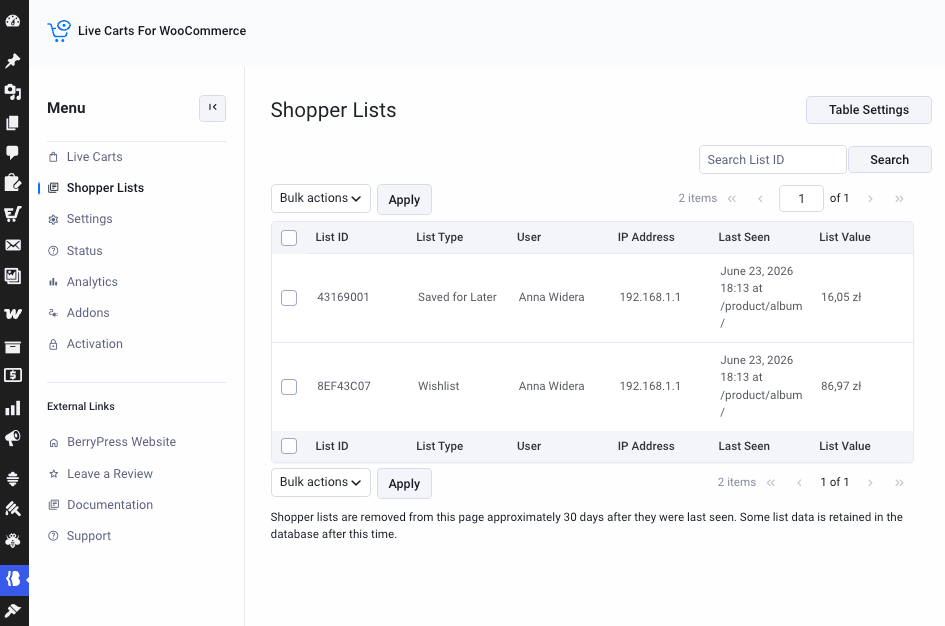
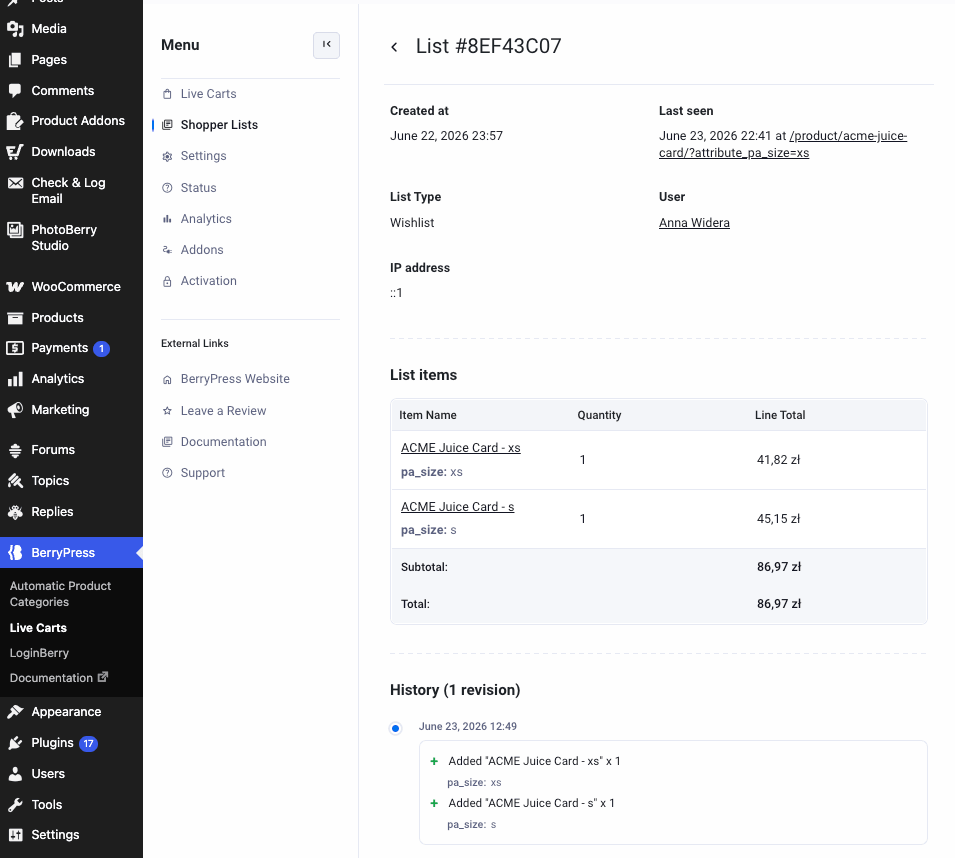
No extra configuration is required beyond turning on the WooCommerce features and updating Live Carts. Lists sync when customers update them, when they log in, and as they browse the site – so what you see in the admin stays reasonably current without manual refreshes. If only one of the two list features is enabled in WooCommerce, Live Carts tracks just that one.
Together, WooCommerce 10.9’s shopping lists and Live Carts 1.3.0 give you a fuller picture of what customers are interested in – not only what is in the cart right now, but what they have set aside for later or saved for another day. Worth a look if you are planning to enable either feature on your store!