Some of the most critical data points and accounting metrics of any retail or wholesale store are Cost of Goods Sold (COGS) and its dependents, Gross Profit and Gross Margin. To understand the financial productivity (and even sustainability) of a business that is reselling products, or manufacturing products from raw materials, it is essential to know what the input products or materials cost to acquire. And of course this principle applies just as much to e-commerce operations as brick-and-mortal outfits. $1,000 in sales can mean very different things in terms of profit depending on how much was spent in the first place to get the items that were sold.
WooCommerce store owners have long handled the need for this data by installing a variety of third-party plugins that allowed them to manage the COGS amount per product and per sale of said product, because as rudimentary as that data field may seem, it wasn’t included in the core WooCommerce feature set. But that finally changed last month as the WooCommerce 10.3 update started rolling out to online stores everywhere, and with it, the production result of almost a year of planning, development, and testing!
Start tracking Cost of Goods Sold in WooCommerce!
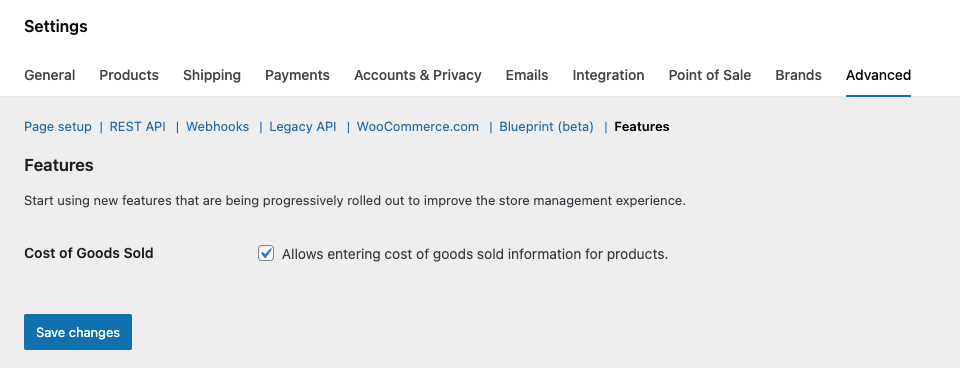
The first thing you need to do to get started is turn on the Cost of Goods Sold feature. You’ll find a checkbox for that under WooCommerce > Settings > Advanced tab > Features link > Cost of Goods Sold heading.
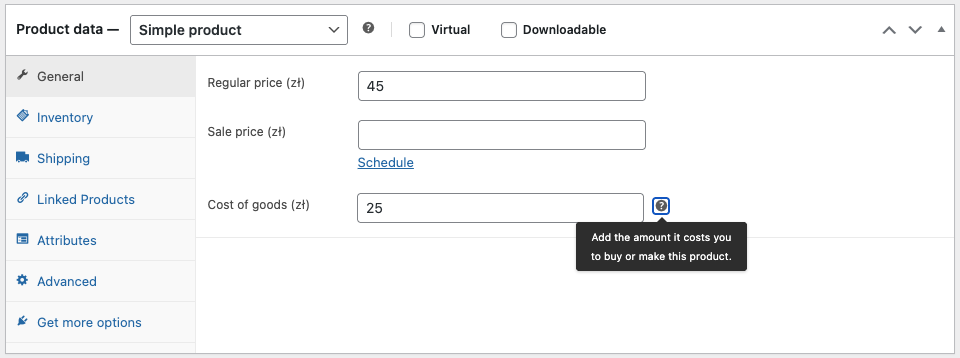
Once COGS is enabled, you’ll need to specify the cost of each product you want to track. For simple products, you can set this on a per-product basis right below the regular and sale price, in the General product data section. If you have variable products, you can also override this for individual variations that have a different cost.
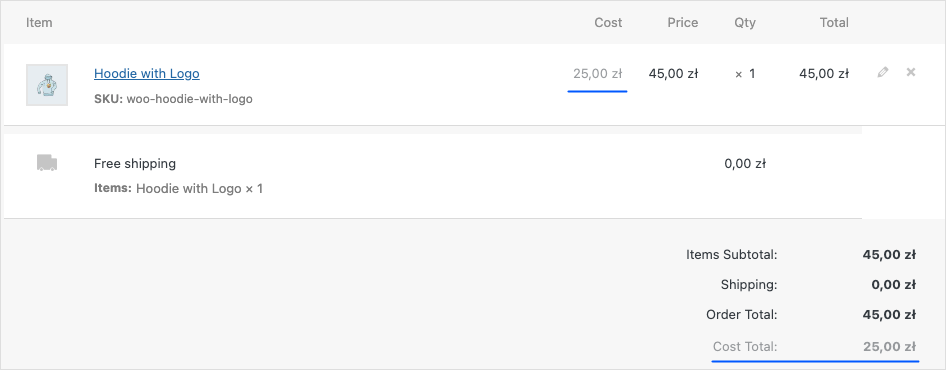
After setting up COGS for your products, you’ll start seeing it show up in a dedicated column in the line items of your orders. If you issue a refund, the associated COGS is shown along with the refund amount too!
But how do I report on Cost of Goods Sold in WooCommerce?
Seeing the Cost of Goods Sold for each order is great, but you’d probably rather have more of a big picture view without a bunch of manual calculations. Unfortunately, the shiny new COGS feature in WooCommerce doesn’t yet integrate with the built-in Analytics feature. That might be coming in a future update.
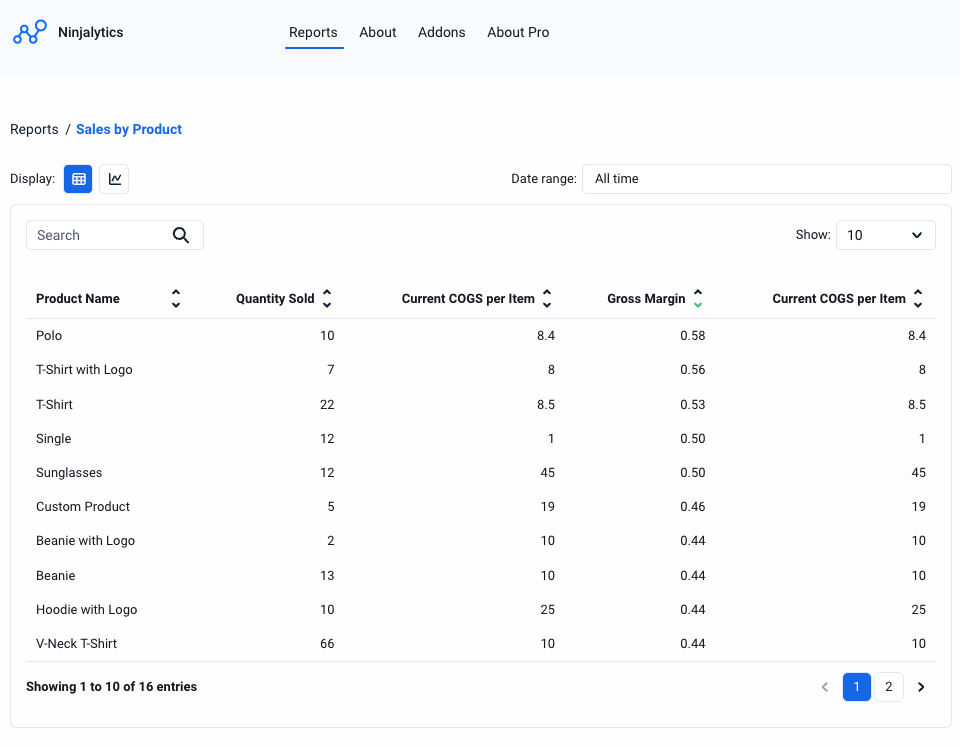
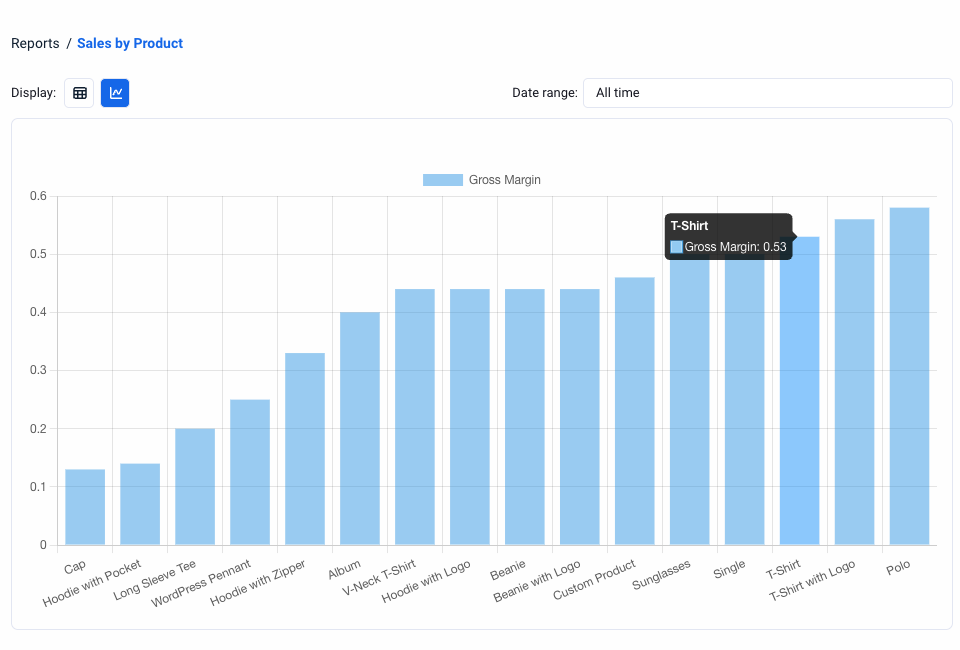
But not to worry, Ninjalytics has your back! The latest version of Ninjalytics includes not just one, but five new fields that use the built-in COGS functionality to generate useful data points and visualizations about your products and sales. Four of these fields are available now in the latest Ninjalytics Free release, and all of them are coming to a Pro update soon!
These fields are:
- Cost of Goods Sold: The total cost of goods sold represented by the report row or chart data point.
- Profit: Gross sales (after discounts) minus cost.
- Gross Margin: The ratio of profit to revenue, expressed as a decimal.
- Refund Cost of Goods Sold (Pro version only): If refund reporting is enabled and the current row or chart data point includes refund(s), this breaks out how much COGS was deducted from the COGS of sold products due to these refunds.
- Current COGS per Item: For the current product or variation, shows what the COGS is currently set as; useful for inventory reports and profit forecasts.
Get started with Ninjalytics
If you’re excited to start using the Cost of Goods Sold feature in WooCommerce 10.3, download the latest Ninjalytics release to start really putting the COGS data you’ll be collecting to work for you!