Think of bbPress as the conversation corner of your WordPress website. If you’re looking to build a thriving community, or simply add a space where questions can be asked and users could share ideas, bbPress might be just what you need. Developed by the same team behind WordPress, this lightweight, open-source plugin integrates seamlessly with your site.
Setting it up is a piece of cake. With just a few clicks, you can create and manage discussion forums without slowing down your site or diving into complex configurations.
Ready to get the conversation started? Download bbPress using the link below and start building your community today!
Why Choose bbPress?
If you’re thinking about adding forums to your WordPress site, bbPress makes it simple and stress-free. Here’s what makes it a favorite among WordPress users:
Easy Forum Management
You can create as many forums and sub-forums as you need to keep conversations organized. Whether you’re building a support space or a community around a shared interest, bbPress gives you the flexibility to structure things your way.
Shortcode Support
Want to place a forum on a specific page or post? No problem! bbPress supports shortcodes, so you can drop a forum wherever it makes the most sense—no advanced coding needed.
Theme Compatibility
You don’t have to worry about design issues anymore! bbPress is built to work smoothly with most WordPress themes, so your forums will look like a natural part of your site right from the start.
Extendable with Add-ons
If you need more features, here they are! Thanks to a wide range of compatible plugins, you can easily add extra functionality to your forums, such as:
- Private messaging between users
- File attachments in posts and replies
- Voting systems to highlight helpful content
- User tagging for better interaction
- Amazon S3 ™ integration to store images externally
- Inline image uploads for richer discussions. Enhance your forum experience with a dedicated plugin that simplifies image uploads. With the addition of a convenient button, your visitors can effortlessly add images to their posts. And with the premium version, you gain full control over image management.
Interested? Read more about the free plugin and install it today!
This is how easy it is to upload images to your post:

With all these add-ons mentioned above, it’s easy to shape your forum into exactly what your users need!
Who Should Use bbPress?
bbPress is a great fit for anyone who wants to add a space for conversation and connection on their WordPress site. It’s especially useful for:
- Community-driven websites
- Customer support forums
- Membership or hobby sites
- Any platform where user interaction is key
Whether you’re building a fan community, a product support hub, or a private discussion board, bbPress offers you a clean, flexible way to make it happen.
Step-by-Step Guide: Installing bbPress and Creating a Forum
Ready to get started? You can install bbPress directly from your WordPress dashboard and start building your forum in minutes.
- Log in to your WordPress dashboard.
- Navigate to Plugins > Add New.
- In the search bar, type “bbPress” and click Install Now
- Activate the plugin once the installation is complete.
Time to bring your forum to life! In this step you’ll set up your forums, create discussion topics, and start posting replies. Just adjust the settings to fit your preferences, and you’ll be ready to welcome your first users.
- Go to Forums > Create New Forum.
- Add title and description
- Choose Forum Attributes and Moderators
- Click Publish
Primed for the next phase? Now you’ll display the forum using a shortcode or a dedicated page and add it to the menu.
Step 1: Display forum using a shortcode
- Create a new page
- Add title of the page and shortcode:
[bbp-forum-index]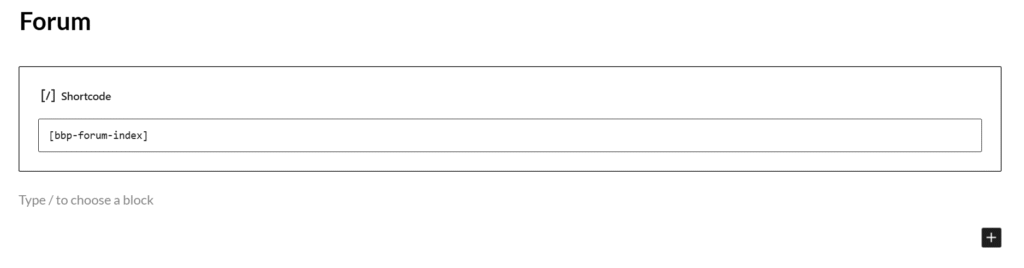
- Publish the page
Congratulations! You have just added a forum to your page!

Step 2: Add page to your menu (optional)
- Add new page to your menu via Appearance > Menus
- Choose the menu or create a new one and click on Select
- Add Forum page to menu
- Drag and drop the forum page to the desired position in the menu
- Assign the Menu to a Location (you can choose more than one location) and click Save Menu
And that’s it! With WordPress and bbPress, you now have everything you need to launch your first, fully functional forum and start building a thriving online community – no coding required.