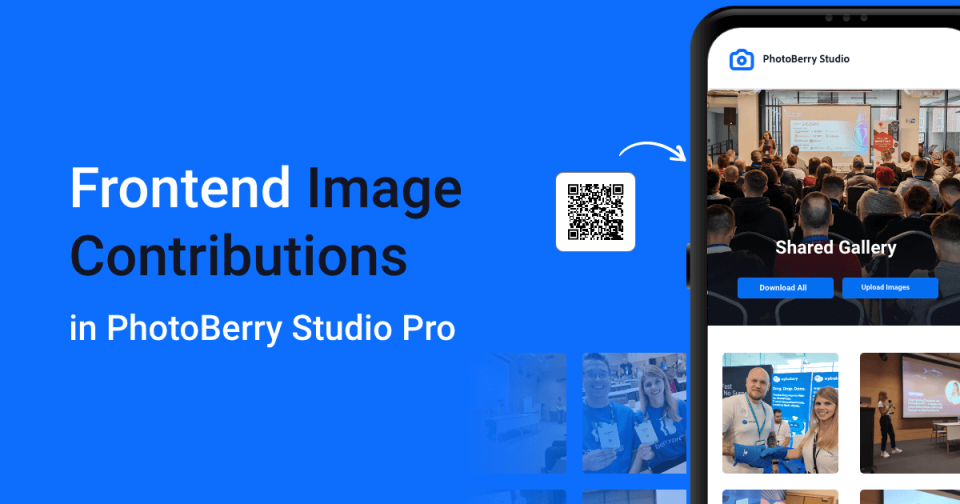
Collecting photos from multiple people sounds simple, but in practice it rarely is.
Images arrive via email, messaging apps, cloud links, or not at all. Files get lost, metadata is exposed, and there is no clear ownership or review process. For photographers, event organizers, and creative teams, this quickly becomes chaotic.
That is exactly the problem we wanted to solve with Frontend Contributions in PhotoBerry Studio Pro – a feature that allows guests and clients to upload photos directly into a gallery, without creating accounts or dealing with external tools.
This feature has already been tested in real-world conditions, including live events like WordCamp Wroclaw 2025, and it proved to be reliable, fast, and easy to use for both admins and contributors.
Below, we will walk through how it works, how to set it up, and how it can be used beyond events.
What Is Frontend Contributions in PhotoBerry Studio Pro?
Frontend Contributions is a Pro-only feature that allows you to:
- Let guests and clients upload images directly to a gallery
- Collect photos from unlimited contributors
- Optionally review and approve images before they appear publicly
- Control downloads, comments, and visibility
- Get notified when new images are submitted
Uploads happen directly inside your WordPress site, using your PhotoBerry Studio gallery. No third-party services, no external forms, and no user accounts required.

A Real-World Use Case
We first tested this feature during WordCamp Wroclaw 2025.
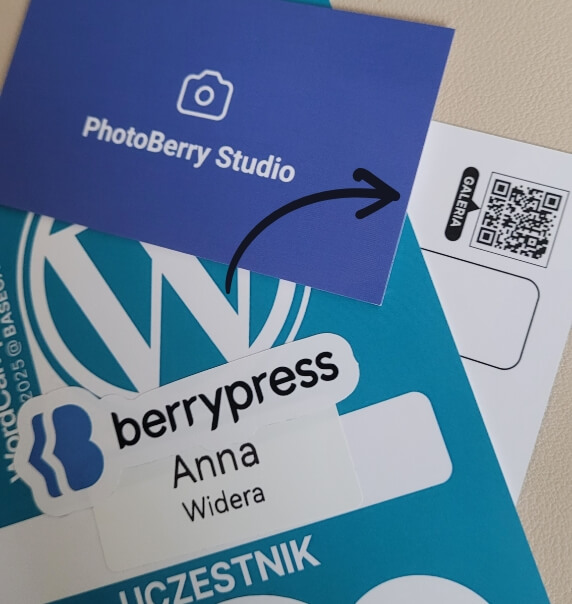
Attendees could scan a QR code on their badge and instantly upload photos from their phone or laptop. Images appeared in real time, could be commented on, and were available for download.
The result?
- A live gallery where photos appeared in real time during the event
- No chasing people for photos after the event
- One shared space for all images
- A gallery that showed the event from many perspectives
While this was an event scenario, the same setup works just as well for client collaboration, reviews, internal teams, or private sharing.
How to Set Up a Public Gallery With Guest Uploads
1. Create a New Gallery
Go to:
PhotoBerry Studio -> Galleries -> Add New Gallery
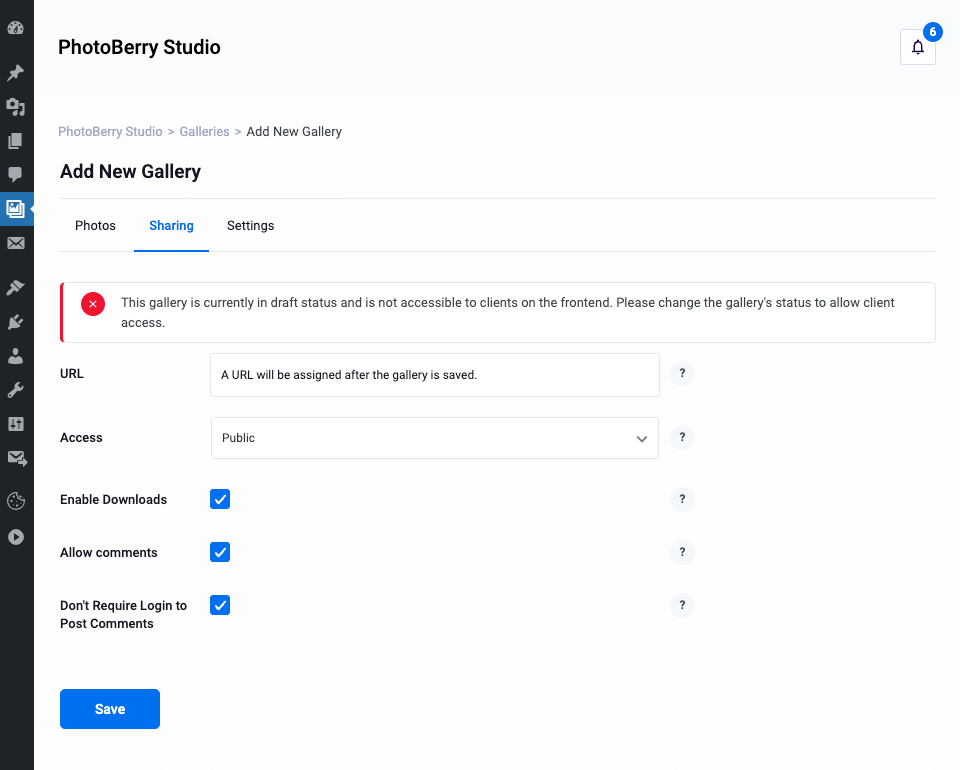
2. Configure Sharing Options
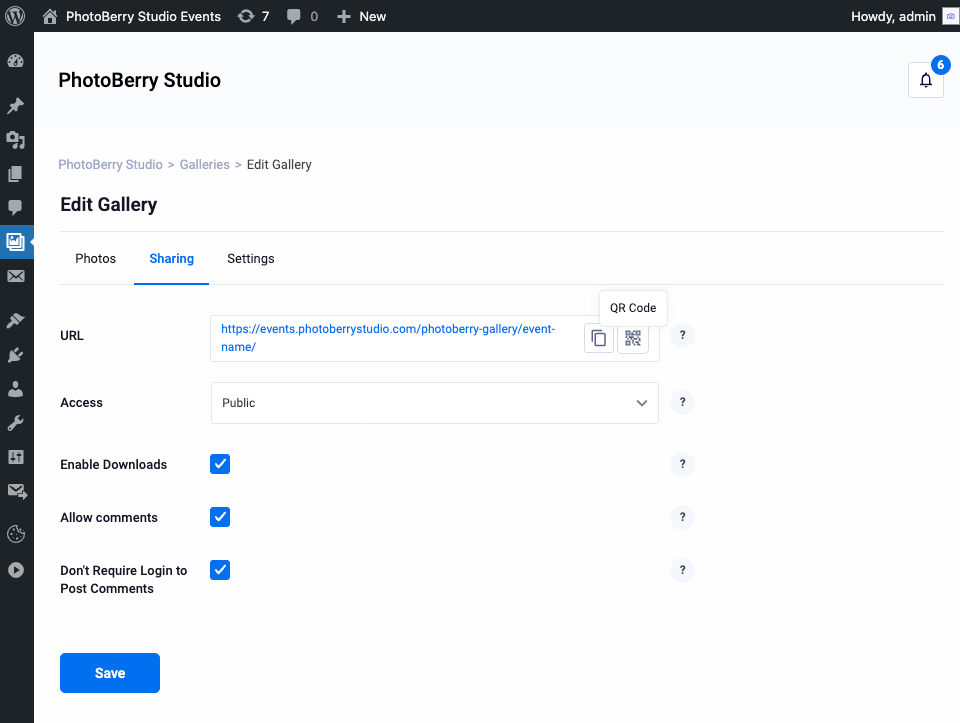
Open the Sharing tab and set:
- Access: Public
- Enable Downloads: Optional
- Allow Comments: Optional
- Don’t Require Login to Post Comments: Optional
When the gallery is first created, you will see a notice:
This gallery is currently in draft status and is not accessible to clients on the frontend. Please change the gallery’s status to allow client access.
The gallery URL will be assigned only after the gallery is saved and published.
3. Configure Gallery Settings
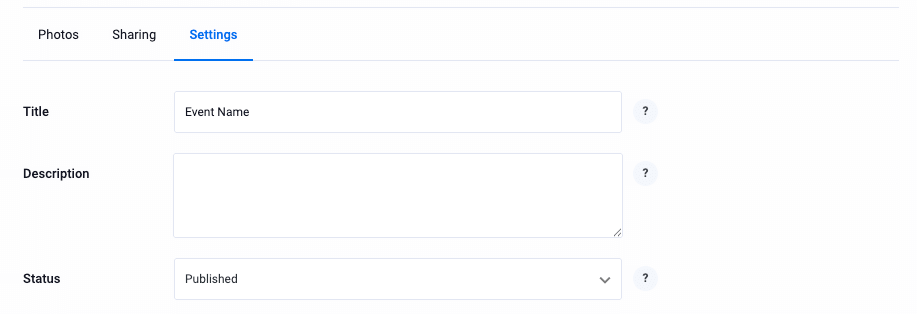
Basic settings
- Gallery Title: for example, Event Name
- Description: optional
- Status: Published
Layout
- Layout: Masonry
- Header Layout: Image in the header

Watermark
- Watermark: No watermark

Image processing
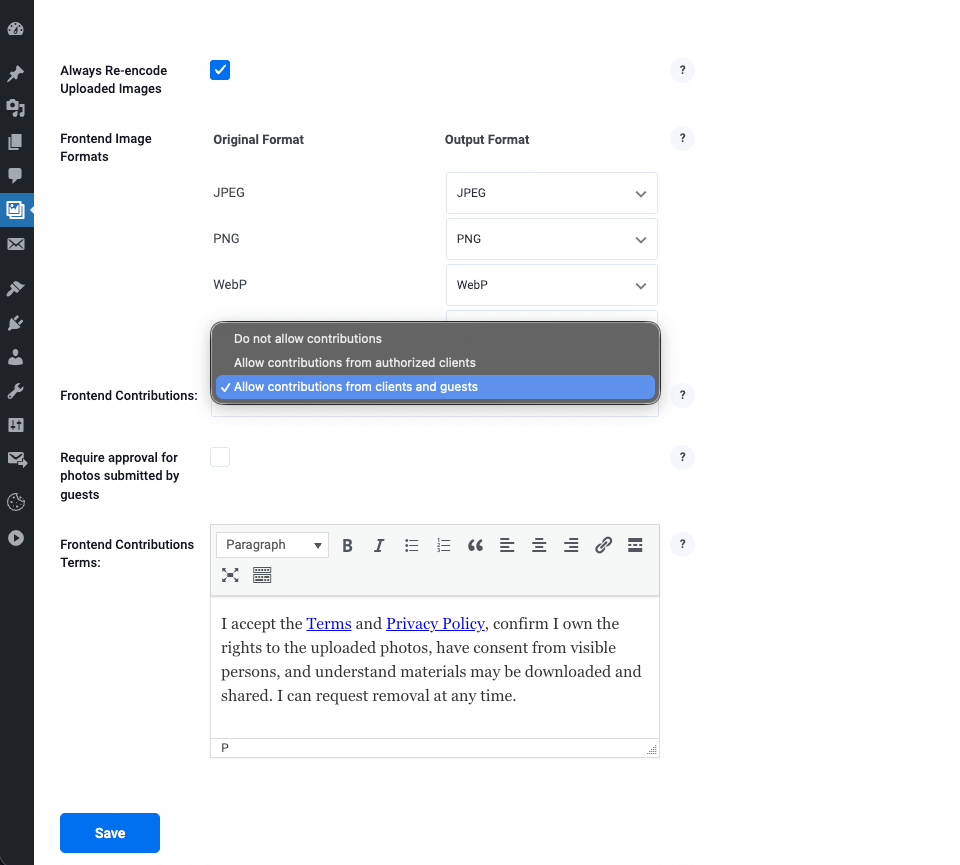
- Always Re-encode Uploaded Images: Yes
This removes EXIF data and sensitive metadata from all uploaded images.
4. Enable Frontend Contributions
Scroll to Frontend Contributions and set:
- Frontend Contributions: Allow contributions from clients and guests
- Require approval for photos submitted by guests (recommended)
Frontend Contributions Terms
If enabled, contributors must accept the terms before submitting images. Useful for privacy policies or confirming upload permissions.
Click Save once all settings are complete.
5. Upload the Cover Image
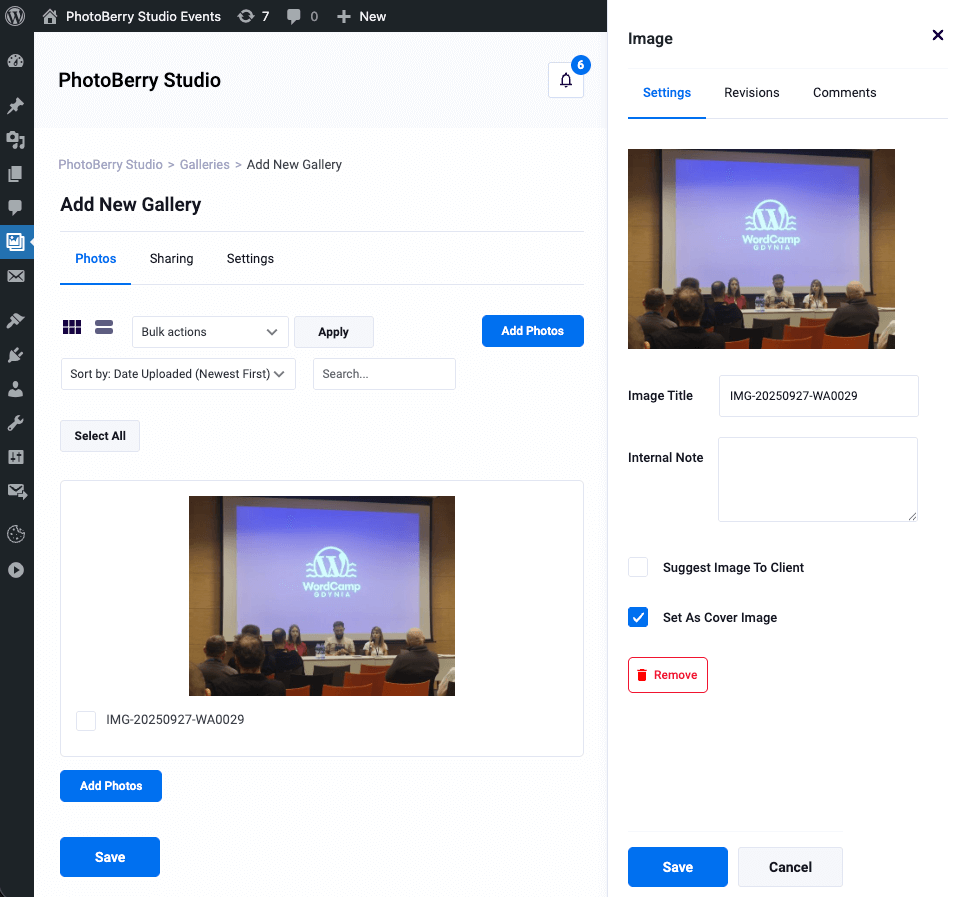
Go to the Photos tab and upload the first image.
This image will:
- Act as the gallery cover
- Appear in the gallery header
6. Share the Gallery Link or QR Code
Return to the Sharing tab.
You will now see:
- The public gallery URL
- An option to view and download a QR code
You can copy the link or download and print the QR code.
To preview the gallery as a visitor, open the link in an incognito window.
Guest Upload Experience
When a visitor clicks Upload Images, they can choose:
- Continue as guest
- Log in
Guests are asked for their name and email address, which is stored and displayed as the image author.

Upload and Review Flow
Guests can drag and drop files or select them from their device.
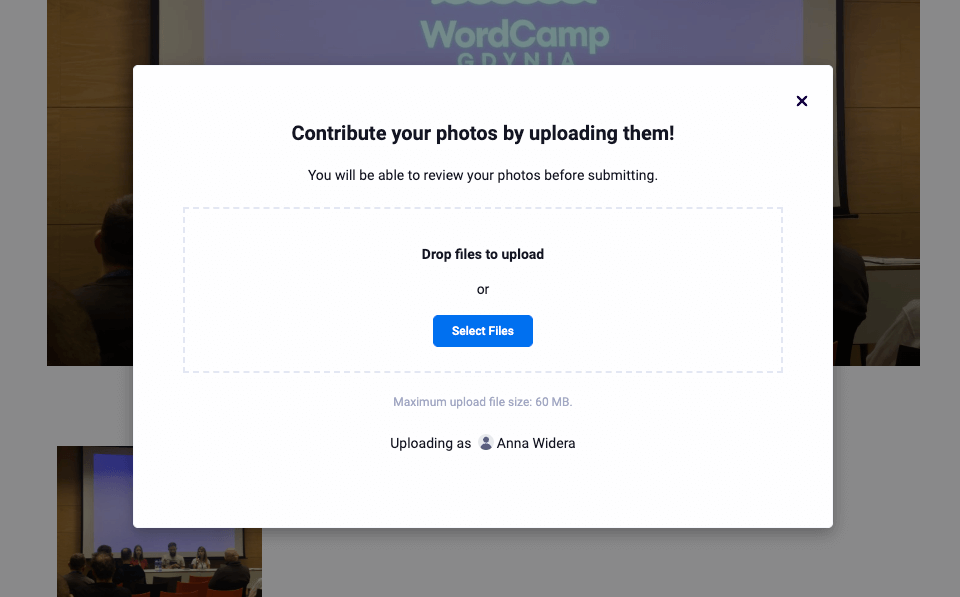

During review, contributors can:
- See the images they have uploaded but not yet submitted
- Remove files uploaded by mistake
If terms are enabled, submission is blocked until the terms are accepted.

Admin Review and Approval Workflow
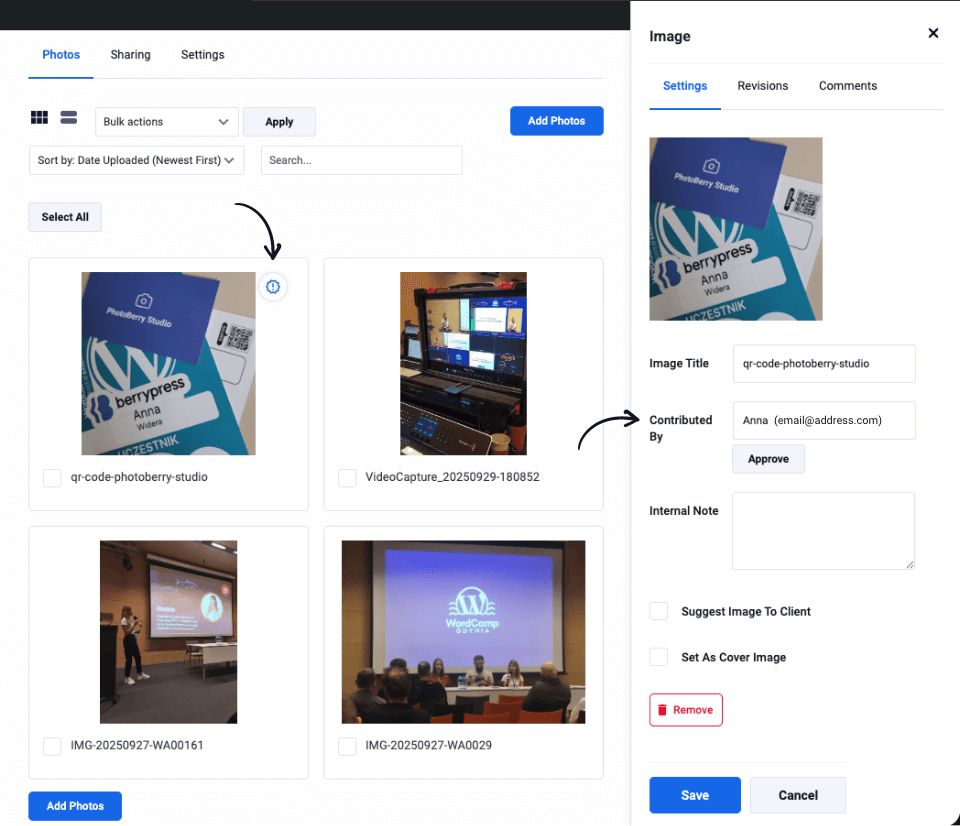
If approval is required, new images appear with an exclamation mark (!) badge.
You can approve images by:
- Using Bulk Actions
- Hovering over an image and clicking the check icon
- Opening the image settings panel
Admins receive in-dashboard and email notifications when new images are submitted.
This Feature Is Not Just for Events
Frontend Contributions supports many real-world workflows beyond events.
- Weddings and private events
- Conferences and meetups
- Photographer-client collaboration
- Creative teams and agencies
- Internal team documentation
- Community and nonprofit projects
- Education and workshops
Free vs Pro
- PhotoBerry Studio Free includes galleries, sessions, proofing, comments, and downloads. Download for Free
- Frontend Contributions (guest uploads) are available only in PhotoBerry Studio Pro View More
Final Thoughts
Frontend Contributions removes friction, keeps everything in one place, and gives you full control over how images are collected and shared.
Whether you are organizing an event, working with clients, or collaborating with a team, this feature provides a clean, WordPress-native solution that simply works.
If you decide to try it, we would love to hear how you use it in your own workflow!
PS: If you want to stay informed about new features, feel free to subscribe to our newsletter: Subscribe to our newsletter